window.dataLayer = window.dataLayer || []; function gtag(){dataLayer.push(arguments);} gtag('js', new Date()); gtag('config', 'UA-206511945-1');
Search
Categories
Uncategorized

Track Salon Expenses and Compare Costs with Service Profitability

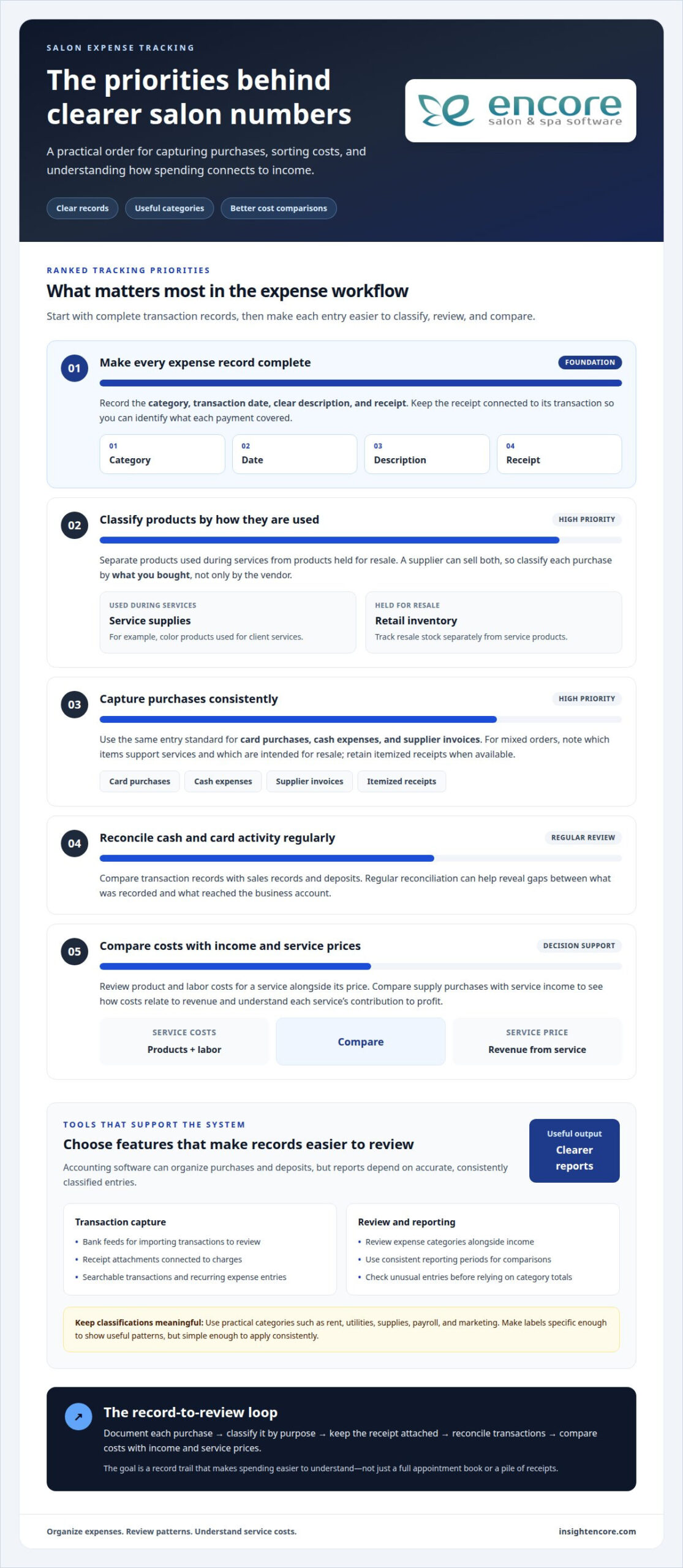
A full appointment book doesn’t automatically mean your salon keeps more of what it earns. The best way to track salon expenses is to record each business purchase with its date, category, description, and receipt, then regularly compare expenses with income and service costs.

Receipts and small purchases can easily slip through during a busy week. A consistent system makes spending easier to understand and helps you see whether services cover their product and labor costs.

This guide explains how to organize expense records, capture receipts, use accounting software, and keep transaction records in order. You’ll also learn how to compare costs with service profitability, so the numbers can support clearer business decisions.

Key Takeaways

  • Choose accounting software that makes salon spending easier to organize and review alongside income.
  • Keep receipts connected to clear expense records so purchases are easier to understand later.
  • Separate retail inventory from products used during services to see where costs belong.
  • Compare the product and labor costs of each service with its price to understand its contribution to profit.
  • Reconcile cash and card transactions regularly to spot gaps between sales records and deposits.

Accounting software features for expense tracking

Salon accounting software turns individual purchases and deposits into organized records. Its value comes from making expenses easier to classify, review, and compare with income.

Expense Tracking Features

Expense tracking tools can capture purchases, assign categories, and connect transactions to supporting records. This structure helps salon owners distinguish recurring costs from one-off spending. For example, categorize color used for services as a service supply, while retail products for resale belong in inventory records. Clear categories help reports reflect what the business actually spends.

Useful tools may include bank feeds, receipt attachments, searchable transactions, and recurring expense entries. A bank feed can import transactions for review, while an attached receipt shows what a charge covered. Check imported entries carefully: one supplier may sell both backbar products and retail stock, which need different classifications. Consistent labels make comparisons more meaningful.

Software can organize income and spending into bookkeeping reports. For example, review supply purchases alongside service income, then investigate changes without sorting through a pile of receipts. Keep categories specific enough to reveal useful patterns, but simple enough to use consistently. A short list, such as rent, utilities, supplies, payroll, and marketing, is easier to maintain than dozens of overlapping labels.

Reporting Features

Reporting tools summarize recorded transactions into views of income, expenses, and financial activity. Use a defined reporting period to see which expense categories changed and how those changes relate to revenue. A profit-and-loss report, for example, groups income and outgoings for review instead of leaving every purchase as an isolated entry.

Reports are only as useful as the records behind them. If a supply purchase is mistakenly entered as equipment, the category totals can mislead. Review unusual entries and compare reports across consistent periods. The Internal Revenue Service states that the U.S. self-employment tax rate is 15.3%, comprising Social Security and Medicare taxes. The Internal Revenue Service also states that, in the United States, self-employed people file Schedule SE when net earnings are $400 or more. Organized records can make tax preparation more manageable, but software reports do not replace tax advice.

Plan options and pricing differ by the tools included, the number of users, and whether a business needs bookkeeping alone or salon operations features too. Compare what each plan covers, such as transaction records, reports, inventory, or appointment management, rather than choosing by name alone. The salon software pricing page is relevant when assessing plan options. Avoid paying for functions your workflow won’t use, and consider whether a salon-specific system can keep service and retail activity together.

Before choosing software, list the records you need to maintain: purchases, deposits, expense categories, and reports. Then check whether the system keeps those records easy to find and export. Accounting software supports expense tracking; Encore Salon & Spa Software can also connect financial activity with day-to-day operations. The right fit depends on whether your priority is bookkeeping, salon workflows, or a combination of both.

Recording expense categories, dates, descriptions, and receipts

A useful expense record includes a clear category, transaction date, description, and receipt. These details help you understand what each payment covered and find its supporting document later.

Setting Up Expense Categories

Expense categories group similar salon purchases so you can review spending by purpose. Start with labels that match real transactions, such as rent, utilities, beauty supplies, payroll, and marketing. A manageable set keeps records easier to maintain and reports readable. Add a category only when it distinguishes a meaningful type of spending from existing labels.

Keep category names distinct. For example, separate equipment purchases from routine supplies instead of placing both under a broad “salon costs” label. This helps show whether a transaction supports ongoing operations or a specific purchase. Review categories as the business changes, such as when you add retail products or a new service, and remove labels that no longer fit.

Customizing and Categorizing Expenses

Custom categories let you organize expenses around your services and purchasing habits. A beauty salon might separate color products from skincare supplies, while a business with retail sales could track resale stock separately from products used during services. This detail helps reveal where spending goes without creating a separate label for every supplier.

For each transaction, choose the category that reflects what you bought, not just the vendor’s name. A supplier may sell both retail items and backbar products, so the same vendor can appear in more than one category. Apply the same rule consistently. This makes comparisons useful across seasons, even as service demand and purchasing patterns shift.

Recording Expense Details

Each expense record should include its category, date, description, and receipt details. Use the transaction date shown on the receipt, then describe the purchase clearly, such as “hair color for client services” rather than “store purchase.” Attach or file the receipt with the record so the document and transaction stay connected.

Capture enough detail to identify each purchase later. For a mixed order, note which items supported services and which were intended for resale. If a receipt lists several products, keep the itemized document rather than recording only the total. A consistent naming format, such as supplier plus purchase purpose, makes searches faster and reduces confusion during bookkeeping reviews.

Set a simple standard for every entry: category, date, concise description, and receipt. Apply it to card purchases, cash expenses, and supplier invoices. When a record lacks one of those details, resolve it while the purchase is still familiar. A structured expense record helps owners trace a transaction from the bank statement to its business purpose. An organized way to manage salon records can support that routine.

Tracking salon costs and service profitability

Compare service revenue with the product and labor costs tied to each appointment, then account for shared overhead. The best way to track salon expenses also makes those costs useful for understanding which services contribute to profit.

Common Monthly Costs

Monthly costs are recurring expenses that keep a salon operating. Tracking them separately helps you see which commitments take the largest share of revenue and how much remains for other needs. Common categories include rent, utilities, supplies, payroll, marketing, insurance, and payment processing.

Costs vary with salon size and location.

Review each category on its own. Location, space, staffing, and purchasing patterns affect which expenses weigh most heavily on your salon.

Inventory, Product, and Supply Costs

Inventory records distinguish products held for resale from supplies used to perform services. Track retail stock as inventory, and record the cost of items sold as cost of goods sold. Backbar products consumed during appointments are operating costs, not resale stock.

For example, record shampoo sold to a client as retail inventory, but track color used during an appointment as a service supply. Compare purchases and product use with the services performed. If an appointment uses more product than expected, its margin can shrink even when revenue looks strong.

Service profitability compares what a service earns with its direct product and labor costs. Use the same method to compare services and see which contribute more toward shared expenses such as rent and utilities.

Potentially deductible salon costs are ordinary and necessary business expenses under Section 162 of the Internal Revenue Code. Keep records for rent, supplies, utilities, and payroll, and separate personal spending from salon transactions. A profit-and-loss report detailing income and outgoings can help a tax preparer review the business’s records.

Track tips separately from service revenue and payroll entries. Tips are taxable income that self-employed salon operators must report. To assess service profitability, connect labor and product costs to the work that generated them, then review those figures alongside shared overhead. That’s the best way to track salon expenses for this purpose.
Track Salon Expenses and Compare Costs with Service Profitability

Recording receipts and expenses regularly

A regular bookkeeping routine keeps salon income, spending, and receipts connected while details are easy to recall. Reconcile daily sales, then set aside time each week to update expense records and review cash flow.

Daily reconciliation gives you a timely view of money received. Compare the point-of-sale settlement and counted cash with the bank deposit, and investigate differences while the day’s transactions are still familiar. For example, a card sale recorded by the salon but missing from the settlement needs attention before it is mistaken for an expense or overlooked income.

Use your weekly bookkeeping session to collect receipts and enter outstanding purchases. Photograph paper receipts so the records remain accessible if the originals fade or get misplaced. Connect each image to its payment and add a short description, such as “color order for appointments.” This context makes reports clearer than a vendor name alone.

A dependable routine can follow this sequence:

  • Gather paper receipts, emailed invoices, and card notifications from the week.
  • Match each purchase to the bank or card transaction.
  • Record the expense under the appropriate category and attach its receipt.
  • Review income, spending, and available cash for unusual changes.

A weekly review helps you spot a supplier charge entered twice, a missing receipt, or a purchase assigned to the wrong category. It also creates a useful rhythm for tracking bills due and deposits expected. Cash flow is easier to understand when records include both money received and payments made, not just expenses.

Keep a short list of unresolved items during each review. A transaction with no receipt, an unclear card charge, or a deposit that differs from the sales record should stay visible until resolved. Note what needs attention, then update the entry when you find the supporting details. This prevents unexplained items from disappearing into a general expense category.

At the end of the week, review the updated records together, not just the latest receipt. Compare income with spending, scan category totals for unexpected changes, and check whether upcoming payments could affect operating cash. A brief note can explain a noticeable shift, such as a larger supply order or a quiet booking period. That context makes future reports more useful.

Daily reconciliation and weekly bookkeeping serve different purposes: one checks transaction accuracy, while the other keeps records complete. Together, they provide a repeatable view of cash flow and make reporting less dependent on memory at month-end.

Salon expense tracking and transaction records

Transaction records connect salon sales, expenses, and deposits across bank accounts, cards, and payment processors. Consistent reconciliation helps you identify missing deposits, duplicate entries, and unexplained differences.

Receipts and Tax Records

Tax records are documents that support the income and expenses reported by a U.S. salon. Keep receipts, supplier invoices, bank and card statements, sales reports, and payroll records together so each entry has supporting evidence. These documents show where reported figures came from and make a tax preparer’s review more straightforward.

Connect records to specific transactions. For example, match a supply invoice to its payment and expense entry, and retain sales reports showing income received. Organize files by date or accounting period, with clear names such as “supplier invoice” or “daily sales report.” Each record should make the business purpose and amount understandable without relying on memory.

Reconciling Accounts and Payment Records

Reconciliation compares recorded transactions with bank statements, card activity, and processor settlements. A salon’s sales total may differ from the amount deposited because of payment timing, refunds, or processing adjustments. Compare the point-of-sale settlement and counted cash with the bank deposit each day, then investigate differences promptly.

Use a separate bank account for salon transactions and keep personal spending in a personal account. Match each deposit to the sales record, and compare card batches with processor reports instead of assuming every sale appears as a separate bank deposit. Several card payments may be grouped into one settlement, so compare the batch total with its related transaction details.

For a practical reconciliation, review these records together:

  • The salon’s point-of-sale report for the day’s sales, refunds, and payment types.
  • The processor settlement showing card transactions and adjustments.
  • The counted cash and the amount prepared for deposit.
  • The bank activity showing deposits and other account transactions.

Record the reason for each difference, such as a refund, timing delay, or bank fee, and match it to supporting documentation. If a processor settlement doesn’t match recorded card sales, inspect the batch details before changing the bookkeeping entry. This preserves the original sales record and makes any adjustment traceable.

Reconcile card and bank activity regularly, and complete the cash-to-deposit comparison daily. That cadence gives salon owners and stylists a clearer transaction trail, while a shareable profit-and-loss report can summarize income and outgoings for tax preparation.

Explore salon management tools

Encore Salon & Spa Software

Encore Salon & Spa Software brings salon operations together in one management platform, with tools for point-of-sale transactions, inventory tracking, and client management. If expense records feel disconnected from daily sales or product movement, these tools can help organize related business activity in one system.

Encore Salon Software, Encore Spa Software, Chair/Booth Renter Software, and Tattoo Studio Software serve different business settings. Choose the option that fits your operation, then use its management tools to support clearer tracking of sales and inventory alongside your expense-recording routine. Software can organize activity, but accurate categories and regular reconciliation remain essential to reliable bookkeeping.

If you’d like to discuss how Encore can support your salon’s recordkeeping, contact Encore Salon & Spa Software.

Make Your Records Work for What’s Next

Decide what you want your financial records to help you see. A clearer view can guide decisions about service mix, purchasing, staffing, and where to focus. The best way to track salon expenses is to build a routine you can sustain and use when decisions arise. Treat your records as a management tool, not just an end-of-year task.

As your salon evolves, revisit whether your tracking setup still reflects the way you work. New services, changing product use, or a different staffing model can make old categories less useful. Adjust the structure when it no longer supports the decisions you need to make, while keeping the process simple for your team to follow.

Explore how Encore can fit your salon

With a clear system in place, you can make decisions with greater confidence and a stronger understanding of your business.

Frequently Asked Questions

What expenses should a salon track?

Track every business outlay, including recurring bills, one-time purchases, subscriptions, and payment adjustments. For example, record a replacement styling tool separately from a routine supply order, and note refunds or supplier credits against the related transaction. Include costs paid by card, bank transfer, or cash. A complete expense picture helps you understand where money goes and how costs change as your salon’s services and operations evolve.

How do you set up a salon expense tracking system?

Choose one recordkeeping method, define categories that match your salon’s operations, and decide who enters and reviews transactions. For example, a salon manager could record purchases while the owner reviews entries and outstanding items each week. Use a consistent naming approach for digital receipts, such as supplier and purchase purpose. Keep the process simple enough for every team member who handles salon spending to follow.

What is the best bookkeeping software for salons, and how should you compare prices?

The right fit depends on whether you need bookkeeping alone or tools that also support salon operations. Compare what each plan includes, how pricing is structured, and whether it suits your team and location needs. A salon management platform such as Encore can bring point-of-sale activity and inventory tracking into salon workflows. Focus on the functions you’ll use regularly, rather than choosing software by its plan name alone.

How should salon expenses be categorized for bookkeeping and taxes?

Use categories that describe the business purpose of each purchase, and keep personal spending separate. If an order includes products for client services and items for resale, split the transaction across the appropriate records using the receipt’s item details. Apply the same approach to refunds and supplier credits, linking each adjustment to its original purchase. Clear, consistent entries help your bookkeeping reflect salon activity without treating every payment to one vendor alike.

How to track salon payroll, commissions, and tips

Record wages, commissions, and payroll taxes as payroll expenses, and track tips as income because self-employed salon operators must report them as taxable income. Payroll typically consumes 40 to 60 percent of gross revenue.

Disclaimer

This article is general in nature and may contain errors, please verify all claims with your sales rep
Categories
Uncategorized

Pet Grooming Appointment Confirmations and Reminders

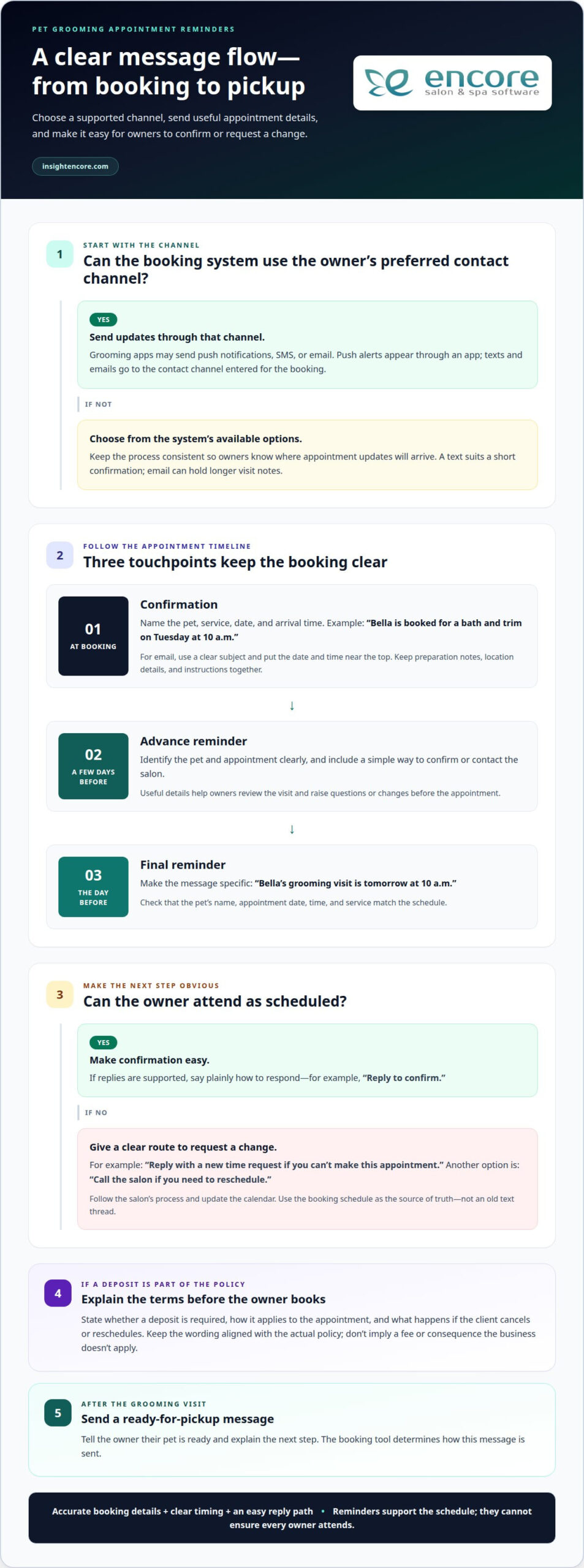
Yes, grooming scheduling apps can send appointment reminders by push notification, SMS, and email. A pet grooming appointment confirmation text can acknowledge the booking, followed by a reminder a few days before the visit and a final text the day before. The exact sequence depends on the app and the salon’s setup.

A full grooming calendar is easier to manage when pet owners know what’s booked and when to arrive. Clear messages can also explain what to prepare before the visit and let owners know when their pet is ready for pickup.

This article explains how grooming apps send reminders and what to include in confirmation, pre-visit, and pickup texts. You’ll also see how timing, message details, and the booking system shape the process, so you can create a smoother experience for clients and staff.

Key Takeaways

  • Choose reminder channels that fit how your clients prefer to receive appointment updates.
  • Make each message useful by clearly stating the appointment details and any preparation the owner needs to know.
  • Use reminders to make it easier for clients to act if their plans change, helping you manage your schedule.
  • Set a clear process for confirming, cancelling, or rescheduling so replies don’t get lost.
  • Send a pickup message that tells the owner their pet is ready and explains the next step.

Automated appointment reminders by push notification, SMS, and email

Grooming apps can send appointment updates through push notifications, SMS, or email. A message sequence can start at booking, continue a few days beforehand, and end with a text the day before.

Text and Email Confirmations

At booking, an automated confirmation gives the owner a written record of the appointment. A pet grooming appointment confirmation text can name the pet, service, date, and arrival time. For example: “Bella is booked for a bath and trim on Tuesday at 10 a.m.” The owner can quickly spot an incorrect date or service.

An email confirmation can include the same essential details in a more spacious format. Use a clear subject, such as “Bella’s grooming appointment is confirmed,” and put the date and time near the top. Keep preparation notes, location details, and instructions together so the owner can find them without searching through unrelated booking messages.

When choosing a channel, consider the owner’s preferred contact details and the booking tool’s options. A text suits a short confirmation, while email can hold longer visit notes. Some systems automatically send either format after booking. Make sure the message matches the appointment saved in the schedule, including the selected service and any timing changes.

Text Reminders and No-Shows

Automated reminders give owners another prompt to review an upcoming visit. A useful sequence may include a reminder a few days ahead and a final text the day before. Each message should identify the pet and appointment clearly. “Bella’s grooming visit is tomorrow at 10 a.m.” is more actionable than a generic reminder.

Reminders can reduce avoidable confusion, but they can’t ensure every owner attends. Make each text easy to act on by including a clear way to confirm or contact the salon. If the booking tool supports replies, explain how to respond in plain language. This gives owners who can’t attend a chance to raise the issue before the appointment.

Choose push notifications, SMS, or email based on the options your booking system supports. Push alerts appear through an app, while texts and emails go to the contact channel entered for the booking. The tool you use also determines how a ready-for-pickup text is sent. Keep the process consistent so owners know where appointment updates will arrive.

Before activating automation, review each message from an owner’s perspective. Confirm that the pet’s name, appointment date, time, and service are easy to understand. Then check the timing settings against the booking flow: confirmation after booking, an advance reminder, and a final reminder the day before. Clear scheduling and accurate details make reminders more useful to clients and staff.

Reducing missed appointments

A missed grooming visit leaves a gap in the schedule and can disrupt staff planning. A clear reminder process gives owners time to confirm plans, ask questions, or request a change. For example, a reminder can invite a reply if the owner can’t bring Max at the scheduled time.

Start by making the booking details accurate. Record the owner’s preferred contact method, the pet’s name, and the appointment time. Then make the next step clear in each message. “Reply to confirm” gives the client a direct action, while “Call the salon if you need to reschedule” explains another option.

Make schedule changes easy to communicate

Owners may miss appointments because plans change, not because they forgot. A simple way to cancel or reschedule helps them tell you before the appointment begins. If your software records appointment changes, use that schedule as the source of truth. This helps staff avoid relying on an old text thread when preparing the day’s appointments.

Keep the wording consistent across booking messages and reminders. For example, a message might say, “Reply with a new time request if you can’t make this appointment.” Staff can then follow the salon’s process and update the calendar. A clear process is more useful than a vague request to “get in touch.”

Set deposit expectations clearly

A deposit may be part of a grooming business’s booking policy, but explain the terms before an owner books. State whether a deposit is required, how it applies to the appointment, and what happens if the client cancels or reschedules. Don’t bury those details in a reminder sent after the booking is complete.

If a client pays by credit card, show the deposit information alongside the booking details. For example: “Your appointment is held once the booking deposit is paid. See our cancellation policy for rescheduling details.” Use wording that matches your actual policy. Clear terms help owners make an informed decision and prevent confusion later.

Keep the policy practical for staff, too. A grooming salon might record whether a deposit was received and whether the appointment changed. This gives the team a useful reference when reviewing the day’s schedule. Don’t let a generic automated message imply a fee or consequence that your business doesn’t apply.

Review the process from the owner’s perspective. Can they identify the appointment, understand the deposit terms, and communicate a change? For your business, a reliable routine means keeping messages, booking records, and staff actions aligned. Use automation to support that routine, then have staff handle replies that need personal attention. The goal is fewer avoidable gaps, not a promise that every client will attend.

What should a pet grooming appointment confirmation text include?

A useful confirmation lets an owner check the booking without searching through earlier messages. Keep the details specific, readable on a phone, and consistent with the appointment record. For example, “Milo is booked for a bath and trim on Tuesday at 10 a.m.” immediately identifies the pet, service, date, and time.

Include the salon name so the sender is recognizable, especially when an owner receives messages from several businesses. Add the appointment location if the salon has multiple locations or uses a separate drop-off entrance. For a mobile grooming visit, make the address or agreed meeting point clear.

Choose details that help the owner prepare and arrive at the right time. If the grooming visit requires a particular arrival instruction, state it plainly. Keep extra notes focused. A long block of care advice can hide the appointment information, while a concise message makes the essentials easier to scan.

Make the next step clear

Tell the owner what to do if a detail looks wrong or plans change. For example, “Reply to this text if you need to change your appointment” gives a clear route. Use that wording only if replies are monitored and the salon can act on them. Otherwise, provide the correct contact method in the message.

If confirmation requires an owner response, say so directly. “Please reply YES to confirm Milo’s appointment” is clearer than “Please respond.” Don’t ask clients to confirm if the booking is already treated as final. The message should match the salon’s actual booking process.

Keep the message easy to scan

Put the pet’s name and appointment details near the beginning. Use separate sentences for the service and any preparation note. For example, “Milo is booked for a bath and trim on Tuesday at 10 a.m. Please bring his vaccination records.” Include health or care instructions only when they apply to that visit.

Avoid unclear shorthand, unexplained abbreviations, and details that could confuse owners. Write “10 a.m.” instead of a compressed time code. Check names carefully, especially when an owner has more than one pet. A message addressed to the wrong pet can make an otherwise accurate appointment feel uncertain.

Before sending, compare the confirmation with the saved booking. Check the owner’s contact details, pet name, service, location, and appointment time. A client management system can keep those records together, helping staff use consistent details across messages. The final text should answer the owner’s basic questions: which pet, what service, where, and when?

Pet Grooming Appointment Confirmations and Reminders

When should a groomer send an appointment confirmation text?

Send the confirmation as soon as the booking is recorded. This gives the owner a written reference while the appointment is still fresh. For example, if Jordan books Luna’s bath during a phone call, a confirmation afterward lets Jordan review the date and time. If a detail looks wrong, there’s time to correct the schedule.

Use the appointment date to plan the next messages. A practical sequence is confirmation at booking, a reminder a few days before, and a final text the day before. Each message serves a different moment: the first records the commitment, the advance reminder helps owners plan, and the last brings the visit back to mind.

Timing also depends on how far ahead the client books. If someone schedules well in advance, the confirmation provides an immediate record, while later reminders renew attention as the visit approaches. If a client books close to the appointment date, send the confirmation promptly and avoid a reminder arriving after the visit. Review message timing against the calendar before enabling automation.

Appointment changes need attention, too. If a client moves a visit from Tuesday to Thursday, the old date should no longer appear in future messages. Send an updated confirmation after staff records the change. Then make sure any remaining reminders refer to Thursday. This prevents a client from receiving conflicting details about Luna’s appointment.

Choose reminder timing that gives clients a useful chance to respond. A text sent the day before can prompt an owner to raise a scheduling conflict before arriving. A reminder a few days ahead leaves more room for planning. The right spacing depends on how clients book and how the salon handles changes, not on one universal schedule.

Coordinate automated messages with staff communication. For example, if a groomer has already called about a timing adjustment, the schedule and next text should reflect that conversation. Review the appointment record before sending a manual update. This small step keeps the calendar, staff notes, and client messages aligned.

Set aside time to test the sequence with a sample booking. Check when the confirmation arrives, whether the advance reminder uses the correct appointment date, and whether the final text arrives before the visit. Also test a changed appointment. These checks can catch timing errors before they affect a client’s real booking.

For a ready-for-pickup message, send it when the pet is actually ready. The grooming business’s booking tool determines how that text is sent. Keep pickup timing separate from appointment reminders so owners don’t mistake a visit confirmation for a collection notice.

How can clients confirm, cancel, or reschedule a grooming appointment by text?

Clients can reply to the salon’s appointment message with a clear request. A confirmation might say, “Yes, I’ll bring Milo for his bath and trim.” For a cancellation, the owner can write, “Please cancel Milo’s grooming appointment.” A rescheduling request should name the pet and ask for another available time.

Clear replies help staff identify the right booking. An owner with more than one pet should include the pet’s name and appointment details. For example, “Please move Luna’s grooming visit” is easier to understand than “Can I change it?” If the owner has a preferred day, they can include it as a request, not as a confirmed appointment.

Clients should use the reply method stated in the salon’s message. If it invites text replies, respond in the same thread. If it directs owners to call, follow that instruction instead. A text sent to an automated number may not reach staff, so the message should explain whether replies are monitored and what to do next.

A cancellation text should state the owner’s request plainly. “Please cancel Max’s appointment” is more actionable than “We can’t make it.” Include the scheduled service or date if the thread contains multiple bookings. That extra detail helps staff find the correct calendar entry and avoid changing another pet’s visit by mistake.

For rescheduling, ask for a new time rather than treating a suggestion as a confirmed change. For example, “Could we move Bella’s appointment to Thursday?” tells the salon what the owner wants. Staff can then check the schedule, offer an available option, and send a revised confirmation after recording the change.

Owners should look for a response that confirms the requested action. A cancellation reply should make clear that the booking was cancelled. A rescheduling reply should identify the new appointment details. If no response arrives, use the salon’s stated contact method instead of assuming the calendar has changed. This prevents confusion if the owner arrives for an appointment that still appears booked.

For grooming businesses, use a consistent process for handling replies. Staff can review the message, locate the client and pet record, update the appointment, and send a clear response. Keep the schedule aligned with the conversation. If a request needs follow-up, record it for the team rather than leaving it buried in a text thread.

Texting works best when the salon’s instructions are simple and its replies reflect the updated booking. Clear options help clients communicate changes, while a written confirmation gives both sides a shared record of the next step.

Encore Salon & Spa Software

Encore Salon & Spa Software helps businesses organize bookings and client information in one management platform. For pet groomers, this can support a consistent process for recording appointments and keeping client details accessible. Clear records help staff manage booking changes and keep client communications aligned with the schedule.

Consider Encore when reminders, booking details, and client records feel scattered across separate tools. Encore offers Encore Salon Software, Encore Spa Software, Chair/Booth Renter Software, and Tattoo Studio Software for those business types.

Contact Encore Salon & Spa Software to discuss your business needs.

Build a smoother booking routine

Use each pet grooming appointment confirmation text as part of a consistent client experience, not just as a reminder. A clear process gives your team a reliable way to manage bookings, keep client information organized, and respond when plans change. As your workflow evolves, reviewing how appointment records and communication fit together can reveal practical ways to reduce friction for staff and pet owners.

Encore Salon & Spa Software offers Encore Salon Software, Encore Spa Software, and Chair/Booth Renter Software. These tools support businesses that want to bring key management tasks into a more organized workflow.

Explore Encore and take the next step

Small improvements to your booking routine can make each visit easier to coordinate. Keep refining the process to create a calmer experience for your team and clients.

Frequently Asked Questions

Do grooming scheduling apps send reminders?

Yes, grooming scheduling apps can send reminders through push notifications, SMS, and email, depending on their settings. The best channel depends on how each owner receives booking updates. An app notification may suit someone who regularly uses the booking app, while email can hold longer visit notes. Review the contact details and communication preferences saved for each booking so updates reach the intended recipient.

What are confirmation text examples for dogs and cats?

A pet grooming appointment confirmation text for a dog could say: “Hi Sam, Rocky is booked for a bath and nail trim on Thursday at 9 a.m. Reply if you have a question.” For a cat: “Hi Lee, Poppy’s grooming visit is set for Monday at 2 p.m. Please bring her carrier to drop-off.” Adjust the service and instructions to match the pet’s actual visit.

How do I confirm a pet grooming appointment by text message?

Reply using the method the salon’s message requests. If it asks for confirmation, send a direct response such as, “Yes, I confirm Charlie’s appointment.” Include your pet’s name if you have more than one animal booked. Keep the original message thread, then read any reply from the salon. If the message doesn’t explain how to respond, use the contact method the salon provided.

How do I write a friendly, professional grooming confirmation text?

Use a warm greeting, the owner’s name, and the pet’s name, then keep the wording clear and natural. For example: “Hi Morgan, we’re looking forward to seeing Scout for his grooming visit. Your appointment is booked for Wednesday at 11 a.m. Please reply if you have a question.” Avoid jokes or overly familiar language that may not suit every client. Keep personal details relevant to the visit.

How should I handle no-shows and late cancellations in grooming texts?

Respond calmly and follow the salon’s stated cancellation policy. For a late cancellation, acknowledge the message and ask whether the owner wants to request another appointment. For a missed visit, send a neutral follow-up, such as, “We missed you and Bailey today. Would you like to arrange another visit?” Record the outcome in the appointment record. Don’t imply a penalty unless it applies under the salon’s policy.

What confirmation text templates work for new and returning clients?

For a new client: “Hi Alex, welcome to the salon. We’ve booked Pippin for a grooming consultation on Friday at 1 p.m. Please reply if you have questions before the visit.” For a returning client, a pet grooming appointment confirmation text might say: “Hi Alex, Pippin’s next grooming visit is booked for Friday at 1 p.m. We look forward to seeing you both.” Tailor each message to the booking.

Disclaimer

This article is general in nature and may contain errors, please verify all claims with your sales rep

Categories
Uncategorized

How to manage walk-ins and appointments with shared scheduling

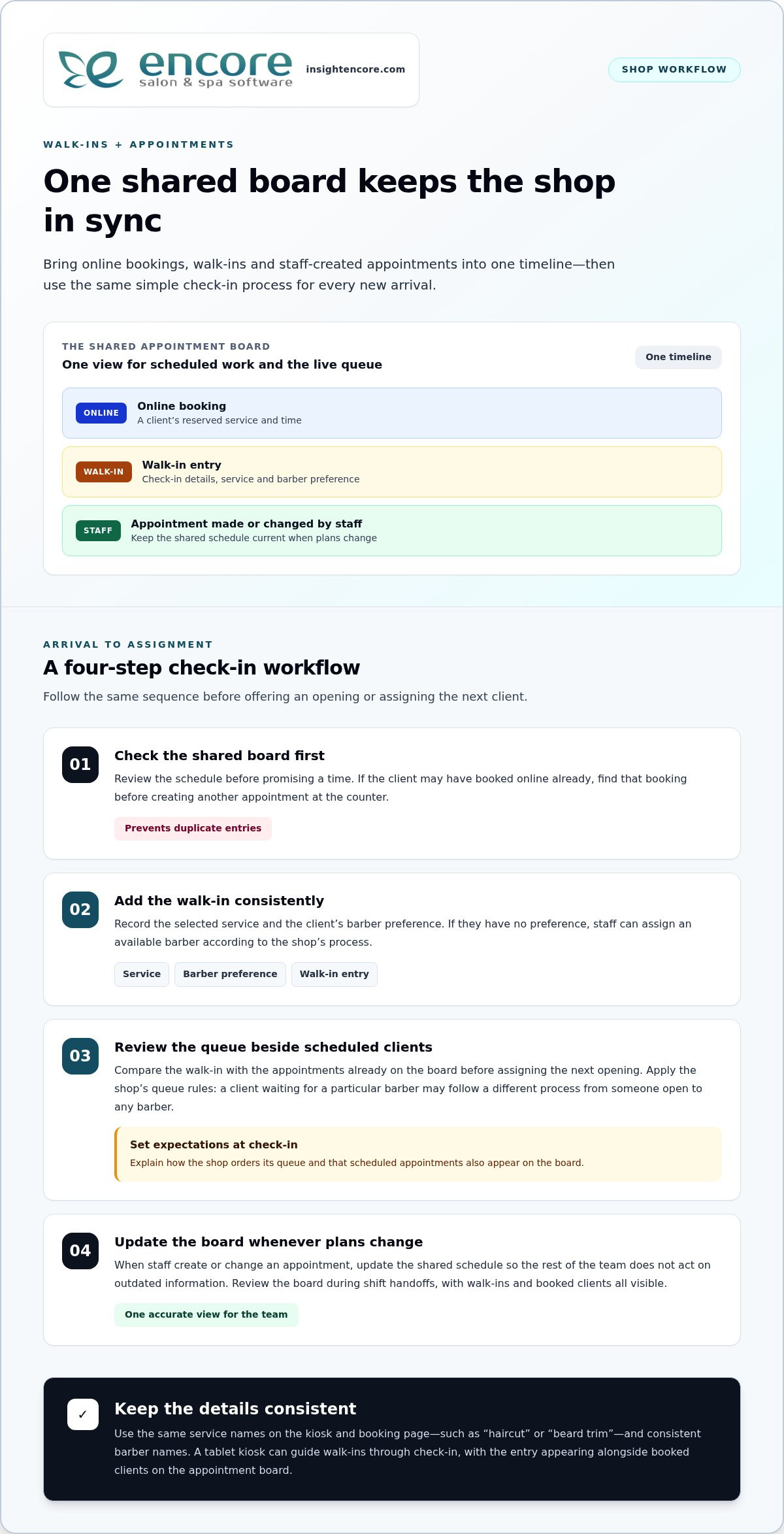
Walk-ins and booked appointments are easier to manage when staff track both in one shared schedule. A walk-in is a visit requested without a time booked in advance, while a scheduled client has reserved a specific time. Seeing both in one place helps staff track who’s waiting, what’s coming up, and where an opening appears.

It’s frustrating when walk-ins feel ignored or booked clients arrive to find the schedule running behind. A clear process helps you welcome both, set realistic wait-time expectations, and respond consistently to late arrivals and no-shows. This guide explains how to manage walk-ins and appointments with shared scheduling, from deciding when to fit in an unscheduled client to keeping the queue visible and updating the calendar as plans change. You’ll also learn how to avoid the confusion of separate systems, so your team can make practical decisions without losing sight of the clients already waiting.

Key Takeaways

  • Keep booked visits and walk-in requests visible in one schedule so staff can see the day’s demand at a glance.
  • Set a clear process for fitting walk-ins into available gaps while keeping customers with booked times informed.
  • Track late arrivals, cancellations, and no-shows to make timely schedule updates and use openings effectively.
  • Use one shared system to reduce confusion about queue order, waiting times, and the next available appointment.
  • Review walk-in patterns and scheduling gaps to shape a process that suits your services and busy periods.

1. What is a Walk-in Appointment?

A walk-in is a service visit requested without a time booked in advance. A scheduled appointment gives a client an agreed start time. Walk-in clients join the service queue on arrival and wait for an available staff member. For example, a salon guest asking for a quick trim might wait, while a colour service is booked ahead. Both visits need a clear place in the day’s schedule.

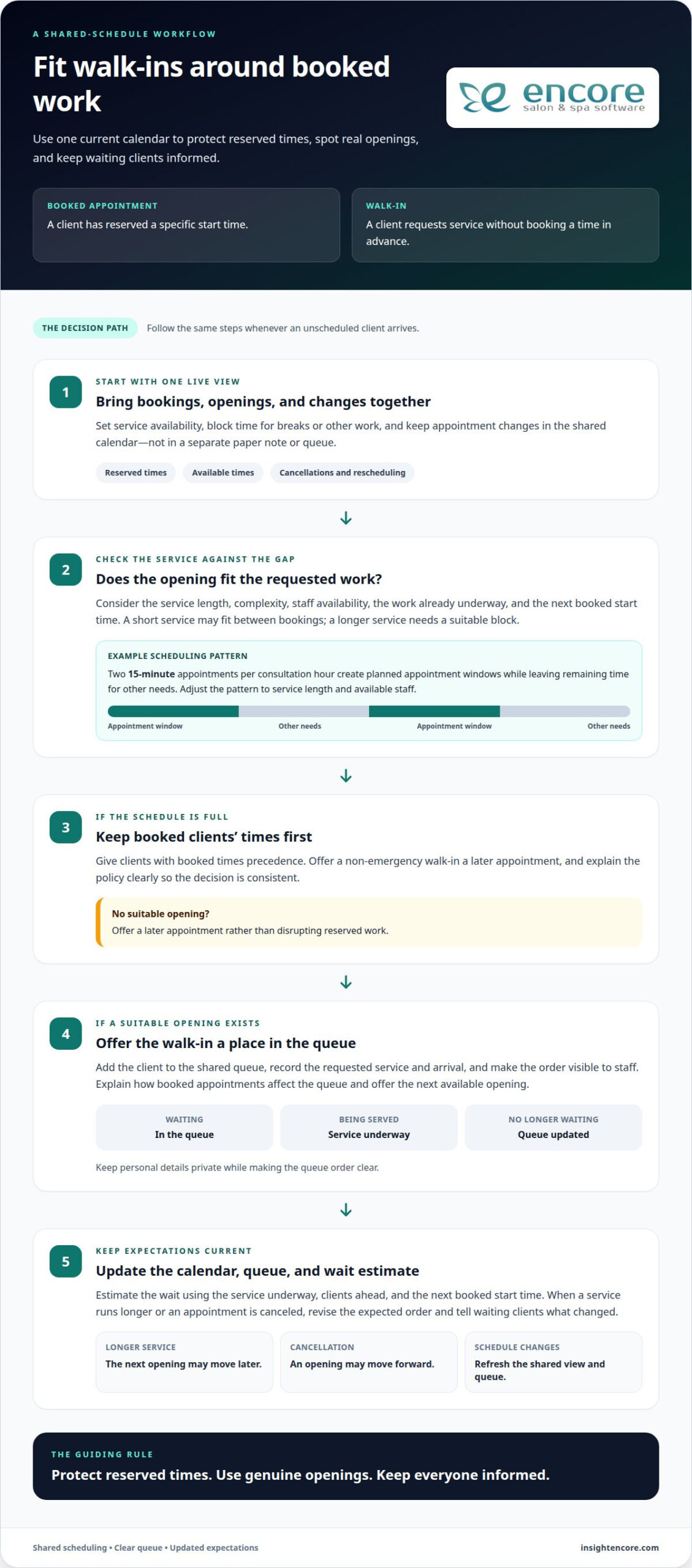
Online booking lets clients choose an available service time before arriving. A shared calendar can show scheduled appointments alongside walk-in availability, instead of splitting them across notebooks, screens, or separate lists. Staff can record a walk-in’s name, requested service, arrival time, and queue status. Marking the client as waiting, being served, or no longer waiting gives the team a current view of demand and helps prepare for the next service.

A visible queue makes the order clear to staff and clients. Use one list to show who is waiting and which clients have appointments, while keeping personal details private. When a walk-in arrives, add them to the queue and explain how appointments affect the order. Serve a booked client at their scheduled time when possible, and offer a walk-in the next available opening. This reduces uncertainty about who is next.

Set aside walk-in capacity based on staff availability, service length, and when clients tend to arrive. Keep those openings visible alongside scheduled appointments, then adjust the allocation as demand and service durations become clear. For example, a team can protect longer booking blocks for colour services and use gaps between them for shorter walk-in requests. The right balance depends on the services you offer and your day-to-day demand.

Appointment scheduling software can show appointment status, cancellations, and rescheduling in real time. Online booking tools also display appointments at a glance and update the calendar when plans change. This shared view helps staff spot an opening, offer it to someone waiting, or update the queue after a cancellation. When an appointment runs late, staff can revise the expected order instead of relying on a separate queue that no longer matches the calendar.

Give walk-ins a realistic wait estimate based on the service underway, the clients ahead, and the next booked start time. If any of those details change, update the estimate and tell waiting clients what changed. For instance, a longer service may push back the next opening, while a cancellation may bring it forward. A visible, consistently updated queue helps clients understand when they may be served and helps staff coordinate walk-ins with the booking calendar.

2. Using online appointment software to view and update schedules

Online appointment software gives staff a working view of booked visits, available times, and changes. Set service availability, block time for breaks or other work, and customize scheduling rules to match your operations. When a client books, the schedule shows the reserved time. When plans change, update the calendar instead of relying on a separate paper note. This helps the team make decisions using the same current schedule.

Should walk-ins or appointments receive priority? When the schedule is full, give clients with booked times precedence and offer a non-emergency walk-in a later appointment. If the calendar has an opening, staff can invite the walk-in to wait and explain that calling ahead can help with future visits. A consistent policy makes the decision clear and supports calm communication with the waiting client and those already booked.

For businesses deciding how to manage walk-ins and appointments, start by checking whether an opening fits the requested service. A short service may fit between bookings, while a longer or more complex service needs a suitable block. In one wave-based example, a business schedules two 15-minute appointments per consultation hour. That structure creates planned appointment windows while leaving remaining time for other needs. Adjust the pattern to the service length and available staff.

The right approach depends on the business. Salons, medical practices, legal services, and financial services may use appointments for work that takes longer or requires preparation. A business with simpler, immediate services may leave more room for walk-ins. For example, a salon can reserve time for complex work and fit shorter requests around those bookings. The calendar should reflect actual service needs, rather than treating every visit as the same length.

Advance booking helps staff plan workloads, allocate people, and prepare for expected demand. It also gives clients a reserved time. The trade-off is that a tightly booked calendar leaves fewer openings for unscheduled visitors. Walk-in access can make service more immediate, but an unexpected rush may create longer waits and disrupt planned work. Software helps staff see availability and apply consistent rules as conditions change. Review bookings, walk-in requests, and unused gaps to refine your approach.

A useful way to decide how to manage walk-ins and appointments is to distinguish genuine openings from time needed for booked work. For example, when a dental practice has a full schedule, it can offer a non-emergency walk-in a later appointment. If a suitable opening exists, staff can offer the visitor the chance to wait for the dentist. These choices protect reserved times while making use of available capacity.

3. Service businesses that handle both booked and walk-in customers

Salons, healthcare providers, dental practices, and professional services can serve scheduled clients and walk-ins. Advance bookings help teams plan service flow and allocate staff, supplies, and workstations. Walk-ins offer access for clients who need service sooner, but a rush can cause crowding and unpredictable waits. A business can balance both by reserving appointments for longer services and leaving suitable openings for shorter requests.

Estimate staffing needs by reviewing booked services, their durations, and which staff members are qualified to perform them. Then compare those commitments with recorded walk-in patterns from the last week or month. If a salon sees more unscheduled requests during quieter mid-morning periods, it can schedule coverage accordingly. This approach helps avoid idle staff during quiet periods and overloaded teams when booked clients and walk-ins arrive together.

Service type should shape the balance. A salon may book colour work in advance because it takes longer, while considering shorter services for walk-ins when time allows. Healthcare and dental practices can use appointments to organize planned visits while maintaining a clear process for unscheduled clients. Businesses with lower demand or services clients often need immediately may rely more on walk-in access. The schedule should fit the work, not force every visit into one model.

Confirmations and reminders help clients prepare and let staff plan for expected visits. Appointment software can send confirmations and reminders by email, SMS, or app notification. Automated reminders can help reduce no-shows, while flexible rescheduling gives clients a way to change plans before their appointment. If a cancellation opens a slot, staff can update availability and offer it to someone waiting or seeking an earlier booking.

Wait times affect the client experience, especially when people can’t tell how the line is moving. Give waiting clients an estimate based on the services ahead and current staff availability. If a booked appointment is running late, communicate the change rather than leaving walk-ins and scheduled clients guessing. A visible, consistently updated queue helps staff manage customer flow and gives each person a clearer sense of when they may be served.

Build a review into the routine. Spend 10 minutes each week examining whether the queue held up, how many appointments were missed, and whether customers left because of the wait. Look for patterns, such as walk-ins arriving while staff are tied up with longer booked services. Adjust staffing, booking availability, or reminders to address the specific pressure point. A Client Management System can also help staff keep customer details organized alongside service history, supporting more informed communication with repeat clients.

How to manage walk-ins and appointments with shared scheduling

4. Tracking walk-ins, late arrivals, and no-shows

A shared schedule is more useful when every visit has a clear status. Record whether each client is booked, waiting, being served, late, cancelled, or absent. For walk-ins, note their arrival and requested service; for appointments, update the record when the client arrives. These simple steps show which openings are genuine and help staff understand why the schedule is changing.

Track walk-in volume and arrival times over the last week or month. Compare those patterns with appointment demand and staff availability. For example, if records show a cluster of walk-ins during a quiet period, managers can consider adjusting coverage or available booking times. Keep the review practical: identify when waits grow, which services take longer than planned, and whether clients leave before being served.

Set a consistent grace period for late appointments. A salon might use a 10 to 15 minute window, then decide whether the remaining service can fit without disrupting the next booking. If it cannot, offer a shorter service, a later opening, or another appointment time. Explain the same policy when booking and at arrival, so clients know how lateness may affect their visit.

Clinics can use a 10-to-15-minute grace window to assess late arrivals against the appointment schedule. Staff should consider the visit’s purpose, the time still available, and the effect on patients already waiting. If the appointment no longer fits, rescheduling or placing the patient on a wait list can protect later visits. For repeated late arrivals, apply the clinic’s stated scheduling policy consistently and communicate the next available option.

No-shows also need a clear record. Mark the missed visit promptly, then use the open time for an appropriate walk-in or another client seeking an earlier appointment. A 15% to 20% no-show rate can leave appointment-only clinics with idle staff time and unfilled capacity. Review missed visits alongside cancellations and rescheduled bookings to see whether reminders or easier rescheduling could address a pattern.

Use confirmations and reminders to help clients remember their bookings. Automated appointment reminders can reduce no-shows, while SMS or email messages give clients a convenient way to review visit details. When a client cancels, update the calendar immediately and offer the opening to someone waiting, if the service and staff are a good fit. This keeps the schedule aligned with the actual day rather than an outdated list.

At the end of each day, compare booked visits, walk-ins, late arrivals, and absences. For example, a salon can note whether a late colour appointment affected later clients, then adjust future booking blocks. A clinic can review whether rescheduled late patients returned for care. Consistent records turn individual disruptions into useful scheduling information and help teams make fair, informed decisions.

5. Problems caused by separate appointment and walk-in systems

Separate calendars create two versions of the same business day. A receptionist may record a walk-in on a paper list while appointments remain in scheduling software. If a client cancels, the opening may appear in one place but not the other. Staff could then miss a chance to offer that time to someone waiting or accidentally promise the same slot twice.

Queue confusion can damage trust even when staff are working steadily. A walk-in who waits 45 minutes without knowing their place may feel overlooked, especially if another customer appears to be served first. The problem may be a booked appointment, not a queue jump, but separate records make that distinction hard to explain. Showing staff one current view helps them clarify who is next and why.

Split systems also make wait estimates less useful. If the walk-in queue doesn’t account for booked services, staff can overlook how long those appointments will occupy the team. A client may hear “a few minutes,” then wait much longer because a service runs over or an urgent request changes the order. Before sharing an estimate, account for booked work, clients already waiting, and available staff.

Staffing decisions become less reliable when demand is divided between a booking calendar and a walk-in log. A manager may see a quiet appointment schedule and assign fewer people, while the separate queue shows several waiting clients. The reverse can happen too: a full appointment book may hide a cancellation that leaves a staff member free. Combining records helps managers match coverage to actual work and reduce unplanned gaps.

Separate records can also weaken follow-up. If a walk-in’s details sit only on a clipboard, staff may not connect that visit with the client’s booking history or future appointment. If a booked client doesn’t arrive, a separate queue may not show whether a waiting client could use the opening. Record cancellations, arrivals, and service completion in one shared workflow so each change informs the next scheduling decision.

Usable time going unfilled can affect revenue, but filling every gap isn’t always the right choice. A short opening may suit a quick service, while a longer appointment needs more preparation and staff time. Use one calendar to compare the opening with the requested service before offering it. This keeps the decision grounded in capacity instead of treating every cancellation as an available slot.

To reduce these problems, bring bookings and walk-ins into one daily view, update changes as they happen, and explain the reason for delays. Then review cases where the queue and calendar disagreed. A shared process won’t remove every delay, but it gives staff a reliable basis for decisions and clearer explanations for clients.

Explore shared scheduling options

Encore Salon and Spa Software

Encore Salon and Spa Software helps salons, spas, chair and booth renters, and tattoo studios organize appointment booking and client information. If separate booking and walk-in records make it harder to see availability or keep client details together, Encore’s software supports a more coordinated scheduling process. Choose Encore Salon Software, Encore Spa Software, Chair/Booth Renter Software, or Tattoo Studio Software to suit your business type. These tools are a practical next step when you’re ready to bring appointment management into daily operations and manage client information more easily.

Contact Encore Salon and Spa Software to discuss your scheduling needs.

Build a scheduling process that can grow with your business

Deciding how to manage walk-ins and appointments is an ongoing part of running a service business. As your services, staffing, and client patterns change, revisit how your team handles bookings and walk-in access. A process that works today should make it clear how staff record requests, offer available times, and communicate changes to clients.

When you’re ready to bring appointment booking and business management into one platform, Encore Salon and Spa Software offers solutions for salons, spas, and chair or booth renters, including Encore Salon Software, Encore Spa Software, and Chair/Booth Renter Software. Choose the option that fits your business and supports how you serve clients.

Connect with Encore Salon and Spa Software

Take the next step toward a clear, workable scheduling routine for your team. You can create a better flow for clients one practical change at a time.

Frequently Asked Questions

What is a Walk-in Appointment?

A walk-in is a visit requested without a previously reserved time. The client arrives and asks to be served based on current availability, rather than checking in for a specific booking. For example, a salon guest who drops by for a service without booking beforehand is a walk-in. The business can decide whether to serve them immediately, add them to a waiting list, or offer another time.

What is the best way to balance walk-ins and scheduled appointments?

Use service length and staff availability to decide how much room to leave for unscheduled visits. A short service might fit between longer bookings, while a treatment requiring preparation needs protected time. Review actual demand patterns and adjust the schedule when particular periods regularly become crowded or stay quiet. Make the approach clear to staff so clients with similar requests receive consistent options, rather than different answers from different team members.

How can staff manage walk-in queues and appointment check-ins efficiently?

Give staff one routine for recording arrivals, checking booking details, and noting any service changes. For example, check in a client by confirming their name and requested service, then mark them as arrived. Keep queue access visible to the team, but don’t display private client details publicly. If several staff members handle check-ins, use the same status labels so everyone knows whether a client is waiting, being served, or has left.

What appointment scheduling and queue management tools work for small businesses?

Small businesses can use online appointment software that combines a calendar with a way to record walk-in requests. Look for practical functions such as setting available times, blocking unavailable periods, and changing bookings when plans shift. The right fit depends on how staff take bookings and manage arrivals. A small salon, for instance, benefits from a schedule that shows the team its bookings and current walk-in demand without requiring separate records.

How should businesses communicate wait times and appointment delays to customers?

Share an estimate based on the work ahead, then explain promptly if a change affects it. For example, tell a waiting client that a service is taking longer and provide an updated estimate, rather than letting the original expectation pass without comment. If a booked client will be delayed, contact them using the method associated with their booking. Clear, direct updates help clients decide whether to wait, reschedule, or return later.

What are typical no-show, late-arrival, and walk-in policies?

Policies often explain how customers can cancel or reschedule, what happens if they arrive late, and how the business handles walk-in order. There’s no single rule that fits every service. A salon might set a 10-to-15-minute grace period, then decide whether the booked service still fits the remaining time. State the policy during booking and apply it consistently, while offering practical alternatives when the original slot no longer works.

What are the risks of accepting too many walk-ins or appointments?

Too many bookings can leave staff without enough time to complete services carefully, while excessive walk-ins can create crowded waiting areas and unpredictable delays. This pressure can also disrupt preparation, breaks, and transitions between clients. Watch for signs such as repeated schedule overruns, clients leaving before service, or staff rushing between tasks. Adjust available booking times or walk-in capacity to address the specific bottleneck instead of adding demand indiscriminately.

How do walk-in and appointment policies differ by industry, such as healthcare, salons, and restaurants?

Policies reflect the type and urgency of the service. Healthcare practices may need to assess whether an unscheduled concern requires timely attention; emergency rooms are intended for serious, often life-threatening issues. Salons can distinguish brief services from longer work that needs planned time. Restaurants typically coordinate arrivals with seating and table availability. In each setting, explain how walk-ins are handled and what options clients have when immediate service isn’t available.

Disclaimer

This article is general in nature and may contain errors, please verify all claims with your sales rep
Categories
Uncategorized

Nail Salon Appointment Reminder Text Examples for Clients

A useful nail salon appointment reminder text puts the client’s name, appointment date and time, salon name, and any important service details in one clear message. Send a booking confirmation as soon as the appointment is made, then send the main SMS reminder about 24 hours before the visit. Make it easy for clients to confirm or get in touch to change their booking.

Reminders don’t need to feel like extra admin or a cold, automated nudge. A short text can bring an appointment to mind, while an email gives you room for longer arrival instructions or forms. Choose the format according to what clients need to know and how much detail the visit calls for.

Find ready-to-adapt nail salon reminder examples, guidance on choosing text or email, and practical tips for automating messages without losing a warm, personal tone. You’ll also learn which appointment details to include so clients can arrive prepared and know what to do if their plans change.

Key Takeaways

  • Choose SMS for a brief, timely nudge and email when clients need fuller instructions or forms.
  • Set up a reminder schedule that confirms bookings and gives clients a simple way to reply about changes.
  • Include the details clients need to recognize the appointment, such as the salon name, date, time, and service.
  • Adapt message templates to the visit and your salon’s tone, keeping instructions clear and easy to act on.
  • Use nail salon software to bring appointment management and reminders into a more organized workflow.

Are Text Messages or Emails More Effective for Appointment Reminders?

Ask clients to reply “C” to confirm or “R” to reschedule, and include your salon’s phone number or email for help. For example: “Hi Maya, please confirm your nail appointment Thursday at 2 p.m. Reply C to confirm or R to reschedule. Call [salon number] with questions.”

Text and email serve different purposes. SMS reminders make a short appointment prompt easy to notice. Email works well for extra details, such as intake forms or arrival instructions. Choose the channel according to what the client needs to act on, not simply the message length.

Start with a booking confirmation immediately after the appointment is made. Include the client’s name, date, time, salon name, and a simple reply option. Then send the main text reminder about 24 hours before most salon visits. A confirmation helps clients catch a wrong date or time early, before it becomes a missed appointment.

Situation: A client realizes they can’t make a Thursday booking. Action: They reply “R” to the reminder, which directs them to call the salon or email to reschedule. Result: The client has a clear next step instead of leaving the message unanswered. Keep the reply route visible in every reminder, including email.

State your cancellation and rescheduling terms before clients need to use them. One sample salon policy asks for 24 hours’ notice for cancellations; a different sample charges a 50% service fee for cancellations within 24 hours. These are examples, not universal rules. Match your reminder wording to the policy you actually use, and explain how clients can contact you to change a booking.

Two-way messaging makes it practical for clients to get in touch. They may reply with a question about the appointment, ask to change the time, or cancel. Make the expected response clear: “Reply R to request a new time, or call [salon number].” If replies aren’t monitored, direct clients to a channel that is. Don’t invite a text response and leave clients unsure what happens next.

Situation: A client forgets a morning appointment despite an earlier confirmation. Action: A short same-day message repeats the time and gives the salon’s contact details. Result: The client can quickly flag a problem or confirm the plan. Send a same-day reminder when it adds useful information, not automatically without a purpose.

Keep SMS concise. A standard text can hold up to 160 characters; emoji and some symbols can reduce that limit to 70 characters. Longer texts may split into multiple segments. Put the appointment details and reply instructions first, then move longer preparation notes into an email. This keeps the essential action easy to find.

Benefits of automated appointment reminders

Automation turns each confirmed booking into a reliable reminder sequence. Instead of writing messages between appointments, staff can focus on clients in the salon. A reminder system can use booking details to send the right information at the planned time. That consistency helps clients remember their visit and gives them a clear way to respond.

Situation: A technician finishes a busy shift and hasn’t sent reminders for tomorrow. Action: An automated workflow schedules messages using the booking details. Result: Clients receive timely prompts without staff having to remember each appointment. For a long, costly, or preparation-heavy visit, send an earlier reminder two or three days ahead.

Automation also reduces repetitive confirmation work. Confirming 200 appointments by phone takes about 10 hours a month, or 120 hours a year. A salon can instead automate a reminder with appointment details and a reply route. Staff can then focus their calls on clients who need help changing a booking.

Do nail salons need client consent to send appointment reminder texts? A message about a genuinely booked appointment is service communication rather than marketing. Keep the text focused on the booking, and don’t add promotional content to a service reminder.

What are the TCPA rules for automated appointment reminder texts in the United States? The Telephone Consumer Protection Act governs text message communications in the United States. Keep automated reminders specific to the appointment, and treat promotional messages as a separate communication.

Google Calendar can help staff remember appointments, but a calendar alert and a client text serve different purposes. Set a Google Calendar notification as an internal prompt for the technician or front desk. Use a client messaging workflow to send the appointment reminder. For example, a calendar alert can prompt staff to prepare for a complex appointment, while the client receives the visit details directly.

Automated reminder software is most useful when its process is easy to maintain. Set up and test these essentials:

  • Trigger a message when a booking is created or changed.
  • Use the client’s recorded appointment details, not a copied template with old information.
  • Include a clear reply route, such as “Please call the salon to reschedule.”
  • Review the message whenever appointment instructions or salon policies change.

Situation: A client books a service that needs preparation. Action: The system sends an advance reminder with the relevant instructions and contact details. Result: The client has time to prepare, while staff avoid sending each message manually. Keep “minutes early” instructions tied to the actual appointment, such as “Please arrive 15 minutes early for check-in,” when that timing applies.

Automation works best as a dependable routine, not a substitute for personal help. Use personalized wording, keep messages relevant to the booking, and clearly tell clients when to call. That balance saves staff time while giving clients a straightforward way to respond.

Including appointment date, time, and service

Personalize each message with the client’s name and accurate booking details. A nail salon appointment reminder text should identify the salon, appointment date and time, and service when appropriate. Add the nail technician’s name if it helps the client recognize the booking.

Make the date and time easy to understand at a glance. Write the weekday, calendar date, and time rather than relying on phrases like “tomorrow afternoon.” That wording can become confusing if a client reads the message later. Include the salon’s business name in the message or sign-off so clients know who sent it.

Use the booking record to choose details that help the client prepare. A practical reminder can include:

  • The client’s first name and salon name.
  • The appointment date, start time, and service.
  • The nail technician’s name, when assigned.
  • A phone number or other clear route to cancel or reschedule.

Keep the service description useful and brief. “Gel manicure” gives the client a clearer cue than “appointment,” while a detailed service menu can distract from the date and time. If a team member is assigned, include their name only when the booking record shows that assignment. Don’t copy details from an old message.

Situation: A client has booked a manicure with a preferred nail technician. Action: The reminder includes the client’s name, service, technician, appointment details, and salon sign-off. Result: The client can recognize the booking and spot a mismatch quickly. Personalization depends on accurate appointment information, not just a friendly greeting.

For example: “Hi [Client Name], your [Service] with [Technician Name] is booked for [Weekday, Date] at [Time]. [Salon Name]. Need to cancel or reschedule? Please call [Phone Number]. We look forward to seeing you!” Fill each bracketed field using the current booking. Keep the contact details readable, and use “see you soon” only if it suits your salon’s tone.

Review the message from the client’s point of view before using it. Can they identify the business, service, date, and time without opening another message? Can they find the phone number if plans change? Use these questions to spot vague time references, missing service details, or an unclear reply route.

For a returning client, a familiar greeting can feel warm without crowding the reminder. Use their name and relevant appointment details, then save extra conversation for the in-person visit. A concise message helps each client focus on what matters: where to go, when to arrive, and how to contact the salon.

Nail Salon Appointment Reminder Text Examples for Clients

Appointment reminder text templates

Use templates as a starting point, then fill in every detail from the scheduled booking. A reusable message should still sound personal and fit the appointment. Replace each bracketed field before sending, and remove any instruction that doesn’t apply.

Standard text reminder: “Hi [Client Name], [Salon Name] is looking forward to seeing you for [Service] on [Date] at [Time]. Reply to confirm, or call [Phone Number] to reschedule.” This template gives clients the essential details and a clear next step. Keep the salon name visible, especially when clients may not have saved the number.

First-visit text: “Hi [Client Name], your first [Service] at [Salon Name] is scheduled for [Date] at [Time]. Please arrive 5 minutes early. Call [Phone Number] if you need help.” The five-minute arrival suggestion comes from a sample first-visit reminder. Use it only if it fits your salon’s check-in process. Situation: A new client isn’t familiar with the salon. Action: The reminder adds a brief arrival instruction. Result: The client knows what to expect before leaving home.

Nail appointment text: “Hi [Client Name], your [Nail Service] with [Stylist Name] is scheduled for [Date] at [Time]. Please reply to confirm. We look forward to seeing you, [Salon Name].” Add the stylist’s name when the booking assigns one. If the service or stylist changes, update the template fields before sending. This helps prevent an otherwise polished message from containing outdated details.

Appointment reminder email: “Subject: Your [Salon Name] appointment on [Date]
Hi [Client Name],
Your [Service] with [Stylist Name] is scheduled for [Date] at [Time]. [Add relevant arrival instructions or preparation details here.] To change your booking, call [Phone Number] or reply to this email.
We look forward to seeing you,
[Salon Name]”

Email gives you room to explain useful instructions without crowding the reminder. Situation: A service needs more preparation information than a short text can comfortably hold. Action: Send the appointment summary by email and keep the SMS brief. Result: The client can find both the booking details and additional instructions in one organized message.

Before creating templates, decide which fields are essential and which instructions depend on the service. Use software or a saved draft to keep approved wording consistent, but review every scheduled message for the correct date, time, service, stylist, and contact route. A template supports accurate communication; it doesn’t replace checking the booking record.

Read the final text as a client would. “Your appointment is tomorrow” can be unclear when forwarded or read later; “[Weekday, Date] at [Time]” stays specific. Keep the greeting warm, the details easy to scan, and the reply instruction direct. Adapt these examples to your salon’s voice without adding promotional offers to a service reminder.

Nail salon reminder text examples

Match each message to the service and when it arrives. A manicure reminder can focus on the booking, while a day-of text can emphasize arrival. Keep promotional marketing separate from appointment details so clients can quickly spot the information they need.

Gel manicure: “Hi [Name], your gel manicure at [Salon Name] is booked for [Date] at [Time]. Reply to confirm, or call us to change your appointment.” Situation: A client has a standard service scheduled. Action: Send a concise text with the service and booking details. Result: The client can recognize the appointment and respond without searching through emails.

First visit: “We’re looking forward to your first visit, [Name]. Your [Service] at [Salon Name] is [Date] at [Time]. Please arrive 5 minutes early.” Situation: A new client may need time to check in. Action: Add the early-arrival note to the reminder. Result: The client sees the instruction before heading to the salon. Use this timing only when it matches your check-in plan.

Day-of reminder: “Hi [Name], we’ll see you today at [Time] for your [Service] at [Salon Name]. Please arrive 10 minutes early. Reply or call us if plans change.” A sample salon day-of reminder uses a 10-minute early arrival request. Situation: The appointment is approaching. Action: Send a brief message with the time and instruction. Result: The client gets a useful final prompt.

Nail color preparation: “Hi [Name], your nail appointment at [Salon Name] is [Date] at [Time]. You can choose your nail color when you arrive. We look forward to seeing you.” This nail salon reminder example invites clients to choose their color on arrival. Include that detail if it reflects your salon’s process. Leave gratuity or payment notes out unless clients need them for this booking.

For longer instructions, use an email instead of squeezing details into one text. For example: “Your [Service] is booked for [Date] at [Time]. Please review these arrival notes: [Instructions]. Reply to this email or call us if you need to reschedule.” Situation: The appointment needs additional directions. Action: Send the details by email and use SMS for the key prompt. Result: Clients can forward the email or revisit it as they prepare.

Keep reminders service-focused. A discount or referral offer is marketing, not an appointment detail. If you choose to share a promotion, place it in a separate message. A sample rebooking promotion offers 10% off when clients book that week, but use an offer only when it matches your salon’s actual promotion.

Before sending, read each example as a client would. Confirm that the service, date, time, salon name, and contact route match the booking. Replace every bracketed field and remove instructions that don’t apply.

Explore appointment management tools

Encore Salon and Spa Software: Nail Salon Software

Encore Salon and Spa Software offers Nail Salon Software to help salons manage appointments and client information more efficiently. Online booking lets clients make appointments, while a Client Management System keeps client records connected to salon operations. Together, these tools support a consistent process for preparing clear appointment messages with accurate booking details.

Consider this option when appointment information is spread across separate processes or staff need a clearer view of bookings and client records. The right setup can bring routine salon management into one platform while preserving the personal tone clients value in reminders.

If you’d like to discuss how Encore Salon and Spa Software may fit your nail salon’s workflow, contact Encore Salon and Spa Software.

Make Every Reminder Part of a Better Client Experience

A dependable reminder routine can become part of the client experience, from booking through the next visit. Treat each nail salon appointment reminder text as a small point of connection: clear, timely, and easy to respond to. As your schedule changes, refine your templates to reflect how your team welcomes clients and handles appointment updates.

When you’re ready to bring more structure to salon operations, Encore Salon and Spa Software offers Encore Salon Software, Encore Spa Software, and Chair/Booth Renter Software. Choose the solution that fits your business, then build a workflow to help your team manage client appointments more smoothly.

Explore the next step for your salon.

Contact Encore Salon and Spa Software

Keep your messages personal and your process clear. A thoughtful reminder can help each client feel welcome before they arrive.

Frequently Asked Questions

How Can You Remind Your Clients About Their Salon and Spa Appointments?

Use a confirmation and reminder sequence that fits the booking. Send confirmation immediately, then choose text for a brief prompt or email for longer instructions. For example, a client booked for a manicure can receive a concise text, while a visit requiring preparation details may call for an email. Make the appointment easy to identify, and give clients a clear way to reach the salon if plans change.

How many SMS reminders are too many?

There’s no single number of reminders that suits every schedule, so avoid repeated texts without a useful purpose. A practical approach is to confirm the booking, send the main reminder, and add a same-day message only when it provides helpful information. For instance, a day-of text can clarify arrival instructions. If a client has already replied, don’t send another generic prompt that ignores their response.

Should a beauty treatment name appear in the message?

Include the service when it helps the client recognize or prepare for the appointment. “Gel manicure” is more useful than a vague “appointment” when a client has several bookings. For a medspa reminder, keep sensitive treatment information out of the message. Avoid specific treatment names, pricing, and clinical details. Identify the booking without disclosing more than the recipient needs.

Should an Appointment Reminder Include a Cancellation Policy?

Yes, include a concise reference when clients need the policy to make a decision. State the notice period and any applicable consequence in plain language, then provide a phone number or email for changes. For example, one sample salon policy requests 24 hours’ notice for cancellations. Your reminder should match the policy clients were given, rather than introducing new terms at the last moment.

When should a hair or beauty salon send an SMS reminder?

Send the main SMS reminder about 24 hours before most appointments. An earlier reminder two or three days ahead can help with a long, costly, or preparation-heavy visit. A final text one to three hours before the appointment can serve as a timely prompt when it adds value. For example, use a same-day reminder to share an arrival instruction, not simply to repeat an unchanged message.

What should a nail salon appointment reminder text say?

A nail salon appointment reminder text should name the client, salon, service, date, and time, then explain how to respond or contact the salon. For example: “Hi Alex, your gel manicure at Bright Nail Studio is Tuesday at 3 p.m. Reply to confirm or call us to request a change.” Use the correct booking details, and keep the message focused on the appointment rather than adding unrelated offers.

When should a nail salon send appointment reminder texts?

Send a booking confirmation as soon as the appointment is made, then schedule the main text reminder about 24 hours before the visit. An earlier message two or three days ahead can suit appointments that require preparation. For example, a client with a longer service can receive advance instructions, while a routine booking may need only the confirmation and main reminder. Use a day-of text only when it adds useful detail.

What cancellation and late-arrival policies should a reminder text include?

Include the salon’s actual cancellation notice period, any applicable consequence, and a direct way to request a change. Add a late-arrival instruction only if the salon has a clear policy, and tell clients what to do, such as calling if they’re running late. Don’t imply that every salon follows the same rule. Clear wording helps clients act promptly instead of guessing what happens next.

Disclaimer

This article is general in nature and may contain errors, please verify all claims with your sales rep
Categories
Uncategorized

Managing Salon Gift Card Liability Through Redemption and Breakage

A gift card sale brings in cash, not earned revenue. Under U.S. GAAP, managing salon gift card liability means recording the payment as a liability until the promised service or product is provided, then recognizing revenue when the customer redeems the card. Expected breakage follows separate rules, and expiry depends on applicable state law.

It’s easy to mistake gift card sales for income because the money is already in your account. But the salon still owes the cardholder something, so keep the balance visible until it’s redeemed or otherwise accounted for. Customer deposits also represent money received before a service, but they relate to a specific booking rather than an open-ended gift card balance.

Can software automate the tracking? It can help record sales, redemptions, and remaining balances, but the accounting treatment still depends on what the salon owes and when that obligation is fulfilled. This article explains when gift card revenue is recognized, how breakage differs from deposits, and why expiry rules can affect the liability you carry.

Key Takeaways

  • Keep prepaid gift card balances distinct from earned revenue, and recognize service revenue as the card is redeemed.
  • Separate gift card obligations from customer deposits, since each relates to a different promise the salon must fulfill.
  • Use redemption history and evidence-based estimates to assess breakage rather than treating every unused balance as income.
  • Account for state expiry and unclaimed-property rules before deciding how to handle dormant balances.
  • Gift card software can help track sales, redemptions, and outstanding balances, giving you clearer records to support accounting decisions.

Revenue recognition at redemption

Under U.S. GAAP, cash received for a gift card is a contract liability until the promised service or product is delivered. Track the balance from sale through redemption, including any partial use.

Accounting Entries for Sales and Redemptions

Accounting entries show when gift card cash arrives and when the salon fulfills its obligation. They matter because recording a sale as earned revenue too early can overstate income. For a $100 gift card, debit cash and credit gift card liability by $100. If the customer later redeems $40, debit the liability and credit revenue by $40.

The remaining $60 stays recorded as a liability until another redemption or other appropriate treatment. A digital or physical card changes how the balance is accessed, not the basic accounting sequence: record the sale, then recognize revenue as services or products are delivered.

Effects on Cash Flow, Taxes, and Statements

Gift card sales bring in cash before the salon delivers a service, while the balance sheet carries the unredeemed amount as a liability. That cash can support current operations, but spending it does not remove the obligation to serve cardholders. Tracking outstanding balances alongside cash flow helps the salon plan for future redemptions and read financial statements accurately.

Book revenue and taxable income can follow different timing. According to the Internal Revenue Service, an accrual-method salon generally includes advance payments for future goods or services in gross income in the taxable year received. Keep tax reporting distinct from the U.S. GAAP liability entry, and use the applicable accounting and tax treatment.

To encourage redemption and repeat purchases, make balance inquiries simple and send clear reminders. Digital gift cards can make balances easier to access through mobile wallets, while online and in-salon redemption options give customers more ways to use them. Prompting customers to book a follow-up appointment at checkout can help turn a gift-card visit into an ongoing salon relationship.

Connect each card sale to its balance and every redemption to a transaction record. Limit who can issue cards or adjust balances, retain receipts, and reconcile sales and redemptions against the liability ledger. If a balance doesn’t match, review the transaction history before changing the amount. This helps distinguish a processing error from unauthorized use.

If the salon closes, changes ownership, or changes its services, outstanding cards still represent customer obligations that need a clear plan. Preserve balance and transaction records, identify who will handle remaining redemptions, and communicate service changes to cardholders. The federal CARD Act provides an underlying framework for U.S. gift card regulation, while state rules also apply to unredeemed funds and expiry.

What’s the difference between gift cards and customer deposits?

A gift card creates an obligation to provide services or products to its holder, while a customer deposit is usually tied to a specific booking. For example, a $150 gift card remains available for future purchases, but a deposit for a scheduled appointment relates to that reservation. Keeping separate records helps show what the salon owes and why.

That difference matters when plans change. A customer may redeem a gift card across several visits, leaving a balance after each partial use. A booking deposit, by contrast, is applied to the named appointment under the salon’s deposit policy. If a customer misses that appointment, recognize a forfeited deposit as revenue only after the applicable policy terms are met.

Unredeemed gift card balances can also become unclaimed property, sometimes called escheat. In many U.S. states, businesses may have to report and remit unused value after a state-specified holding period. A typical period cited for state unclaimed-property rules is 3-5 years, but the governing requirements vary by state. This is a separate issue from recognizing revenue under accounting rules.

To understand which requirements apply, identify where the card was purchased and where the issuer is incorporated. The state whose rules may apply is typically the state where the card was purchased or where the issuer is incorporated. Then consult that state’s official unclaimed-property rules for reporting, remittance, and any exemptions. Some states exempt certain single-merchant retail cards from escheat, while others require remittance of qualifying balances.

State differences can affect both timing and treatment. For example, Hawaii may require reporting unredeemed gift card balances after 5 years in some cases. Some states also impose fines of up to $500 per day for escheat-law non-compliance. These examples aren’t a universal rule; a salon operating across state lines may need to track the state connected to each card.

Keep separate records for deposits and gift cards. For each gift card, retain the purchase state, sale date, original value, redemptions, and remaining balance. For each deposit, record the related appointment and the policy that governs cancellations or no-shows. These details help identify dormant balances without treating every unused amount as revenue or as a customer deposit.

A clear ledger also supports ownership changes or business closures. Keep a record of outstanding cards by state and preserve evidence of reporting or remittance. Because state rules determine whether unredeemed balances must be transferred, don’t assume an expired card automatically belongs to the salon.

When can I recognize breakage for unredeemed gift cards?

Breakage is the portion of gift card value customers are expected never to redeem. Recognize it as revenue only under an evidence-based approach, not simply because a card has gone unused.

Estimating Gift Card Breakage

Estimate breakage from historical redemption patterns for comparable gift cards, then apply that evidence consistently. An unsupported estimate can overstate revenue and understate outstanding gift card balances. The estimate should reflect actual customer behavior, including partial redemptions and how long balances typically remain unused.

One example uses $1,000 in cards and estimated breakage of 10%. That leaves a $900 redemption-eligible pool. The estimate is not a universal salon rate. A salon’s own transaction history is the relevant practice for assessing whether its estimate is reliable. Javelin estimated breakage at about 1.5% across the industry, but that figure does not establish an individual salon’s rate. Estimates should be reviewed against subsequent redemptions, so the approach reflects whether the original forecast holds up.

Recognizing Breakage as Revenue

When expected breakage can be estimated reliably, ASC 606 and IFRS 15 call for recognizing it in proportion to actual redemptions. This matters because revenue then follows customer use rather than an arbitrary date or assumption. In the $1,000 example, a $90 redemption from the $900 eligible pool corresponds to $10 of breakage recognition.

Apply the calculation consistently as customers redeem cards, and retain the data supporting both the estimated breakage and the recorded revenue. Breakage recognition under ASC 606 must be proportionate and evidence-based. For salons managing salon gift card liability, that means keeping the estimate tied to documented redemption patterns, not treating every inactive card as earned income.

Breakage and unclaimed property are separate issues. Accounting treatment addresses when revenue may be recognized; state unclaimed-property rules may require certain unredeemed balances to be reported or remitted. An accounting estimate does not erase a legal obligation. Track card balances and state-related records separately, and avoid counting the same amount as both breakage revenue and property owed to a state.

Time alone does not prove successful breakage recognition. Historical data may show when redemption becomes remote; the guide’s example timeframe for estimating patterns is 2-3 years, while breakage is typically considered after 24-36 months when redemption is deemed remote. Those periods are not automatic release dates. A disciplined approach to managing salon gift card liability uses actual redemption evidence and applicable state rules before recording revenue from unclaimed balances.

Managing Salon Gift Card Liability Through Redemption and Breakage

Recognizing revenue when gift cards are redeemed

Recognize revenue as the customer receives the promised service or product, not merely when a card is sold. Under ASC 606, redemption reduces the gift card liability and records the delivered item or service as revenue.

At redemption, apply the amount used to the customer’s transaction and reduce the corresponding liability. If a card covers only part of a salon visit, record the redeemed portion and keep the unused balance as a liability. The customer may use that remaining amount later, subject to applicable rules. This approach keeps the balance sheet aligned with what the salon still owes.

Retail purchases follow the same delivery principle. If a customer uses a gift card for shampoo, recognize revenue when the product is provided and reduce the liability by the amount applied. If the card covers both a haircut and retail items, allocate the redemption across those sales in the transaction record. This helps sales reports show which services and products customers actually received.

For memberships, account for when the salon provides the included benefits. If a gift card pays for a membership that provides services over time, the salon has not necessarily delivered every promised benefit on the purchase date. Track the card amount applied to the membership, then recognize revenue as membership services are provided. Clear records help distinguish a prepaid membership obligation from completed visits.

Promotions can create more than one obligation. A salon may sell a $100 gift card for $90, or offer a $20 bonus voucher configured as a zero-price promotional gift card with its own expiry. Keep the paid card and bonus voucher identifiable in the records. Their terms and redemption history may differ, so combining them can obscure the outstanding value and complicate revenue reporting.

Gift cards given to employees have a different tax treatment from customer cards. They are treated as supplemental wages and are generally taxable to the employee. Record employee gifts separately from customer gift card sales, and account for them through payroll records. This avoids mixing compensation with customer balances awaiting redemption.

Use a consistent checkout process for each redemption: identify the card, apply the amount used, record the service or product delivered, and preserve any remaining balance. Gift card software can connect transaction histories to outstanding balances, but accurate revenue entries still depend on recording what the customer received. Review sales reports against the liability ledger so redeemed retail items, memberships, and salon services are reflected correctly.

Gift card expiry rules

In the United States, a salon gift card generally cannot expire or must remain valid for five years. State rules can provide stronger protections, so an expiry date printed on a card doesn’t automatically settle how long the balance remains usable. Expiry also doesn’t necessarily remove an outstanding accounting liability or resolve a separate unclaimed-property obligation.

The Federal Gift Card Act was enacted in 2009, and state rules also shape expiry requirements. For example, California prohibits expiry on most gift cards, while Minnesota gift cards never expire. Hawaii gift cards cannot have expiration dates, and balances under $5 must be refundable in cash. These examples show why a salon’s policy needs to reflect the rules that apply to each card.

For compliance, connect each card to its terms and relevant state. Record where it was purchased, its issue date, its stated expiry, and its remaining balance. If a salon sells cards in more than one state, tracking applicable rules helps avoid applying one state’s policy to every customer. Keep the wording on receipts and digital cards consistent with the rules that govern those sales.

An expiry date and an unused balance are separate accounting questions. If a card reaches its stated expiry date, don’t automatically treat its full value as earned revenue. The salon still needs to consider applicable state rules, its accounting treatment, and whether unclaimed-property reporting applies. A card may be expired under its terms yet still involve a legal obligation concerning its balance.

Build a recurring review into gift card tracking. Compare outstanding balances with each card’s issue date, redemption activity, and applicable state requirements. Keep evidence of redemptions, refunds, and balance adjustments. A customer who uses only part of a card still has a remaining balance to account for, unless a lawful rule or other valid treatment applies. This review helps prevent expired cards from disappearing silently from records.

Historic practices don’t establish current compliance. Some salons once enforced a one-year expiration on gift certificates, while paper certificates could still be presented more than three years after purchase. Those examples show why old policies should not be reused without assessing current state rules. Clear expiry terms, consistent records, and state-aware handling help salons manage unredeemed value accurately.

Before changing an expiry policy, identify the states connected to card sales and review the applicable requirements for each. Then update the terms consistently across printed cards, digital cards, receipts, and sales materials. Accurate tracking supports both customer service and accounting: staff can explain a card’s status, while the books retain a record of the outstanding obligation.

Encore Salon & Spa Software: Encore Salon Software

Encore Salon & Spa Software offers Encore Salon Software for salons that want gift card sales and point-of-sale transactions within their business management setup. When gift card activity is spread across separate records, managing sales and client information in one platform can make transaction history easier to follow. Use it as an operational tool alongside your accounting process, not as a replacement for deciding when revenue is recognized or how state rules apply.

For a spa, Encore Spa Software is a related option; Chair/Booth Renter Software and Tattoo Studio Software serve those business types. Choose the solution that fits your operation and how you handle customer transactions. If you’d like to discuss whether Encore Salon Software suits your salon, contact Encore Salon & Spa Software.

Make your next gift card decision with confidence

Managing salon gift card liability is an ongoing part of running a salon, not a task to leave until year-end. Build a routine that keeps transaction records, customer balances, and accounting decisions connected. As your gift card program changes, revisit how its records fit your daily checkout and reporting process.

Encore Salon & Spa Software offers Encore Salon Software, Encore Spa Software, and Chair/Booth Renter Software. The right fit depends on your business and how you manage customer transactions. A conversation can help you explore how a salon management system may support clearer day-to-day operations alongside your accounting practices.

Explore Encore software for your business

With a consistent process and traceable records, you can manage gift card activity with greater clarity and keep your attention on the clients who make your business thrive.

Frequently Asked Questions

Can software automate this?

Software can record gift card transactions and connect card activity to salon sales, reducing reliance on separate spreadsheets. It can’t decide whether a balance qualifies as breakage or satisfies state reporting rules; those decisions depend on accounting evidence and legal requirements. For example, use transaction records to identify a balance that needs review, then document the accounting treatment separately. Encore’s Gift Cards and point-of-sale tools support operational tracking.

What happens to unused gift card funds?

Unused funds remain associated with the cardholder’s outstanding balance until redemption or another valid treatment applies. Depending on the circumstances, a salon may recognize estimated breakage under accounting rules or need to report and remit funds under state unclaimed-property rules. These are different outcomes. If a salon closes, preserve card and transaction records so outstanding obligations can be identified and handled rather than lost during the transition.

What is the IRS rule on gift cards for businesses?

For an accrual-method salon, the Internal Revenue Service says advance payments for future goods or services generally belong in gross income for the taxable year received. Financial accounting may treat an unredeemed card as an outstanding obligation until the salon provides the promised goods or services. Keep tax records and the gift card liability ledger distinct, and make sure each reflects its own purpose.

How should a salon account for gift card sales and unredeemed balances?

Record each sale against a gift card liability account, then maintain a subledger showing individual card activity. As a practical control, reconcile the total subledger balance with the general ledger at each reporting close and investigate mismatches before posting adjustments. Keep records of voided sales, refunds, and corrections with the original transaction details. This creates a traceable record for staff and supports review by the salon’s accounting professional.

What are the U.S. federal and state gift card expiration and fee rules?

The federal Gift Card Act was enacted in 2009. U.S. inactivity fees can only be charged after 12 months, and salon gift cards generally cannot expire or must remain valid for five years. State protections can be stricter: California prohibits expiry on most gift cards, Minnesota gift cards never expire, and Hawaii gift cards cannot expire. In Hawaii, balances under $5 must be refundable in cash.

Do salon gift card liabilities qualify as unclaimed property or escheat, and what state rules apply?

Yes, some unredeemed gift card balances may be reportable as unclaimed property under state rules. A typical state holding-period range is 2 to 5 years, but requirements and exemptions differ. The relevant state is typically where the card was purchased or where its issuer is incorporated. Keep purchase-state information with each card’s records, since the balance’s location can affect reporting and remittance responsibilities.

How should a salon track gift card balances, redemptions, refunds, and outstanding liability?

Assign each card a record that connects its sale, every redemption, refunds, adjustments, and current balance. Reconcile that detail to the liability account monthly, then flag exceptions such as a refund without a matching card adjustment. Preserve transaction dates and staff records for corrections. This helps distinguish a legitimate balance change from a duplicate redemption or an entry error that could distort the salon’s outstanding liability.

What salon gift card software features help manage liability and compliance?

Useful capabilities include recording gift card sales and redemptions, applying cards at point of sale, and keeping customer and transaction details available for review. Encore Salon Software includes point-of-sale transactions, client management, and gift card management. These tools can organize operational records, but they don’t replace accounting judgments or state compliance decisions. Confirm that your reporting process captures the details your salon needs for reconciliation and review.

Disclaimer

This article is general in nature and may contain errors, please verify all claims with your sales rep
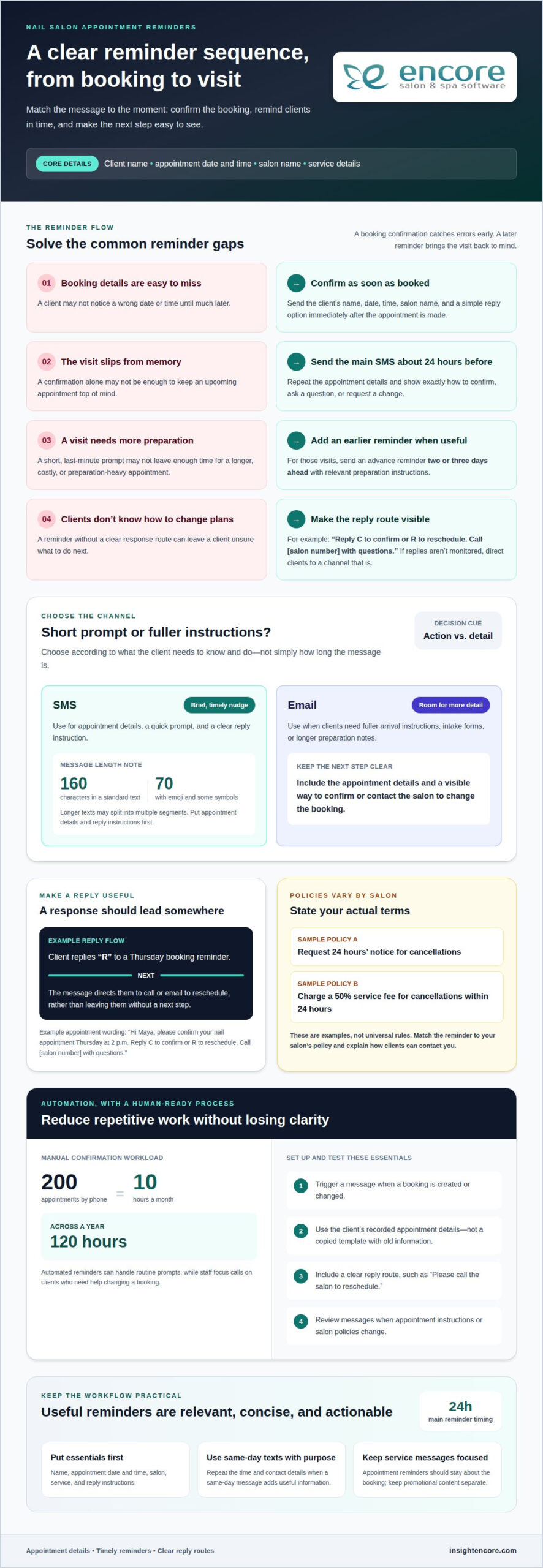
Categories
Uncategorized

Automated client follow-up for spas: Which messages should vary by service

The most effective follow-up sequence depends on the spa service. Automated client follow-up for spas works best when confirmations, reminders, and aftercare messages reflect the appointment and the client’s next need. A booking reminder helps clients arrive prepared; a post-visit message can share relevant care guidance or invite feedback.

It makes sense to reduce manual messaging without making communication feel generic. Automate the timing, tailor the content, and keep texts and emails clear, relevant, and respectful of client preferences.

This guide explains what to adapt for consultations, treatments, and return visits, with practical timing examples, such as sending post-care instructions on checkout day. You’ll also learn how to plan automated texts and emails so follow-up feels organized and personal, not like a one-size-fits-all script.

Key Takeaways

  • Match confirmation and reminder details to the appointment, so clients know what to expect and how to prepare.
  • Keep automated texts and emails relevant, clear, and aligned with each client’s communication preferences.
  • Use consultation reminders to make the next step simple, from confirming the booking to sharing useful appointment details.
  • Tailor post-visit messages to the service, separating care guidance from thank-you notes and review requests.
  • Automate routine timing while personalizing the message, so follow-up feels helpful rather than generic.

Automating appointment confirmations and reminders

Use a coordinated sequence for booking confirmations, appointment reminders, and follow-up, tailoring each message to its purpose. A spa CRM and booking system can connect client records with appointment details. A booking-only tool focuses on scheduling, while a CRM focuses on client information.

Appointment Reminder and Rescheduling Messages

Send an appointment confirmation when a client books, then schedule reminders 48 hours and 24 hours before the visit. These messages differ from post-appointment feedback requests because they prepare clients to attend, rather than asking about their experience. Include the appointment time and a clear rescheduling step, so a cancellation can prompt staff to offer the opening to another client.

Make each message useful and specific. A massage reminder can name the service and appointment time; a facial reminder can explain how to contact the spa if plans change. Send reminders by email or SMS, and make rescheduling straightforward so the calendar stays current. Two reminders can provide an earlier prompt and another closer to the appointment.

CRM and Booking System Options

A booking system organizes appointments and sends messages tied to calendar events. A CRM organizes client records and can support follow-up based on service history. A combined system connects the booking to the client record, helping coordinate confirmations, reminders, and feedback. These systems can reduce repeated data entry compared with manual messaging, but their usefulness depends on which follow-up steps they connect.

Compare systems against the tasks your spa needs to manage. Check whether booking status, rescheduling, and feedback connect in one sequence. The table highlights the practical differences.

Option Booking connection Reminder and rescheduling Post-visit feedback
Manual messages Staff sends each confirmation Staff updates changes Staff requests feedback
Booking-only system Calendar-focused Appointment-triggered messages May require separate steps
CRM Client-record focused Can use client context Supports client follow-up
Combined CRM and booking Connects client and appointment Links messages to booking changes Can continue the sequence
Email or SMS tool Depends on booking data Requires appointment details Can send a feedback request

Choose a system that connects the steps that matter most, especially booking status, reminders, and rescheduling.

For consultations, send an acknowledgment soon after the inquiry, then set appointment reminders about 24 hours and 3 hours before the visit. Keep the confirmation focused on the date, time, and next action. After checkout, schedule a feedback request for the same day or the next day. That final step can engage clients and provide a simple way to share their experience.

What rules apply to automated texts and emails?

Use automated messages to support a client’s next step, not to send everyone the same promotion. Separate appointment updates from marketing, and tailor each message to its purpose. Keep content accurate, relevant to the service, and consistent with the client’s communication preferences.

Segment contacts before sending campaigns

Start with details clients have shared, such as service interests, booking status, and visit history. Create focused email groups for distinct needs: someone asking about facials, a client with a massage booked, and a returning client considering another appointment. This keeps emails useful and helps prevent unrelated offers from reaching the wrong audience.

Before adding a contact to a promotional sequence, distinguish a direct response to an inquiry from an ongoing campaign. Reply to the service the person asked about; make later emails relevant to their interests and preferences. Record those choices and update the contact record if they change. For example, a client who booked a facial can receive appointment information, while content about other services belongs in a separate, relevant sequence.

Plan SMS, email, and call sequences

Choose the channel for the task. A text can deliver a brief appointment update, an email can carry a treatment guide, and a call can support a conversation that needs a personal response. Multi-channel sequences combining SMS, email, and calls had a 62% higher contact rate than single-channel sequences in the aesthetics and wellness sector in 2024. That finding supports coordinated outreach, not sending every message through every channel.

Give each message in a sequence a clear purpose. For a new inquiry, send an acknowledgment, then follow up with useful information about the requested service. Avoid repeating identical copy across channels. Make it easy for clients to reply or manage communication preferences, and direct questions that need a personal answer to staff.

Measure and improve email campaigns

Review delivery, opens, clicks, replies, bookings, and unsubscribes together. Many opens but few bookings may indicate that the next step isn’t clear. Clicks but few replies may mean the linked information doesn’t answer the client’s main question. Compare campaigns by audience and purpose, then adjust one element, such as the subject line or service-specific content.

Educational emails can offer treatment guides or explain what a consultation covers. Keep each message focused, such as a guide for someone exploring a facial rather than a broad list of every spa service. For review requests, the FTC’s 2024 rule bans conditioning incentives on what a review says. Ask for honest feedback without tying a reward to positive wording.

Consult booking confirmations and reminders

Review reactivation lists monthly and send inactive clients a personal message related to their last service. For example, invite someone who previously booked a facial to ask about returning instead of sending a generic promotion. Use replies to learn whether they want to book, need more information, or prefer no further messages.

Make a consultation confirmation specific to the service the client asked about. Include the appointment date, time, location details, and a clear way to reschedule. A reminder can explain what the consultation covers and what the client should bring or prepare. Name the service so someone asking about massage receives relevant details, not a generic treatment reminder.

Prepare clients with relevant treatment information

Separate appointment reminders from treatment guidance. Send treatment-specific intake and consent requests 2 to 3 days before an appointment, giving clients time to review and respond. Pre-care instructions can be sent 2 to 7 days before treatment, depending on the treatment. For example, a message for one service might focus on completing forms, while another highlights its relevant pre-care steps.

Focus the message on practical actions. State which form to complete, how to return it, and how to ask a question. If the client says they need help, route their message to a staff member rather than sending another automated reminder. This handoff gives the team a clear callback task, with the client’s service and appointment details attached.

Connect reminders to staff follow-up

Automated reminders can flag unanswered forms, rescheduling requests, or consultation questions for staff. Set a clear handoff: record the client’s reply, assign the callback to the appropriate team member, and mark the task complete after contact. If a consultation client asks about a treatment recommendation, for example, staff can respond with information relevant to that appointment instead of repeating the booking confirmation.

After a consultation, send a follow-up nudge 2-3 days later. Invite the client to reply with questions or take the next step toward booking, without assuming they are ready to choose a treatment. A concise message might reference the consultation topic and offer a straightforward way to continue the conversation. This supports a return visit while leaving room for the client’s decision.

Set rebooking reminders around treatment intervals

Use the treatment date and service history to time rebooking prompts. For neurotoxin treatments, set a reminder about 90 days after treatment. Frame it as an invitation to discuss a return appointment, not an assumption that the client needs treatment. A service-based reminder is more useful than sending the same rebooking message to every client.

Automated client follow-up for spas: Which messages should vary by service

Post-visit thank-you messages and review requests

Plan separate messages for checkout, the client’s return home, and a later rebooking decision. A thank-you can acknowledge the visit, a care message can offer service-specific guidance, and a review request can invite honest feedback. Distinct purposes make messages easier to understand and less like a generic campaign.

Send post-care instructions on checkout day, while the visit is still fresh. Match the content to the treatment and the guidance provided by spa staff. A client leaving after a facial, for example, should receive relevant facial guidance, not a broad message about every service. Keep the instructions practical, with clear steps and a way to contact the spa with questions.

A thank-you message can also help keep the client record useful for the next visit. Name the service and invite the client to reply with questions. If a reply needs staff attention, pass it to the right team member rather than sending another automated note. This handoff helps the spa respond to the client’s actual experience and maintain accurate visit history.

Send review requests on the same day or the day after checkout. Ask clients to share an honest account of their experience, without suggesting what they should say. The FTC’s 2024 rule bans conditioning incentives on what a review says. A neutral request can invite feedback from every client, rather than filtering requests according to whether staff expect a positive rating.

For a consultation that hasn’t yet led to a booking, use a separate nurture message. A post-consultation follow-up 2-3 days later can refer to the service discussed, invite questions, and explain the next booking step. For example, a med spa lead considering a treatment could receive a brief note that makes it easy to reply or schedule. Avoid implying the client has already chosen a treatment.

Connect follow-up to the client’s likely next need, not just the last message sent. Route a question about care to staff; respond to a request to return with booking information. A re-engagement SMS on day three is one possible touch for an inactive contact, while a later loyalty message can recognize repeat visits. Use each step only when it fits the client’s history.

Review replies and booking outcomes to improve the sequence. If clients ask the same question after a particular service, add a clear answer to that service’s care message. If a review request causes confusion, simplify it. These adjustments keep automated messages useful while leaving personal conversations to spa staff.

Balancing automation with personalization

Personalize follow-ups using a client’s service interests, visit history, and communication preferences. Automate routine timing, then tailor the content and next step to the individual.

Treatment-Specific Follow-Up

A treatment-specific message refers to the service the client asked about or received. Unlike a general sequence, its guidance and invitation match that service. For example, a facial inquiry can receive facial-related information, while a massage client gets a message about their own visit. Use staff-approved treatment details and avoid advice that doesn’t fit the service.

Start with the reason for contacting the client. An inquiry about a particular aesthetic service calls for information about that service, not a broad menu of promotions. After an appointment, connect the message to the completed treatment and an appropriate next step. Route questions that need a personal response to the front desk rather than sending another automated message.

Personalized Follow-Up Sequences

A personalized sequence adapts messages to client history and preferences, while a treatment-based message responds mainly to the service. Two clients who received the same treatment may need different next steps: one may be ready to book again, while another wants more information. Use their replies to choose the right path.

Give the sequence a purpose. An inquiry can receive a relevant acknowledgment, helpful follow-up, and later check-in, with each message adding something new. A re-engagement SMS on day three can invite the client to continue the conversation. If they reply, pause the automated path and let staff respond directly. This avoids sending a scheduled promotion after the client has already asked a specific question.

For a practical setup, choose a few useful client details: services discussed, completed appointments, reply history, and communication preferences. Use them to decide what a message says, which channel fits, and whether staff should step in. Review reactivation lists monthly, then refine the sequence based on replies and bookings rather than sending identical content to every inactive contact.

Personalization also means knowing when not to send another message. If a client books, remove them from the inquiry sequence and shift to appointment-related communication. If they ask not to receive promotional messages, respect that preference in future campaigns. These rules coordinate automation with real client interactions and help staff avoid duplicate outreach.

Measure whether each sequence supports a clear outcome, such as a reply, consultation booking, or return appointment. Adjust one element at a time, such as the service reference or next step, so front-desk staff can see what changed. A monthly review keeps the workflow aligned with current client interests.

Explore automated client follow-up tools

Encore Salon & Spa Software: Encore Salon Software

Encore Salon & Spa Software brings appointment booking and client management together to help spas organize follow-up. Encore Spa Software connects appointment and client information in one management platform, reducing the need to coordinate every message manually. Its Client Management System supports client relationship management, while Automated Marketing & Loyalty Programs help organize ongoing client engagement.

For example, a spa can use appointment details to guide confirmations and keep relevant client information available for later communication. Automated tools support repeatable workflows, while staff handle personal replies and service-specific judgment. This approach helps spas make follow-up more consistent alongside booking and client management.

Contact Encore Salon & Spa Software to discuss how its spa tools can support your follow-up workflow.

Make your next follow-up step count

Choose one point in the client journey and make it work smoothly. Start with a message your team sends often, then decide what information it should include, which client details should shape it, and when a staff member should step in. This focused change gives your team a clear way to assess whether automated client follow-up for spas feels useful and personal in practice.

Keep the client experience at the center as you refine the process. A well-timed message makes the next action clear, whether that means replying, preparing for a visit, or booking again. Review client responses and adjust the workflow as your spa’s needs evolve. Automation should support thoughtful service, not replace your team’s judgment and care.

Explore Encore Salon & Spa Software

With a clear starting point and a helpful process, your team can build client communication that feels organized, relevant, and genuinely welcoming.

Frequently Asked Questions

Should I use the same follow-up sequence for all services?

No. Keep the workflow structure consistent, but adapt its content to the service and the client’s next step. Someone exploring a body treatment may need different information from a client returning for a familiar facial. Use the service discussed, booking status, and client replies to choose relevant messages. A shared sequence stays manageable without giving every client identical details.

What automated follow-up software works best for spas?

Choose software that connects appointment records with client details and the messages you need to manage. A booking calendar alone may not support client history, while a client management tool without scheduling context can require extra work. Encore Spa Software combines online appointment booking with client relationship management tools, helping spas coordinate scheduling and client communication in one management platform.

Which follow-up channels work best for spa clients: SMS, email, or calls?

Choose a channel that fits the message and the client’s preferences. SMS works for brief updates or simple replies; email suits longer information, such as a service guide. A call can help when a client has a question that needs a conversation. For example, send detailed information by email, then have staff call if the client requests personal help.

How can spas automate appointment reminders and reduce no-shows?

Tie reminders to booking status so clients with changed or canceled appointments don’t receive outdated notices. Make each message easy to act on: identify the appointment, provide a clear way to reschedule, and explain how to contact the spa. Review cancellations and missed appointments by service. If clients often need clarification before a particular appointment type, add the missing practical detail to its reminder.

How should spas automate post-treatment aftercare messages?

Create a separate message for each treatment, using aftercare guidance approved by the spa’s qualified staff. Include only instructions relevant to that service, with clear steps and a contact route for questions. Don’t reuse a facial aftercare message for a massage. Make the message easy to scan on a phone, and direct replies that need individual guidance to a staff member.

How can spas automate rebooking and recurring appointment reminders?

Use service history and the spa’s recommended return interval to prompt rebooking, then make the next appointment easy to book. Don’t assume every client needs the same schedule. Remove clients who have already booked from the rebooking sequence, while those who haven’t responded can receive a relevant check-in. Track replies and completed bookings to refine the timing and message.

What consent and opt-out rules apply to automated marketing texts and emails in the United States?

For a responsible workflow, record each client’s marketing preferences, keep promotional messages separate from appointment logistics, and provide a clear way to stop marketing messages. Apply opt-outs to future promotional sends and keep preference records current across campaigns. This answer doesn’t set out every legal requirement for every channel or circumstance; spa owners should build their process around applicable US rules.

What are the risks of automated spa follow-ups, including privacy and over-messaging?

Common risks include messaging the wrong person, exposing unnecessary service details, repeating notices after a booking change, and overwhelming clients with promotions. HIPAA generally permits appointment reminders, but message details should remain minimal. Limit sensitive information, keep contact records accurate, and pause promotional sequences when a client replies or opts out. Review message logs to spot duplicate or mistimed sends.

Disclaimer

This article is general in nature and may contain errors, please verify all claims with your sales rep
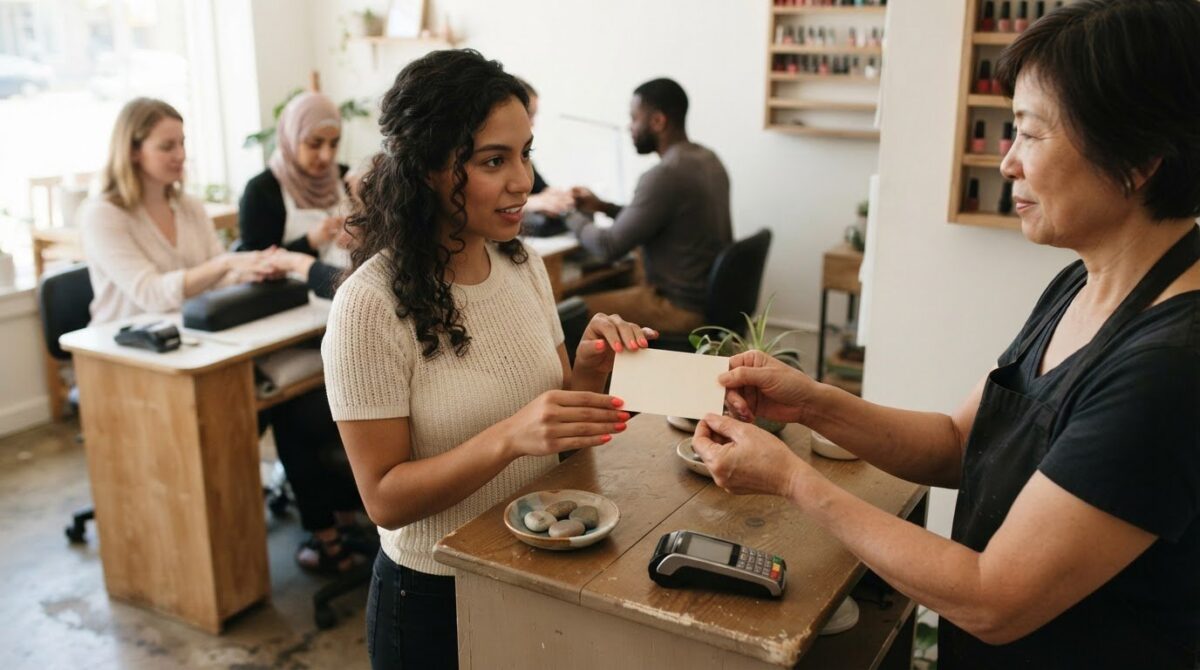
Categories
Uncategorized

Client self-booking for tattoo artists: compare app options

For tattoo artists, the best self-booking option is the one that fits the full appointment journey, from an initial consultation to the tattoo session itself. A useful setup for client self-booking for tattoo artists should make it easy to collect project details, set booking rules, and manage payments without treating every appointment as the same kind of slot.

A clean calendar and simple booking link can be appealing, but tattoo bookings often involve more than choosing a time. Clients may need to share a design idea, discuss the work, and understand what’s required before a session is confirmed. The right tool makes those steps clearer for both you and your clients.

This comparison considers tattoo-focused platforms and general scheduling apps, including their tools for intake forms, reference uploads, deposits and payment processing, booking rules, consultations, and longer sessions. See what each option suits, where a basic calendar may fall short, and how to choose a setup that supports your workflow without unnecessary complexity.

Key Takeaways

  • Choose a booking app based on the full tattoo appointment flow, not just how easily it fills calendar slots.
  • Use intake forms and reference uploads to gather project details before you discuss or schedule a session.
  • Set clear deposit and cancellation rules so clients understand what happens when plans change.
  • Compare tattoo-focused tools with general schedulers by looking at booking controls, consultations, and longer sessions.
  • Explore Tattoo Studio Software when you want booking and studio management tools designed for tattoo businesses.

A focused intake form gathers useful project details before an appointment reaches your calendar. Ask for contact information, tattoo placement, approximate size, style, and a short design description. For example, a client requesting a floral forearm piece can specify the placement and approximate scale, then describe their preferred linework. These answers help you decide whether to schedule a consultation or discuss a session.

Reference images provide visual context that short descriptions can miss. Invite clients to upload examples of styles, colors, or compositions they like, and ask what they want to change. A reference is inspiration, not a complete design brief. Ask which details matter, such as line weight or overall mood, so the images are more useful during your first review.

Keep the form focused. Too many questions can put clients off, while missing details can lead to extra messages before you assess a request. Group questions into clear sections: project basics, placement and size, references, and consultation preferences. Connect each response and uploaded image to the correct client profile, and deliver the intake form before the appointment request when that fits your workflow.

Use a consent form to present studio policies and record the client’s acknowledgment. Keep it separate from creative questions so clients can review each part clearly. If you offer e-signatures, make that step visible and save the completed form with the appointment record. A digital signature does not replace clear wording or your studio’s consent-review process.

  • Ask: What placement, size, style, and design idea should the artist know?
  • Upload: Which reference images show the desired direction, and what should change?
  • Review: Has the client read and acknowledged the studio’s consent form?

Customizable booking forms let you tailor questions to each appointment type. A consultation request may need a design summary and references; a returning client’s follow-up may need only project updates. Don’t ask every client to complete irrelevant fields. Review the form on a phone and a desktop, and remove questions that won’t help you prepare or decide the next step.

Artists can spend 20% of the work week searching for details such as reference photos or consent forms. Keeping those materials attached to the right client record makes retrieval more direct. Choose a form workflow that collects project details, stores reference images, and connects acknowledgments with the appointment.

Option Intake questions Reference images Consent record
Basic booking form Short project details May require a separate message Separate form or step
Customizable intake form Questions tailored by appointment Upload field can collect examples Can be presented as a distinct step
Connected booking workflow Responses linked to client details Images stored with the request Acknowledgment kept with appointment records

For tattoo studios organizing booking and client details together, tattoo studio management tools can be part of the workflow. Choose the option that captures the details you need without making clients repeat information across forms and messages.

Deposits, payment processing, and card-on-file options

A deposit connects an online booking to a clear commitment. One suggested tattoo booking deposit is $50-100, but the amount should reflect your appointment structure and stated policy. Show clients the deposit requirement before they choose a time. Explain whether it applies to the session balance, and how cancellation or rescheduling affects it. That clarity helps clients understand the terms before submitting payment.

Write the cancellation policy in plain language beside the booking step. One suggested policy gives a full deposit refund for cancellations made at least 48 hours before the appointment. For cancellations made 24-48 hours before, it retains 50% of the deposit; cancellations made less than 24 hours before forfeit it. If clients can reschedule, explain how the deposit transfers and how to request the change. Keep the same policy visible in booking confirmations.

Online payment collection can link a deposit to the appointment record, making it easier to track what’s paid and what remains. Record the appointment date, client, deposit status, and any cancellation or reschedule. For a returning client, check their existing profile before creating another. Keep payment records separate from creative notes, such as reference images, while linking both to the correct booking.

Card-on-file options can simplify later payments, but clients need to know when a saved card may be charged, what the payment covers, and how to update their payment method. Collecting contact details, tattoo preferences, and card information online creates privacy and security risks if records or payment flows are mishandled. Use a payment processor’s secure payment flow, limit access to client records, and never ask clients to send card details by email or text.

  • Before booking: Display the deposit amount and cancellation terms.
  • After payment: Attach the transaction status to the correct appointment.
  • For repeat bookings: Review the client record and update only relevant details.

Tattoo shops without deposit requirements are reported to have no-show rates of 20-30%, while shops using automated deposits and reminders are reported to have rates below 5%. These figures make the process worth considering, but your policy still needs to match your studio’s booking needs. Choose settings that collect deposits at the right booking stage and keep each payment tied to the relevant appointment.

Before publishing the booking flow, test an appointment from selection through payment confirmation. Check that the deposit status, cancellation terms, and receipt are easy to find. Make it clear what clients should do if a payment fails, so they don’t mistake the appointment for a confirmed booking.

Comparison of tattoo-specific and general scheduling apps

Solo artists often need control over requests and calendar gaps, while tattoo shops need shared visibility and clear artist assignments. Compare scheduling setups by how they handle online booking, calendar access, and incoming requests.

Tattoo-Specific Scheduling Apps

A tattoo-specific app is designed around studio booking needs rather than generic appointment slots. Compare its intake-to-calendar flow with a general scheduler: can you separate consultation requests from session bookings and organize appointments by artist? These distinctions help keep a design discussion from taking the place of reserved tattoo time.

Artist-Controlled and Client-Selected Scheduling

With artist-controlled scheduling, you review a request before confirming its time. With client-selected scheduling, clients choose from the openings you publish. For example, offer direct selection for consultations, then review larger session requests before assigning calendar time. The first approach gives artists more control; the second reduces booking messages when an appointment type has a clear duration.

Calendar Syncing and Multi-Artist Scheduling

Calendar syncing can help keep availability consistent between a booking page and an artist’s calendar. Check which calendars the app supports, such as Google Calendar, and how it handles changes made in either place. For multiple artists, compare individual schedules, shared views, and artist assignment. A solo artist may need one calendar; a studio needs a reliable way to distinguish each artist’s availability.

Pricing and Free Plans

Free plans and paid tiers may differ in booking limits, staff access, calendar tools, and payment features. Compare plan details with your actual workflow, not just the starting price. A solo artist may need one schedule and client requests, while a shop may value separate artist calendars. List the tools you’ll use, then check whether the plan’s limits fit.

Scheduling option Calendar control Useful comparison
Tattoo-specific app Review artist and appointment controls Consultation and session workflows
General scheduling app Review available appointment settings Ease of publishing open times
Artist-controlled booking Artist approves requests Control over appointment acceptance
Client-selected booking Client chooses listed openings Convenience for straightforward bookings
Shared studio calendar Schedules can be viewed by artist Team visibility and assignment
Free-plan option Depends on included calendar tools Plan limits and upgrade needs

Choose a setup that matches your appointment types, team size, and preferred approval process.

Client self-booking for tattoo artists: compare app options

Booking limits, buffer times, and lead times

Prevent double-booking by using one booking system as your source of truth. Route custom-work requests to an artist for review before confirming a time, then reserve the session once its scope is clear.

Booking Limits

Booking limits determine which appointment types clients can select and how far ahead they can book. For example, let clients book consultations directly, while custom tattoo sessions remain pending until you review the design, placement, and scope. This separates straightforward appointments from work that needs planning. Set limits by appointment type, and explain which requests need artist approval.

Buffer Times

A buffer is protected calendar time between appointments. Booking limits control what clients can book; buffers protect time around confirmed bookings. For example, leave time after a session for cleanup or notes and before a custom appointment for setup. Apply buffers to relevant appointment types rather than blocking the same time after every booking.

Lead time determines how soon clients can book an available slot. Set it according to the preparation each appointment requires. A consultation may need less advance planning than a custom session involving several conversations and design decisions. Keep the rule visible on the booking page so clients understand why some dates are unavailable and when an artist will review requests.

For custom work, treat an online request as the start of scheduling, not an automatic confirmation. Review the project details, agree on the appointment type, and then reserve the appropriate calendar time. Use portfolio examples a client shares to prepare for the conversation. This lets the artist assess the request before a long session occupies the schedule.

Use reminders to reduce missed appointments and make the next step clear. Tattoo appointment reminders are recommended by SMS or email 24-48 hours before a session. A separate reminder can prompt clients to respond to unresolved questions or confirm a custom-work request. Keep the message focused on the appointment time, studio details, and any preparation instructions already shared.

  • Separate bookable consultations from custom-session requests.
  • Protect setup and cleanup time with appointment-specific buffers.
  • Review pending requests before converting them into confirmed calendar bookings.

Manual booking entry has an estimated 1-4% error rate. A single, consistently updated booking system can help members of a tattoo studio see current availability and avoid overlapping entries. Assign each appointment to the correct artist, and update the calendar whenever a booking changes. Clear limits, review steps, and reminders make the schedule easier to manage without making every tattoo request an instant confirmation.

Online self-booking for tattoo consultations and sessions

Online self-booking works best when consultations and tattoo sessions have separate paths. A consultation clarifies the design; a session reserves time for the actual work. Booking software should make that distinction clear before a client chooses an opening. Otherwise, a short discussion could take up time intended for a longer tattoo appointment.

Offer consultations as a defined appointment type, with a clear purpose and duration. Free tattoo consultations commonly last 15-30 minutes. Clients can select an available consultation slot, then provide a brief project summary beforehand. Use the meeting to discuss placement, design direction, and next steps. Afterward, decide whether the client can book a session or needs further discussion.

For tattoo sessions that need assessment, use a request-and-review flow. A client can submit preferred dates and project details while you review the scope before confirming a calendar slot. This suits custom pieces that vary in placement, size, and design complexity. Make the status clear: requested, under review, or confirmed. Each label tells clients what happens next.

Link each booking to a client profile so details stay together across appointments. For example, a returning client’s record can connect earlier project notes with a new session request. Keep the booking form focused on scheduling information; use a separate conversation for design decisions that need personal attention. This makes self-service useful without treating the booking page as a substitute for an artist’s judgment.

Before choosing booking software, map the client journey from first visit to confirmed session. Check the client view on a phone, test a consultation request, and follow a session request through review. If a free trial is available, test those exact steps with a sample booking. Look for clear confirmations, useful appointment statuses, and an easy way to adjust a request.

Compare the time spent on administration with the steps the system removes. Tattoo artists can save more than 10 hours of administrative work per week by using booking software. The practical gain depends on how much of your booking process the tool handles, including appointment requests, client records, and scheduling. Keep artist review where custom work needs it, while letting clients book suitable consultations independently.

Use this sequence to set up self-booking:

  1. Separate consultation slots from tattoo-session requests.
  2. Set the consultation purpose and duration clients see.
  3. Ask for preferred dates and project details before session review.
  4. Confirm the booking status and next step in the client profile.
Explore online booking options

Encore Salon & Spa Software: Encore Salon Software

Encore Salon & Spa Software offers Tattoo Studio Software for businesses managing tattoo appointments and client relationships. If you want online appointment scheduling connected with client records, explore this option. Encore Salon Software supports salon operations, while Tattoo Studio Software is designed for tattoo studio workflows.

Consider a booking system when separate calendars, booking requests, and client details become harder to coordinate. A clear system brings appointment management and client information into one workflow while leaving artists in control of how they review custom work.

To discuss whether Encore Salon & Spa Software fits your studio, contact the Encore team.

Build a booking flow that grows with your studio

Choosing an app is only the start. As your studio’s calendar changes, review where clients pause, which requests need artist input, and whether booking steps still fit your workflow. Adjust appointment types, form prompts, and approval steps as needed. Keep the process easy to use while making room for conversations about custom projects.

Map one client journey, from the first request to a confirmed appointment. This helps you decide what to automate and where personal guidance matters. Encore Salon & Spa Software offers Encore Salon Software, Encore Spa Software, and Chair/Booth Renter Software for different business setups, as well as Tattoo Studio Software.

A thoughtful approach to client self-booking for tattoo artists gives clients more independence while keeping artists involved in planning custom work. Choose a system that supports how your studio schedules, communicates, and serves returning clients. A clear process can adapt as your needs evolve, one booking step at a time.

Explore booking software for your studio

Refine the experience over time to make each appointment easier to plan.

Frequently Asked Questions

What is client self-booking software for tattoo artists?

Client self-booking lets people request or book appointments online while artists manage availability and booking details. Software for client self-booking for tattoo artists can let clients select a consultation time directly or submit a session request for review. The key distinction is whether a booking is confirmed immediately or waits for artist approval. That choice determines how much control you retain over custom-work scheduling.

Which booking platforms do tattoo artists use for client self-booking?

Tattoo artists use both tattoo-focused scheduling tools and general appointment apps. A tattoo-focused option may suit studio workflows, while a general scheduler can work for straightforward appointments with set durations. Compare how each handles artist calendars, client requests, appointment types, and client records. A solo artist may need only a clear booking link; a multi-artist shop may need shared schedule visibility and artist assignments.

How much do tattoo artist booking apps cost in the United States?

Costs depend on each app’s plan structure and included features, so compare options against your actual workflow. Check whether plans charge by user, location, or feature, and whether online booking, client records, and payment processing are included or separate. Account for any payment-processing charges listed in the terms. Compare the full setup, not just the headline subscription price.

How can tattoo artists set up online booking for consultations and appointments?

To make client self-booking for tattoo artists work smoothly, separate consultation appointments from tattoo-session requests. Set which times clients can select directly and which requests need artist review. Add the appointment types to your calendar and write a confirmation message for each booking status. Test the client journey on a phone, including changing a request and receiving confirmation. This reveals confusing labels before clients use the booking page.

What information should a tattoo booking form collect from clients?

Collect enough detail to understand each request and plan the next conversation. Useful fields include contact details, preferred appointment type, tattoo placement, approximate size, design description, and preferred availability. Invite clients to attach reference images when helpful, and ask them to describe what they like in each image. Keep required questions focused so the form is quick to complete.

How do tattoo artists handle deposits, cancellations, and no-shows with online booking?

Publish deposit and cancellation terms before clients submit a booking, and connect each payment status to the appointment record. Explain how clients can cancel or reschedule and what happens to a deposit in each case. Use booking statuses to distinguish confirmed, changed, and cancelled appointments. A consistent record helps you apply the same policy and identify newly available calendar time after a cancellation.

Can clients book tattoo appointments without an artist approving the design or placement?

Yes, if the artist makes that appointment type available for direct booking. This can work for consultations or services with a clearly defined process. For custom work, a client can submit a request before the design or placement is approved; the artist can review the details before confirming session time. Label it as a request, not a confirmed appointment, whenever review is still needed.

Disclaimer

This article is general in nature and may contain errors, please verify all claims with your sales rep
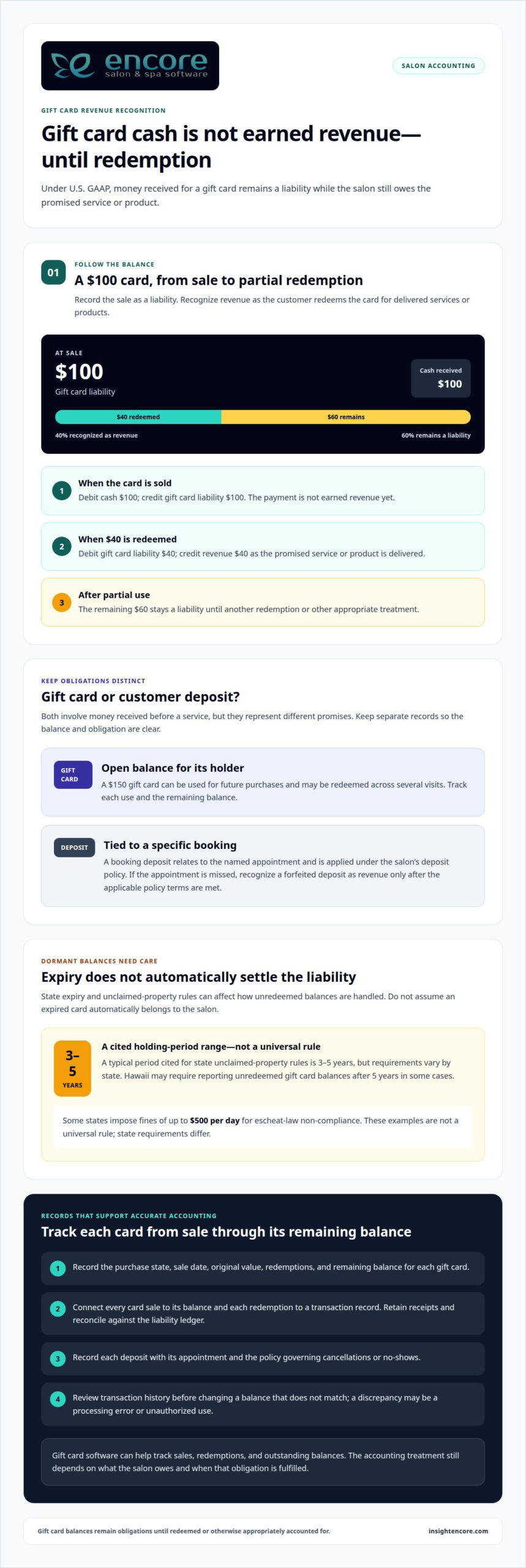
Categories
Uncategorized

Cost of Running a Barber Shop: Equipment and Startup Costs

The cost of running a barber shop goes beyond the chairs. Equipment, renovations, rent, and opening supplies all shape the budget.

It’s easy to focus on major purchases and overlook the tools, consumables, and opening stock you’ll need to serve your first clients. These details matter when you’re managing startup costs and avoiding purchases your shop doesn’t need.

This guide explains how shop size and chair count affect startup spending, what to budget for barber chairs and station equipment, and where build-out costs can add up. You’ll also learn which opening supplies to include and how to start lean, so you can plan with a clearer view of upcoming costs.

Key Takeaways

  • Compare chair options and set aside a maintenance reserve so equipment costs don’t stop at the purchase price.
  • Match your chair count and floor space to your business plan; rent and build-out can shift the startup budget substantially.
  • Keep renovations focused on what the space needs, including wash stations and other essential fixtures.
  • In California, the state charges an $800 annual franchise tax on top of the LLC filing fee, according to California Franchise Tax Board.
  • Prioritize professional tools and essential opening supplies, then add inventory in line with the services you plan to offer.

1. Barber chairs and station equipment

Barber chairs can take a large share of your equipment budget, so compare features with your shop’s needs. For a three-chair setup, the chair categories you choose can substantially change your initial equipment spending.

Decide how many chairs you’ll use on opening day, then assess each chair’s condition, adjustment mechanism, and fit with the station layout. It should support a barber’s daily routine, not just match the shop’s look. If you’re buying used, inspect the hydraulic lift, reclining function, upholstery, and base before committing. Repairs or replacement can eat into the savings from a lower purchase price.

Budget for more than chairs. Each station may need a mirror, counter or cabinet, tool storage, and a mat. Barber equipment also includes clippers, trimmers, shears, combs, and cleaning supplies. List each barber’s essentials and separate shared equipment from personal tools. This inventory helps prevent duplicate purchases and keeps opening-day needs in view.

There’s no single reliable average for a shop’s revenue, profit, or profit margin. Revenue depends on appointment volume, service mix, prices, and how consistently chairs are used. Profit is what remains after expenses such as rent, wages, supplies, and equipment upkeep. Track these inputs to understand your own margin instead of relying on a broad average.

Include maintenance in your equipment plan. Set aside 10-15% of equipment cost annually as a maintenance reserve. Use it to plan for upkeep across chairs, clippers, and station fixtures, rather than treating repairs as unexpected spending. Keep purchase records and note when equipment needs service. A basic log can help you spot repeated issues and decide whether repairing or replacing an item makes more sense.

Staffing also affects the cost of running a barber shop. If you hire employees, the Internal Revenue Service says employers generally pay the employer share of Social Security and Medicare taxes, as well as unemployment tax on employee wages. Budget for these separately from equipment. Clear payroll, purchase, and maintenance records help show which expenses are affecting your shop’s profit.

Before ordering, make a checklist for each station. For example, list a chair, mirror, storage area, and tool set for every working station, then identify shared items separately. Compare the total with your equipment budget and prioritize reliable essentials. This keeps the plan aligned with the number of barbers you can support, rather than filling the shop with costly extras before they’re needed.

2. Startup costs by shop size and chair count

Shop size and chair count shape both your opening budget and ongoing overhead. These estimates provide a starting point, but your space, lease, and setup choices determine the final costs.

Renting a barber chair usually requires less upfront capital than running a full shop. Compare the recurring booth payment with the broader responsibilities of shop ownership.

Location matters. Commercial rent in most U.S. markets varies widely by neighborhood and city. A 1,000-square-foot shop in a decent U.S. location will have very different requirements than a rural storefront. A solo booth typically uses 100-200 square feet, while a mid-size shop uses 700-1,200 square feet. Local asking rents and the space you need for stations, reception, and customer flow drive the difference.

Lease terms can create a significant upfront expense. Include that cash requirement in your opening budget instead of treating rent as only a monthly cost. Compare usable square footage with your layout: extra space may mean higher rent without adding working chairs.

Plan separately for marketing and customer retention. Divide the budget among launch promotions, a clear online presence, and follow-up that encourages clients to book again. Track repeat appointments and the promotions that bring in clients. Reviewing results helps you adjust spending rather than repeating campaigns without assessing their impact.

Software and booking costs also belong in your operating plan. List the tools you’ll use and compare their recurring costs with your projected expenses. When managing these systems, platforms like Encore Salon & Spa Software can streamline daily operations. To estimate startup costs, group your figures into lease and deposit, renovations, equipment, opening supplies, marketing, and working cash. The cost of running a barber shop varies by location because rent, required space, and lease terms can shift the budget before your first appointment.

3. Build-out and renovation expenses

The space’s condition determines how much work is needed before opening. Walk through the shop and list repairs, plumbing changes, electrical work, lighting, flooring, and paint. Separate work essential to barber services from design upgrades you can postpone. A worn feature wall can wait, for example, while an unusable wash area may prevent you from operating as planned.

Give wash stations early attention because their placement affects plumbing and the station layout. Before choosing a model, map where the bowl will sit and how clients and staff will move around it. Relocating it after installation can require changes to the surrounding build-out.

Create a cost-to-open worksheet with separate lines for construction, fixtures, furniture, permits, and launch expenses. Record each estimate alongside the work it covers, such as installing a wash bowl or updating a service area. Sort the list into essential opening work and improvements that can wait. This makes it easier to spot renovation costs that could use up the budget before you set aside money for opening supplies and working cash.

Keep launch spending separate from renovation spending. Marketing introduces the shop and attracts first appointments; the build-out prepares the premises to serve clients. Plan launch activity around the services and experience you can provide from day one. Promote available barber services, for example, rather than features that won’t be ready during construction.

Opening cash matters because revenue may take time to cover operating expenses. A newly launched barbershop should hold $12,000 to $20,000 in liquid working capital for 3 to 6 months of initial operating expenses. A new barbershop typically reaches break-even between six and eighteen months after opening. Use those figures to separate cash for early bills from money already committed to the renovation.

After opening, track recurring expenses separately from one-time construction costs. Put recurring items on a monthly expense sheet so you can see their impact alongside utilities, upkeep, and payroll.

Review the renovation plan before approving changes. If the project includes a wash bowl, make sure the plumbing, fixture, and surrounding finish appear as separate line items. Compare the proposed work with your opening-day service plan, then defer cosmetic additions that won’t improve operations. This staged approach helps protect working capital while keeping essential build-out work on track.

Cost of Running a Barber Shop: Equipment and Startup Costs

4. What is the cheapest way to start a barbershop business?

Start with the smallest setup that supports your planned services. Keep it focused: rent a booth, use essential tools, and avoid space or fixtures you don’t need. This can reduce overhead while you build a steady client base.

Licensing and registration still belong in your startup budget. Barber shop establishment license fees typically range from $50 to $250 in most states, and most states require establishment licenses to be renewed every one to two years. The initial expenditure for establishment permits, municipal health permits, and local business registrations is $150 to $1,500. Put these costs on separate budget lines so licensing doesn’t get lost among equipment purchases.

Training requirements can also affect how quickly you’re ready to open. In California, barber licensure requires completing a state Board-approved training program of at least 1,000 hours before taking the licensing exam. If you’re opening there, include this training step in your timeline and financial plan. A lower-cost shop setup won’t remove the need to account for professional preparation.

Choose a business structure with ownership and responsibilities in mind. A partnership has two or more people as stakeholders who share ownership of the business. If you’re comparing a partnership with an LLC, consider how decisions, records, and expenses will be handled, then include the relevant registration costs in your plan. In California, the state charges an $800 annual franchise tax on top of the LLC filing fee, according to California Franchise Tax Board.

Insurance is another part of a responsible launch budget. Consider the shop’s activities, premises, equipment, and staffing when deciding what coverage fits. List insurance separately from licensing and registration so you can see each commitment clearly. A booth renter and a shop owner have different operating arrangements, which can affect the risks their coverage needs to address.

To keep the total lean, price the essentials first: the booth or premises, licensing, registration, tools, insurance, and opening supplies. Delay décor upgrades and extra stations until there’s a clear business need. If you’re starting with a partner, agree on ownership and who handles each expense before signing agreements. A written budget helps you compare the lower-overhead booth model with a full shop and choose a plan that fits your available capital.

5. Barber tools and opening supplies

Tools and opening supplies can take a meaningful share of a startup budget, even in a compact shop. Build a checklist around your planned services, separating each barber’s personal tools from items shared at the station. This keeps the opening order focused and helps prevent duplicate purchases across chairs.

For each barber, list tools needed for planned services, such as clippers, trimmers, shears, combs, and brushes. Mark which are personal and which can be shared. The cost of running a barber shop also includes purchases beyond personal tools, so list those separately in your budget.

Give consumables and retail stock their own lines in the opening plan. Divide them into products used during services, cleaning supplies, and items for sale. Styling products used on clients, for example, are service consumables, while products displayed for purchase are retail inventory.

Use your service menu to decide what goes into the first order. If you’ll focus on cuts and beard trims, prioritize tools and products for those services. Choose retail items that complement the menu instead of filling shelves with unrelated stock. A smaller, relevant inventory is easier to track and lets you adjust future orders based on what clients actually buy.

Before ordering, create an inventory sheet with four fields: item, quantity, assigned station, and purpose. Label each purchase as a tool, service consumable, cleaning supply, or retail product. Compare the list with what’s already available in the shop. This can reveal duplicate purchases and clarify how much of the cost of running a barber shop comes from opening stock rather than recurring supplies.

Identify what your plan adds, such as consumables or retail inventory, and prioritize what you need for opening day.

Record opening stock and update it as products are used or sold. Regular counts can flag slow-moving retail items before you place another order. Start with stock that supports your service menu, then use client purchases to guide future choices. This helps control ongoing expenses while keeping your opening selection useful and manageable.

Encore Salon & Spa Software: Encore Salon Software

Encore Salon & Spa Software offers Encore Barber Software to help barbershops manage daily operations. If you’re moving from startup planning to managing appointments and client relationships, the software supports online booking, client management, inventory tracking, and point-of-sale transactions. These tools can help organize bookings, supplies, and payments as your shop begins serving clients.

For a booth-rental setup, Chair/Booth Renter Software is another relevant option. Choose the solution that fits how you operate, whether you manage a shop or rent a chair. Explore Encore Salon & Spa Software to see how its tools can support your barbershop.

Build a shop that’s ready to grow

Your opening plan is only a starting point. As you learn more about appointments, product use, and daily expenses, review your budget and adjust operations to match client needs. Ongoing attention can make the cost of running a barber shop easier to manage and help you avoid decisions based only on opening-day estimates.

Encore Salon & Spa Software offers Encore Salon Software, Encore Spa Software, Chair/Booth Renter Software, and Encore Barber Software for barber shop management. Explore the software to find tools that fit your business and take the next step when you’re ready.

Contact Encore Salon & Spa Software

With a practical plan and suitable systems in place, you can focus on serving clients well and building a shop that grows with confidence.

Frequently Asked Questions

To keep the cost of running a barber shop manageable, budget for working cash as well as opening purchases.

How long until a new barbershop becomes profitable?

A new barbershop typically reaches break-even between six and eighteen months after opening. Break-even means revenue covers expenses, not necessarily that the owner is earning a strong profit. Build a monthly forecast that tracks booked services, wages or booth arrangements, rent, and supply purchases. Compare actual results with the forecast regularly to see whether slower bookings or higher expenses are affecting your path to break-even.

How much working capital is needed to start a barbershop?

A newly launched barbershop should hold $12,000 to $20,000 in liquid working capital for 3 to 6 months of initial operating expenses. Keep this reserve separate from money set aside for construction, equipment, or opening inventory. A cash-flow plan should map expected bills against the timing of income, including quieter opening weeks. That makes it easier to identify how much cash remains available after each commitment.

What is the cheapest way to start a barbershop business?

Keep the launch focused on the tools, supplies, and services you need to start working, rather than leasing and fitting out a full shop. Before choosing this model, compare the booth arrangement with your plans for scheduling, client records, and future ownership. A lean setup can reduce initial commitments while you establish demand.

What’s the single biggest mistake new barbershop owners make on startup costs?

A costly planning error is budgeting for the opening setup but not the cash needed to operate afterward. A shop may have chairs and supplies ready but still face rent, payroll, cleaning products, and other recurring bills before revenue settles into a pattern. Separate one-time purchases from ongoing expenses, then assess your cash reserve against a slower opening period, not just your best-case booking forecast.

What are the startup costs to open a barber shop in the United States?

Build a location-specific budget that includes lease commitments, renovations, equipment, opening stock, and working cash.

What is the average monthly rent for a barber shop by city or region?

Rent varies substantially by location and square footage. Commercial rent in most U.S. A 1,000-square-foot shop in a decent U.S. Low-cost U.S. Calculate rent using the actual space and local asking rate.

How much do barber shop utilities, insurance, and internet cost per month?

There isn’t one reliable monthly figure for utilities, insurance, and internet across barber shops. Utility costs depend on the premises and its operating needs; insurance depends on the business, equipment, and staffing; internet costs depend on the service selected. List each expense separately in your monthly forecast, using the shop’s lease, coverage needs, and connectivity requirements to estimate the cash needed.

Disclaimer

This article is general in nature and may contain errors, please verify all claims with your sales rep

Categories
Uncategorized

Pet grooming business software for Mac pricing and tools

A Mac can run a grooming business smoothly when its software supports Mac access and brings daily tasks into one place. Look for booking, appointment reminders, client communications, and marketing tools, then compare whether billing is monthly or yearly. The right pet grooming business software for Mac should make it easier to manage the schedule and stay in touch with clients.

It’s understandable to focus on the monthly or yearly price first, but the useful comparison is what each plan includes and how it fits your workflow. Pricing depends on the tools and plan, and the price is provided after a quote request.

This guide explains what to look for in Mac-compatible grooming software, how booking and reminders support a more organized day, and how client communication and marketing fit into the picture. You’ll also learn what can affect pricing and how an all-in-one management platform can help bring appointments, client records, inventory, and point-of-sale tasks together.

Key Takeaways

  • Compare appointment calendars and online booking tools to find a setup that fits how you schedule grooming visits.
  • Review how reminder options support client follow-through, and how communication tools help you keep messages organized.
  • Assess marketing features by how they support repeat visits and client engagement, not just by the number of tools included.
  • Compare monthly and yearly plans by their billing cadence and included features to understand which structure suits your business.
  • Check how browser-based access works on your Mac, and consider whether an integrated platform for bookings, client records, inventory, and transactions fits your workflow.

Appointment calendar and online booking

A grooming calendar should make appointments, assigned staff, and available times easy to see. Online booking lets clients choose from available slots without having to call.

Appointment Scheduling and Management

Review how the calendar handles different services, appointment lengths, staff assignments, and changes. A bath and brush, for instance, may need a different time slot from a full groom. Check that staff can see scheduling conflicts and update cancellations or rescheduled visits. Clear appointment details help the team prepare for each dog’s visit.

Online booking should guide clients through the choices your business needs, such as selecting a service, choosing an available time, and entering contact details. Look for a process that presents open slots clearly and gives staff control over the schedule. A useful appointment booking and calendar system connects client-facing booking with the business’s scheduling workflow.

Which grooming software integrates with QuickBooks, payment processors, and calendar apps? Check the specific connections you need rather than assuming that online booking includes them all. Encore offers QuickBooks Integration as an add-on feature and integrated credit-card processing. Confirm that the calendar and accounting tools you rely on fit your workflow.

Before switching systems, list the information you rely on, such as client names, contact details, pet profiles, appointment dates, and service notes. Export records from your current system, organize them into consistent fields, and import them into the new one where supported. Compare sample client records and upcoming appointments with the originals to catch missing or mismatched information.

Recurring Appointment Setup

For clients who book grooming visits regularly, appointment series can reduce repeated scheduling work. Look for options to set the repeat pattern, service, preferred staff member, and time. A client might want the same weekday and groomer for each visit. Review the series when a holiday, cancellation, or schedule change affects a future booking.

Recurring bookings work best when staff can see each appointment and its place in the series. This makes it easier to adjust one visit without overlooking later dates. Before relying on a repeat schedule, check how the system handles availability conflicts and whether a change affects only the selected visit or future appointments too.

For a Mac-based workflow, assess the calendar from both sides: how clients book a time and how staff manage the day. Test a booking, move it to another time, and check that the update appears correctly. This walkthrough shows whether scheduling, client details, and appointment series fit the way your grooming business operates.

Automated text and email reminders

Appointment reminders prompt clients before a grooming visit. A useful reminder identifies the pet, states when to arrive, and explains how to contact the business about a change. Encore includes free SMS appointment confirmations with every subscription. Consider email separately if you want to share more detailed information.

Email and Text Reminders

Start by listing the appointment details clients need. A text can provide a brief prompt with the date, time, and business name. An email can include those details alongside preparation notes, such as bringing a dog’s vaccination record if your business requests it. Keep each message focused so the key information is easy to find.

Before enabling automated messages, review the timing, channel, and wording. For example, you might send an email when an appointment is booked and a text closer to the visit. Treat this as a sample workflow, not a universal schedule. Choose timing that suits your clients and booking process, and avoid sending multiple messages with the same details.

Check that reminders use current contact details and match the appointment record. If a client changes their phone number or email address, update the profile before the next message goes out. When an appointment moves, confirm that the reminder reflects the new time. A test booking lets staff review how the message appears on a phone and in an inbox.

  • Useful details: Include the pet’s name, appointment time, and grooming business name.
  • Clear next steps: Explain how clients can respond or reach the business about a change.
  • Consistent wording: Use a friendly, direct tone across text and email templates.

Ask how the software handles failed or outdated contact details. Some systems may show message status or provide a way to review communication history; assess these options during a product walkthrough. If staff can see whether a reminder was sent, they can choose a personal follow-up for a client who needs extra help. Don’t assume a sent message was read.

Keep appointment confirmations distinct from promotions. A visit message should focus on the existing booking, while a marketing message might share a seasonal grooming offer or encourage a future visit. Clear separation helps staff choose the right message and keeps appointment details from getting buried in promotional copy.

Finally, review templates whenever business details or booking steps change. Update the wording, create a test appointment, and check the resulting text and email before relying on the revised message. This practical review helps keep reminders accurate and useful for clients.

Client communications and marketing

Client profiles connect communication and promotions to useful grooming details. A record for Bella, for example, could include her owner’s contact information, coat notes, preferred style, and past services. With those details together, staff can personalize a follow-up instead of sending a generic message.

Keep client and pet records useful

Look for records that distinguish the client from each pet. One household may book visits for several dogs, so a client record should connect to multiple pet profiles. Useful details include breed, grooming preferences, sensitivities reported by the owner, and service history. Staff should be able to update information after a visit, such as noting a new trim preference.

Client and pet records support continuity between appointments. Before a returning dog’s visit, staff can review the last service and the owner’s instructions. Search tools and clear profile layouts matter when staff need to find a client by name, phone number, or pet. Choose records that help staff use information, rather than store details no one needs.

Use communication tools with purpose

Separate service messages from marketing messages. A service message might confirm a grooming detail, while a marketing message could announce a seasonal coat-care promotion. Encore’s automated marketing and loyalty tools can help organize campaigns around client groups or past visits. For example, a business could prepare a follow-up for clients whose pets received a particular service.

Before sending a campaign, define its audience, message, and desired next step. A reminder to book again should make the booking action clear. A loyalty message should explain how clients can participate. Review the recipient list and message preview first, so a promotion intended for dog owners doesn’t go to unrelated contacts.

Are there U.S. tax, payment-processing, or recordkeeping requirements for grooming business software? Software features don’t determine a business’s tax obligations; these depend on its circumstances and applicable jurisdiction. Choose tools that organize transaction and client records to support your existing business processes.

Understand free-plan client limits

A free plan may limit stored clients, features, or access, so compare the client cap with the records your business needs. Count active households and consider whether each household may have several pets. Then review what happens as your client list grows, including whether older profiles remain accessible and which tools are included.

For example, a solo groomer with a compact client book may value basic records, while a growing team may need shared access and marketing functions. Compare the free plan’s client allowance with its communication and profile tools. The best fit depends on the records you manage and the work you expect the software to support.

Pet grooming business software for Mac pricing and tools

Monthly and yearly subscription pricing

Compare monthly and yearly billing by looking at the full plan, not just the payment interval. A monthly subscription can make ongoing expenses easier to review, while yearly billing groups payments across a longer term. The useful choice depends on your cash flow, expected software use, and whether the included tools suit your grooming workflow.

Compare plan contents before billing periods

List the features your business needs before comparing plans. A solo groomer may prioritize client records and appointment management, while a team may also need staff access, reporting, and marketing tools. Check which features come with each plan and which require a different tier. A lower starting price may not represent the complete setup you intend to use.

Build a simple comparison for each option: billing frequency, included features, user access, client capacity, and any separately charged services. Use the same requirements for every plan. For example, compare the monthly and yearly options using the same number of staff accounts and the same communication tools. That makes differences easier to understand without focusing on one headline figure.

Account for additional staff

Check how employee count affects the subscription. Encore’s monthly pricing is per location and based on the number of employees. Essentials has tiers for one employee, two to three, four to six, seven to twelve, and unlimited employees. Elite uses the same employee groups, with a separate price for each tier. List who needs access so you can compare the right options.

Include likely staffing changes in your review. If a business adds a groomer or receptionist, the plan may need more access or different features. Compare the current setup with that possible workflow, then identify how plan changes are handled. The price depends on the case and is given after a quote request; cost factors include selected features, staff access, and billing term.

  • Monthly billing: Compare the recurring payment with the features and access included.
  • Yearly billing: Review the full commitment and whether the plan still fits expected operations.
  • Staff access: Include each person who needs to manage appointments or client records.

Before choosing, read the plan terms for renewal, cancellation, and changes to user access. Keep a copy of the selected plan details with your business records. If the software supports a client management system, confirm that the chosen plan includes the records and workflows you need. A side-by-side comparison helps you judge the ongoing value without assuming that monthly or yearly billing is automatically the better choice.

Browser-based access on Mac

Browser-based grooming software opens through a web browser on your Mac instead of relying on a locally installed program. That can make the workflow easier to access from different devices, provided the software supports the browser and operating system you use. Start by reviewing its published technical requirements, then test the tasks your team performs each day.

Use a practical walkthrough to assess the experience. Sign in, open the appointment calendar, find a client profile, and update a sample record. Check that menus are easy to use on your Mac’s screen and that the text is readable without repeated zooming. If staff use more than one device, try the same steps there too. Encore includes unlimited device logins.

Browser-based access requires an internet connection, so consider how your team will manage a temporary outage. Identify tasks that depend on live information, such as checking the day’s schedule or updating a client record. Plan a manual fallback for essential details, then reconcile changes once access returns.

Review security and privacy controls

What security and privacy risks should groomers consider when choosing cloud-based software? Client contact details, pet profiles, grooming notes, and transaction records can be sensitive business information. Review how access is controlled, how data is protected, and what recovery options exist if an account or device becomes unavailable.

On a shared Mac, give each staff member an individual login if the software supports separate accounts. Limit access to the tasks each person needs, and sign out before leaving a shared workstation. Strong, unique passwords and a screen lock reduce the risk of someone viewing an open client profile. Keep your browser and operating system updated through their normal update settings.

Review the product’s security information before choosing a system. Look for details on data encryption, backup practices, account permissions, and steps for restoring access. Also review how staff access is handled when someone leaves. These details help you assess information management without assuming every cloud service offers the same safeguards.

For a useful Mac trial, test a complete work sequence rather than just opening the dashboard. Find a client, review a pet’s grooming notes, move between the calendar and records, then sign out. Repeat the test using the browser your team plans to use. Note any slow screens, confusing controls, or missing information, and compare the results with your daily workflow.

Browser access can suit a grooming business that wants to work on a Mac without installing a desktop program. The fit depends on browser compatibility, how the interface works on your device, internet access, and the way staff use client information. Test these points against your schedule before making the software part of your routine.

Explore the software workflow

Encore Salon & Spa Software: Encore Salon Software

Encore Salon & Spa Software offers Encore Salon Software for businesses that want to bring core management tasks together. Businesses evaluating salon software can consider whether they need appointment booking, client management, inventory tracking, and point-of-sale tools. If separate systems make it harder to coordinate appointments, records, and transactions, Encore can bring these tasks into one management platform.

Consider how those tools align with the needs outlined above, including booking and keeping client information organized. Encore Salon Software is one option in the platform, alongside Encore Spa Software, Chair/Booth Renter Software, and Tattoo Studio Software. Explore the Encore Salon Software details to learn more, or contact Encore Salon & Spa Software with your questions.

Choose a system that can grow with your workflow

Start by deciding which part of the grooming day needs the most attention. You might want to coordinate staff, keep client records easy to access, or make booking simpler for pet owners. Use that priority to assess whether the platform fits your current routine and plans for growth. Pet grooming business software for Mac should support your workflow without adding unnecessary complexity.

Encore Salon & Spa Software offers Encore Salon Software, Encore Spa Software, and Chair/Booth Renter Software. These options serve different business models, so consider which one aligns with the way your team operates. A focused conversation can help you explore the relevant fit and next steps.

Contact Encore Salon & Spa Software

With a clear priority and a thoughtful comparison, you can take the next step with confidence and build a more organized grooming business.

Frequently Asked Questions

What pet grooming business software works on Mac?

Browser-based grooming software can work on a Mac when it supports a current browser. Some browser-based pet grooming platforms may work on a Mac if they support a current browser and have an internet connection. Try a typical task, such as opening a pet’s profile and reviewing its service history, to assess the interface against your daily needs.

Which grooming software runs natively on macOS versus in a web browser?

Native software is installed as a macOS application, while browser-based software opens in a browser. Encore’s platform is accessed through a current web browser and requires an internet connection. Consider whether your team prefers an installed app or browser access, then assess how that choice fits your Mac setup and whether staff need to move between devices.

What features should pet grooming business software include?

Choose tools that match the work your grooming business needs to coordinate. Appointment management linked with searchable client and pet records lets staff review service history before a visit. Online booking, integrated credit-card processing, inventory tracking, and marketing tools can support other parts of the workflow. Consider recording a grooming product sale alongside a client’s visit, then decide which functions matter most.

What hardware and macOS versions are required for popular grooming software?

Hardware and macOS requirements depend on the software, so review the requirements for the platform you plan to use. Encore Salon & Spa Software works with a current web browser and internet connection. Check that your Mac can run an up-to-date browser, connect reliably, and display the calendar and client records clearly. Test these screens on the device staff will use.

Which grooming software integrates with QuickBooks, payment processors, and calendar apps?

Choose a grooming platform that explicitly supports the specific accounting, payment, and calendar connections you need. Compare each integration individually rather than assuming online booking includes them all.

Disclaimer

This article is general in nature and may contain errors, please verify all claims with your sales rep
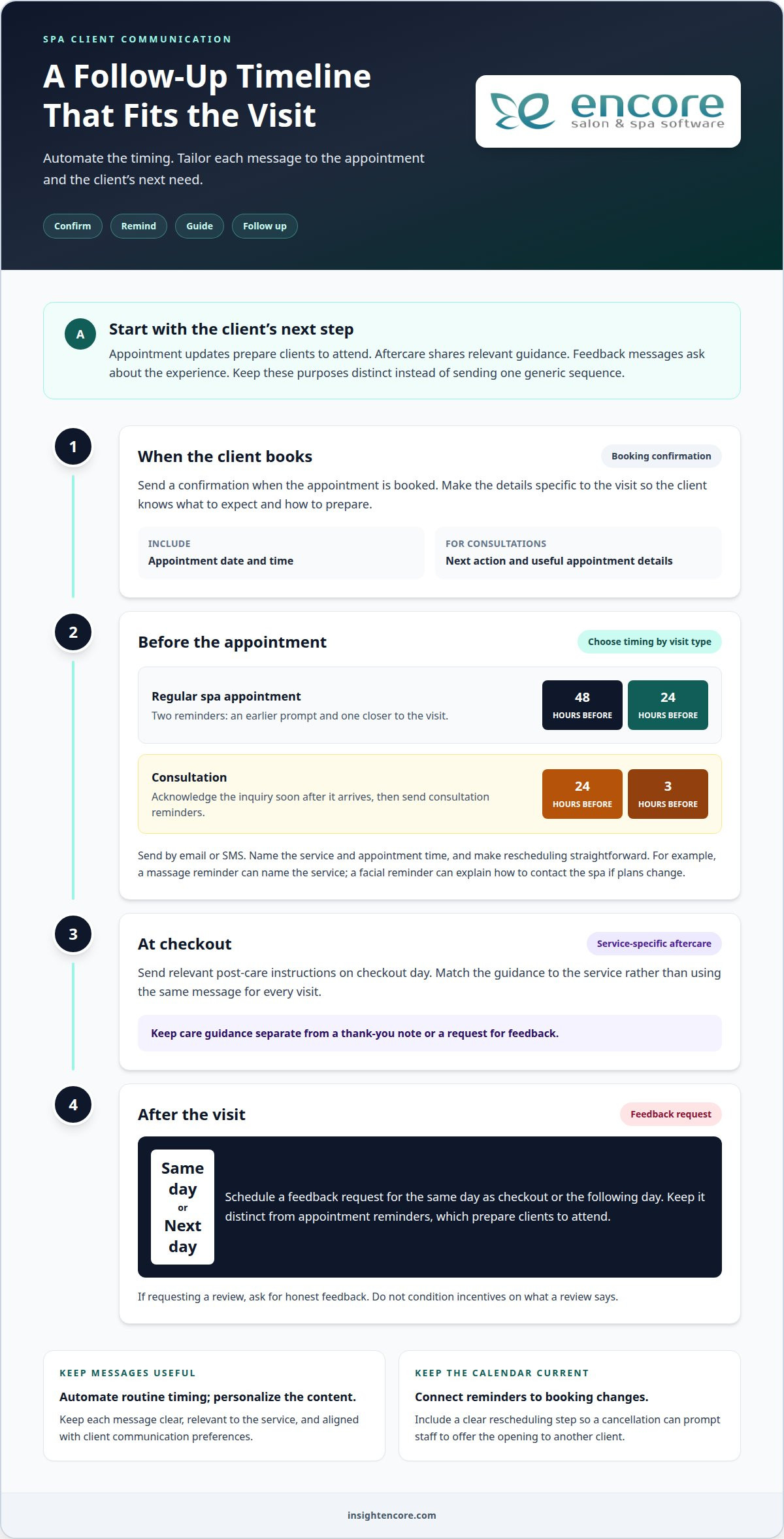
Categories
Uncategorized

Barbershop appointment management app pricing for shops

Online deposits are possible when a booking setup lets clients pay during checkout. A barbershop appointment management app can collect payment as part of the booking flow while keeping appointments and walk-ins in view. The key is choosing a system that works for clients who book ahead and those who walk in.

Online booking is only part of the picture. A busy shop also needs a clear way to coordinate walk-ins, staff calendars and appointments made at the counter. When every booking appears on one schedule, staff can see who’s next and keep the day organized.

Here, you’ll learn how deposits and after-hours booking work, how to manage walk-ins alongside staff-created appointments, and what to consider when setting up calendars, waitlists and pricing. You’ll also learn how to assess a free plan and whether its booking and payment features suit your shop.

Key Takeaways

  • Set booking rules that let clients reserve a time outside shop hours while giving barbers control over accepting, skipping or reassigning clients.
  • Keep walk-ins, online bookings and appointments made by staff together on one schedule to make the day easier to coordinate.
  • Use shared staff calendars and a visible waitlist to help the team manage the queue, even if online booking isn’t enabled.
  • Compare plan limits, payment processing costs and included features to judge whether a free option suits your shop’s workflow.
  • Review how booking, reminders and cancellations fit together so clients know what to expect and staff can manage schedule changes.

Can clients book appointments outside working hours?

Yes. An online booking page can let clients request appointments while the shop is closed. Set your services, available hours, staff schedules and booking rules in advance. A client looking for a haircut after closing will then see only the time slots you’ve opened for booking.

Decide whether bookings are confirmed automatically or require barber approval. Automatic confirmation suits predictable schedules, while approval gives barbers more control over unusual requests. For example, a barber can review a request that needs extra time before accepting it. Make each booking’s status clear, so clients know whether it’s confirmed or pending.

Set clear procedures for schedule changes. Decide who accepts, skips or reassigns clients, and make sure staff know who handles each action. If a barber is unavailable, move the client to another barber with a suitable opening, or skip the request if no slot works. Clear rules prevent pending requests from being mistaken for confirmed appointments.

After-hours booking can also support client acquisition. A shop can share its booking page on its website, social profiles or a marketplace that lists local services. For example, a new client comparing nearby barbers can view available times and book without calling. Listings can introduce the shop, but appointment availability, service descriptions and barber profiles need to stay accurate to set expectations.

Client records give staff useful context for repeat visits. Keep appointment history on each client profile, including the service booked and the barber assigned. Staff can review past visits before the next appointment. A client management system, or CRM, organizes this information and helps manage follow-ups and preferences without relying on memory.

For a US shop, use privacy controls to limit client-record access to staff who need it. Collect only details that are useful for booking, and use a secure payment flow to protect card information. Explain cancellation and deposit terms before clients submit payment.

Point-of-sale, calendar and marketing integrations vary by app. A point-of-sale connection can link appointments with checkout, while calendar syncing can help staff review scheduled work. Marketing tools may support follow-up messages or loyalty programs. Choose connections that fit your shop’s workflow.

Start setup by entering services, durations, staff availability and booking rules. Then test a booking, a schedule change and a cancellation from both the client and staff views. Adjust the settings before sharing the booking page.

Managing walk-ins alongside online and staff-created appointments

A shared appointment board gives the front desk one timeline for every client. It can combine online bookings, walk-in entries and appointments made by staff. When a client calls while another is checking in, staff can review the same schedule before offering an open slot instead of relying on separate notes or memory.

For walk-ins, a tablet kiosk can guide clients through check-in. They select a service and can choose a barber if they wish. The entry then appears on the appointment board alongside booked clients. For example, a walk-in requesting a haircut can appear in the same timeline as an online haircut booking, so staff can see the queue and scheduled work together.

Keep check-in details consistent. Use the same service names on the kiosk and booking page, such as “haircut” or “beard trim,” and use consistent barber names. Record a client’s barber choice with the walk-in entry. If they don’t choose, staff can assign an available barber according to the shop’s process.

Use a clear workflow whenever a new client arrives:

  • Check the shared board before promising an appointment time.
  • Add the walk-in with the selected service and barber preference.
  • Review the entry alongside scheduled clients before assigning the next opening.
  • Update the appointment board when staff create or change an appointment.

These steps help prevent duplicate entries. If a client has already booked online, staff should find that booking before creating another appointment at the counter. If a barber changes an appointment, update the shared schedule so other staff don’t act on outdated information. One timeline makes changes easier to spot.

Set expectations at check-in. Explain how the shop orders its queue and that scheduled appointments also appear on the board. A client waiting for a specific barber may follow a different process from someone open to any barber. Recording the service and barber preference helps staff apply the shop’s rules consistently.

Review the board during shift handoffs. Make sure online bookings, staff-created appointments and walk-in entries are all visible. If a barber is running behind, staff can check the schedule before offering an alternative. The aim isn’t to treat every arrival identically, but to give the team one accurate view and manage each client according to the shop’s queue and booking rules.

Multi-staff calendars, walk-ins, and waitlists

A shared calendar helps coordinate each barber’s appointments and availability. Pair it with a walk-in queue to manage arrivals as they happen.

Multi-Staff Calendar Coordination

Give each barber a distinct calendar view, with working hours, appointments and unavailable blocks easy to distinguish. Before assigning a client, compare the requested service and barber with the open schedule. If a client wants a particular barber, for example, staff can check that barber’s calendar instead of offering a time based on another team member’s availability.

Check how calendar changes appear to the team. When a barber’s schedule changes, staff need to see affected appointments and update them deliberately. Review the day’s schedule at opening and again during shift handoffs. This gives the next staff member a clearer view of remaining appointments and any updates.

Walk-In and Waitlist Handling

A waitlist connects clients waiting for service with the walk-in queue. Shops can show queue positions and estimated waits in real time on a TV or large screen. Clients get a visible reference, and staff can manage arrivals in sequence. A walk-in queue can also operate without online booking.

Decide what information staff need for each waitlist entry. A service request and barber preference can help direct clients appropriately. Someone waiting for a specific barber may need a different estimate from someone willing to see the next available barber. Update the queue when a client leaves, changes their request or begins service.

Use consistent steps to keep the calendar and queue aligned:

  • Add each new arrival to the walk-in queue before giving a wait estimate.
  • Review the assigned barber’s calendar before moving someone forward.
  • Update the queue when a client starts service or leaves.
  • Tell waiting clients when an estimate changes, and keep the screen current.

These habits help staff spot conflicts before they disrupt the day. If a scheduled appointment and a walk-in both expect the same barber, for instance, the calendar and queue make the overlap visible. Staff can then apply the shop’s booking and queue rules instead of making separate promises from memory. Check the display and calendar at each handoff so the team has the same information.

Barbershop appointment management app pricing for shops

Software pricing and free plans

Compare the full cost of a plan with the tools your shop needs. A low starting price may not include payment processing or optional features.

Software Pricing

Compare subscriptions by included features, staff access and payment terms. Processing fees may be separate from the software subscription, so account for them as a distinct expense. The right barbershop appointment management app should fit your shop’s workflow, not just look inexpensive at first glance.

List the tasks your team needs to manage before comparing plans. A solo barber may prioritize appointment scheduling and client records, while a shop with several barbers may need individual staff calendars. Compare options against those needs, then review user limits, included tools and billing terms. This makes the cost comparison relevant to your operation.

Free Plan Options

A free plan can help you try an appointment workflow before choosing paid software. Check whether it supports the services, staff calendars and booking steps your shop uses. Review limits on appointments, team access, client records and payment tools. Compare what each plan actually includes, as limits can vary between barbershop appointment management apps.

Test a realistic booking process instead of judging a plan by its feature list alone. Add a service, create a staff profile, make a sample booking and review the client record. Then repeat the process from the staff view. This can show whether the free option works for both clients and the people managing the schedule.

Use this checklist to compare plans:

  • List the booking and management features the shop relies on.
  • Separate software charges from payment processing costs.
  • Review free-plan limits on users, appointments and records.
  • Try the main tasks staff handle during a typical workday.

Read plan terms for restrictions that could affect daily operations. Consider whether the free option supports your booking and payment processes, and whether its limits fit your staffing needs. If you add another barber, for example, access to staff calendars may matter more than it did when you worked solo.

Choose based on practical value, not headline price. If a free plan requires staff to track bookings separately, include that extra work in your comparison. Whether you start with a free plan or compare paid options, a suitable barbershop appointment management app should make core tasks manageable within your budget and workflow.

How do barbershop apps handle online booking, reminders, and cancellations?

Online booking lets clients choose a service, barber and available time through a booking page. The app uses the shop’s schedule to show bookable slots. A client can select a beard trim, for example, and see times assigned to an available barber. Accurate service names and durations help clients choose the right appointment. Keep those details current when schedules or services change.

After a client submits a booking, the app records the appointment and displays its status. The booking flow may include a confirmation with the service, barber, date and time. This summary gives clients a chance to spot mistakes early. Someone who chose the wrong barber, for instance, can correct the booking before arriving. Clear details also help staff prepare.

Reminder tools can send appointment details before the scheduled visit. The shop can use reminders to reinforce the time, location and service the client selected. A useful message is direct: “Your haircut with Alex is booked for Thursday at 2 p.m.” Keep the wording consistent with the booking record. If the appointment changes, update the record before sending further reminders.

Cancellation settings determine what clients can do after booking. Decide whether clients can cancel online, how staff record phone cancellations and how newly open slots become available again. Explain the process during booking so clients know how to cancel or request a change instead of simply missing an appointment.

Use a simple workflow to handle changes:

  1. Record each online booking with its service, barber and appointment time.
  2. Send a confirmation that repeats those booking details.
  3. Apply the shop’s reminder schedule to upcoming appointments.
  4. Update cancellations or changes on the calendar promptly.
  5. Offer the newly open time to clients seeking an appointment.

Test the full process before sharing the booking page. Make a sample appointment, review its confirmation, then change or cancel it. Check that the calendar updates and the released slot can be booked again. A staff test can also reveal confusing service names or missing instructions. Fix these details before clients rely on the page.

When the system supports it, connect booking details to returning clients’ records. Staff can then review appointment history before serving a repeat customer. Keep messages relevant to the appointment and avoid unnecessary details. A well-managed booking flow gives clients clear steps and shows staff schedule changes.

Encore Salon & Spa Software: Encore Salon Software

Encore Salon & Spa Software offers Encore Salon Software for shops looking to manage appointments and daily operations more efficiently. The platform brings online booking, client management, inventory tracking and point-of-sale tools together. This can suit a shop that wants to connect booking activity with client records and checkout instead of managing each task separately.

Consider a unified system when appointment details, client history or sales are spread across separate systems. Staff can access relevant information while serving clients and managing the shop. Encore Salon Software is designed for salons, while Encore Spa Software, Chair/Booth Renter Software and Tattoo Studio Software serve other business types.

Visit insightencore.com to explore Encore Salon & Spa Software.

Choose a setup that supports your next stage

Start by matching your booking system to how your shop works today, then consider how your needs may change as the team grows. A barbershop appointment management app should support the way you manage appointments and client details without adding steps your staff won’t use.

Encore Salon & Spa Software offers Encore Salon Software, Encore Spa Software and Chair/Booth Renter Software for different business types. Consider which setup best fits your operation. For barber shops looking to manage appointments as part of their business software, Encore Barber Software is also available.

Before making a change, list the tasks you want to manage in one place and involve the staff who handle bookings. A clear view of your needs makes it easier to choose a practical fit and move forward confidently.

Explore Encore’s software options

A more organized booking process starts with a system that fits your shop. Take the next step when you’re ready.

Frequently Asked Questions

Can barbers collect deposits online?

Yes, if the booking system supports deposits and its payment setup allows them. Request payment during booking, then explain the deposit terms before checkout. For example, clarify whether the deposit applies toward the service and how cancellations are handled. Clear terms help clients understand the payment and staff recognize it when the appointment arrives.

Can clients choose a specific barber?

Yes, booking pages can let clients choose a barber when the shop enables that option. This suits clients who prefer a barber they’ve seen before. Keep barber names and availability current so clients choose from accurate options. If a client has no preference, offering an unassigned or next-available option can make booking easier.

Can it be linked from Instagram and social media?

Yes, a shop can share its online booking page through social profiles when the platform allows links. Add the booking link to the profile or a relevant post, with a clear label such as “Book an appointment.” Use consistent service names and shop details across profiles. This gives people who discover the shop online a direct path to its schedule.

Can it help bring in more clients?

It can make booking more convenient for people considering a visit, especially those who prefer not to call. A clear service menu and shareable booking page give potential clients a simple next step. For example, someone viewing a barber’s social profile can move from seeing the shop’s work to viewing available appointments. Booking tools make access easier, but service quality and client experience remain essential.

Can multiple barbers use separate calendars?

Yes, scheduling systems can organize availability by barber, making each team member’s appointments easier to review. This helps when staff work different shifts or offer different services. Assign each booking to the right person and review individual schedules when planning. Enter each barber’s working hours and time away before opening appointments, so availability stays accurate.

Can solo barbers use it too?

Yes, a solo barber can use appointment software to manage personal availability, client bookings and service details without coordinating a team. The barber can keep work hours and appointment types in one schedule, then share the booking page with clients. Choose settings that suit a one-person workflow instead of adding staff steps that don’t apply.

Does it prevent double bookings?

Scheduling software can reduce double bookings by marking occupied appointment times as unavailable. This helps when clients and staff add appointments through the same schedule. Once a client reserves a time, for example, it shouldn’t appear open to someone else. Record staff-created bookings and schedule changes promptly so the calendar reflects actual availability.

Does it send appointment reminders?

Yes, appointment software may send reminders using the contact details recorded for each client. Reminders can restate the appointment time, barber and service, helping clients find their booking information. A client checking a message before leaving home, for example, can confirm the scheduled service. Set message details to suit the shop’s communication style and keep appointment records current.

Disclaimer

This article is general in nature and may contain errors, please verify all claims with your sales rep