
window.dataLayer = window.dataLayer || []; function gtag(){dataLayer.push(arguments);} gtag('js', new Date()); gtag('config', 'UA-206511945-1');
Search
Categories
Uncategorized

Appointment Scheduling for Multiple Stylists at Salons

What makes booking the right stylist easy? A clear appointment scheduling system lets clients choose a preferred stylist, then select from that stylist’s available times and services. For salons, appointment scheduling for multiple stylists also means coordinating work hours, service lengths, and bookings so appointments fit without overlapping.

It’s natural to want a stylist you know and trust while finding a time that works. A shared schedule makes those choices clearer for clients and gives the salon team one place to manage each stylist’s availability and appointments.

Here, you’ll learn how clients can book a preferred stylist and how salons organize availability, match services to stylists, set appointment times, and prevent conflicts. The result is a smoother booking process, with fewer surprises for clients and staff.

Key Takeaways

  • Use a shared schedule to coordinate stylist appointments and reduce the risk of overlapping bookings.
  • Let clients select a preferred stylist, then see appointment times that fit that stylist’s availability.
  • Keep each stylist’s working hours and time off up to date so unavailable slots aren’t offered for booking.
  • Match services to stylists who can perform them, and set appointment lengths to reflect the work involved.
  • Choose salon scheduling software that supports the way your team manages its calendars, services, and bookings.

Preventing double bookings

Double bookings often happen when separate booking channels show different availability. A shared calendar gives the salon one schedule for coordinating every stylist’s appointments.

Website and Social Platform Bookings

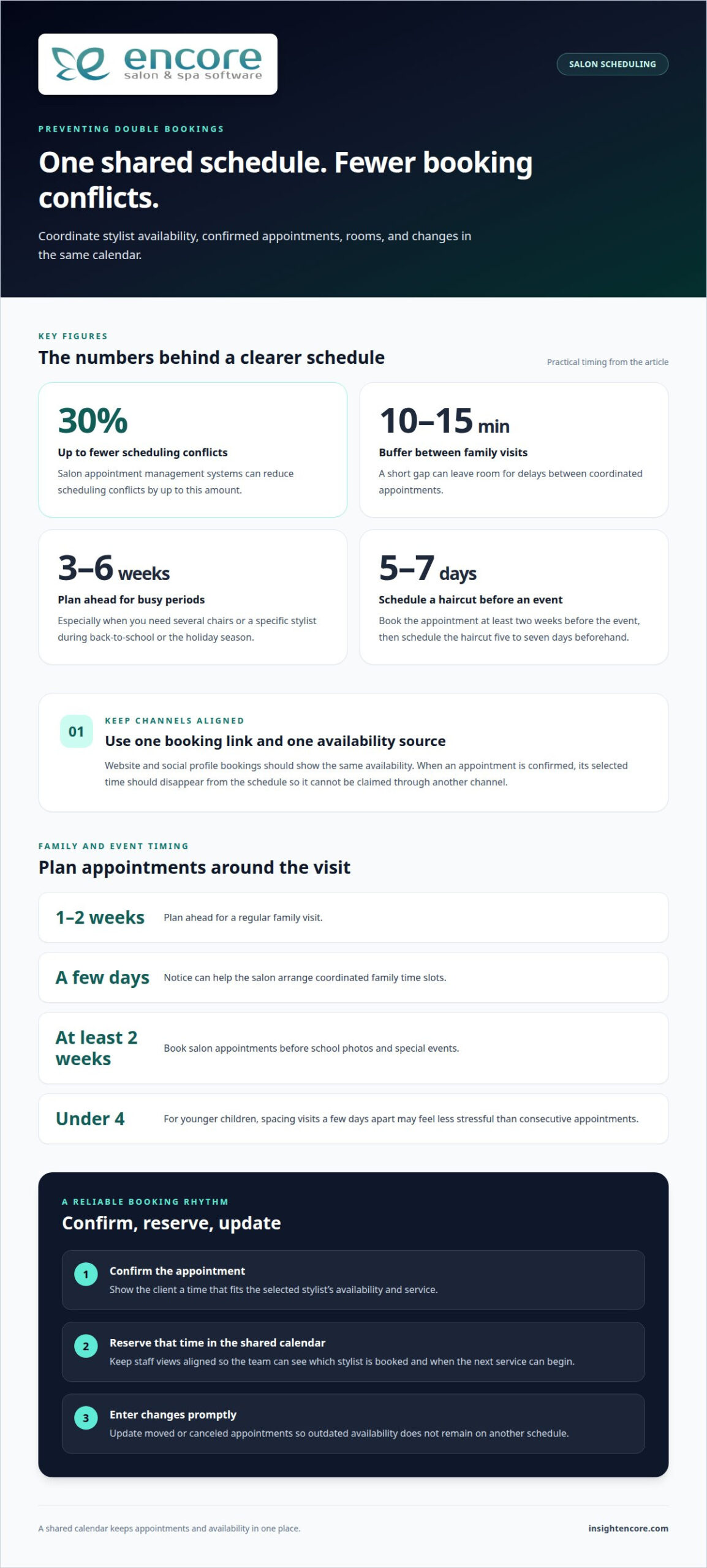
A salon website can direct clients to available appointment slots, while social profiles can make the booking page easier to find. Use the same booking link and availability information on both channels. When a client books online, the selected slot should disappear from the schedule so another household member can’t claim it through a different channel.

For example, a client who finds a haircut through a salon’s social profile can follow its booking link and choose a time. The salon can manage that reservation alongside appointments booked directly with staff, rather than relying on separate lists.

Salon Booking Rules

For day-to-day scheduling in U.S. salons, keep availability accurate, reserve each confirmed appointment, and follow the salon’s stated booking and change terms. These are practical operating habits, not a single timetable for every salon. A shared calendar helps staff see which stylist is booked and when the next service can begin.

Families booking together should tell the salon each member’s requested service and preferred stylist. Staff can then coordinate the appointments instead of treating each booking separately. For a regular family visit, plan one to two weeks ahead. For coordinated family time slots, a few days’ notice can help the salon arrange the schedule.

Plan ahead for school photos and special events. Book salon appointments at least two weeks before the event, then schedule a haircut five to seven days beforehand so the hair has time to settle. During busy periods, such as back-to-school or the holiday season, book three to six weeks ahead, especially when you need several chairs or a specific stylist.

To prevent overlap, the salon can use a digital booking tool that blocks a stylist’s reserved time as soon as an appointment is confirmed. For family appointments, a 10 to 15-minute buffer between visits can leave room for delays. The salon should also enter changes promptly; otherwise, a canceled or moved appointment may still appear unavailable to clients.

For younger children, back-to-back appointments may feel tiring. If a child is under four years of age, spacing visits a few days apart may be less stressful than consecutive appointments. If the family needs a single visit, staff can use each person’s service and stylist preferences to organize the sequence and keep the shared schedule clear.

01 What is the best salon appointment scheduling software?

Choose software that combines a shared team calendar with individual stylist schedules. It should also coordinate rooms and locations, sync changes, and make staff access clear.

Shared Calendars and Staff Access

A shared calendar lets reception staff and stylists view the same salon appointments. Look for updates across staff views when a booking is created, moved, or canceled. That way, the team can see which times are taken without relying on separate notes or messages.

Access permissions matter, too. A stylist may need to view their own schedule, while a manager may need to coordinate the full team calendar. Clear permissions help staff work from the same schedule while keeping controls appropriate to their roles.

Stylist, Room, and Location Scheduling

When a salon has several stylists, the calendar should make it easy to see who is assigned to each appointment. Room scheduling adds another layer: a service may need a particular space, so the calendar should show whether that room is in use. At salons with multiple locations, each booking should be tied to the correct site.

These views help staff spot conflicts before confirming a salon appointment. Salon appointment management systems can reduce scheduling conflicts by up to 30%. During a software review, test a realistic example: book one stylist in a room, then try to assign another appointment to that same resource and time.

Individual Calendars and Integrations

Individual calendars help stylists see their own bookings while giving managers a broader view of team availability. If the salon uses multiple calendars, check how changes carry across them. A moved appointment should not remain marked as available in another view, or the team could accidentally double-book that time.

Ask how calendar connections handle edits, cancellations, and new bookings. Also consider whether payment status can be reviewed alongside an appointment without obscuring the schedule. A straightforward setup makes it easier to track what is booked and which details still need attention.

Before choosing, map a typical day: several stylists, shared rooms, and appointments at each location. Check whether staff can find a booking quickly, understand who can edit it, and see schedule changes in the right calendar. Testing those steps is more useful than judging a system by a long feature list. A clear scheduling workflow can support faster decisions, sometimes within seconds. Explore a salon scheduling workflow that fits how your team coordinates calendars.

How can clients book appointments with their preferred hairstylist?

Clients can select a service, choose a stylist, and pick an available time through the salon’s online booking page. A well-organized appointment scheduling for multiple stylists system shows openings that match the selected provider, rather than every appointment time at the salon. For returning clients, a profile with their preferred stylist can make booking easier. Before confirming, review the service and stylist in the booking details.

The booking flow should guide clients through clear choices. First, they select a service. Next, they choose a stylist and review times that fit both. If their preferred stylist has no suitable opening, they can choose another available time or return to the calendar later. This keeps the stylist preference visible instead of assigning an appointment without the client’s choice.

Service selection matters because different appointments need different time blocks. A client booking a haircut should see openings that fit the service and the selected stylist’s schedule. For a color appointment, the booking page should show only times that accommodate the service. Clear service names help clients choose the right appointment before confirming.

Client profiles can make repeat visits easier to prepare for. A shared booking system can store notes about past styles, preferences, and special requests. For example, a client who wants to maintain a particular length can have that preference recorded for the stylist. This gives the team useful context without asking the client to repeat the same details at every visit.

Keep client notes practical and relevant to the appointment. Staff can record the service performed, preferred stylist, and a request to discuss a change next time. If the client books with another team member, shared notes can help that stylist understand the request. Text or email reminders can also prompt clients about upcoming appointments.

Reminders can be sent by text or email, and booking systems may let clients cancel or reschedule online. Salons can explain their cancellation and no-show policies during booking. Systems can track no-show rates and help assess which reminders are working. Where deposits or cancellation fees apply, integrated salon payment systems can process them using securely stored, tokenized card information.

Marketplace-based discovery can introduce clients to a salon or stylist. If a client starts there, their booking details should reach the salon’s central schedule with the chosen stylist and service attached. This gives staff one record to manage instead of separate information to reconcile after the appointment is booked.

For appointment scheduling for multiple stylists, keep the client’s service, chosen provider, contact details, and appointment together in one record. This helps clients see who they’re booked with and gives the stylist useful context before the visit. A clear booking flow makes every step easier to follow, from selecting a service to confirming a time.
Appointment Scheduling for Multiple Stylists at Salons

Individual stylist availability and working hours

Each stylist needs an individual schedule reflecting their working hours, appointments, and time away. A salon booking system can show clients openings based on their selected stylist, rather than treating every chair as available whenever the salon is open. According to the U.S. Bureau of Labor Statistics, salon schedules may vary and often include evenings and weekends, so one set of shared hours may not represent the whole team.

Set each stylist’s regular working hours in the calendar, then update exceptions such as lunch, time off, or a sick day. Digital booking systems can hide appointment slots from clients when a stylist blocks out time. That way, the booking page reflects the stylist’s actual availability, and clients don’t see a slot they can’t take.

Consider a simple example: one stylist works evenings on certain days, while another finishes earlier. The booking page should show evening appointments for the first stylist without implying the second is also available. Separate schedules help clients choose the right person and help staff assign appointments based on current availability.

Live availability depends on keeping the calendar current. When staff add a booking, move an appointment, or block out time, the client-facing view should reflect the change. Otherwise, a client could select a slot that’s already taken. A useful salon booking process connects each stylist’s calendar to the openings shown online and makes changes visible to the team.

An AI receptionist can support availability checks when it reads from the same current schedule used for online bookings. For example, a client asking for an evening appointment with a specific stylist should see times drawn from that stylist’s open slots, not general salon hours. The system should also distinguish between a stylist who is working and one who has an opening for the requested service.

Before publishing availability, review each stylist’s calendar for working hours, blocked time, and existing appointments. Then compare the client-facing booking page with the internal schedule. If a stylist changes shifts, update the calendar first to prevent the system from offering an outdated time.

These checks keep booking accurate without forcing every stylist into identical hours. Clients can choose a preferred person and see relevant openings, while staff retain a clear view of who is available. Keeping individual schedules current is especially important for salons with evening or weekend shifts, when the team’s hours may not overlap.

Matching services with eligible stylists and appointment durations

Good scheduling software connects each service to eligible stylists and a realistic time block. Clear service details also help clients select the right appointment through online booking.

Service and Stylist Matching

Set up each service with the stylists who provide it. For example, if only certain team members perform color treatments, show those providers when a client chooses that service. This prevents clients from booking an unavailable combination and helps staff assign appointments accurately. Keep the preferred stylist visible when eligible, while showing other qualified options if the client wants a different time.

Service Details and Client Needs

Before arranging appointments, capture each family member’s age, hair type, requested service, and sensory needs. A parent might note that one child has long hair and prefers a quieter appointment. These details help staff plan the visit and share relevant context with the stylist. They can also clarify whether family members need different services or separate appointment times.

For a family booking, list each member and their service separately. A request for a haircut and a color service needs different timing and stylist assignments. Specific notes help the salon understand the visit before clients arrive, rather than sorting out the details at the chairs.

Service Setup and Scheduling

AI-assisted setup can help organize service names, eligible providers, and schedule details, but staff should review each entry. Start with the service list, assign the stylists who perform each service, then set the appointment duration. For example, check that an online color service connects to the right team members and calendar availability.

Review settings when the salon adds a service or changes provider responsibilities. A quick check of the service, stylist, and time settings keeps appointment scheduling software aligned with the salon’s actual workflow.

Durations, Prices, and Scheduling Order

Set a duration for each service, then adjust it when client details call for extra time. For a client with particularly long hair, a salon can add 10 minutes to a haircut appointment. Keep prices tied to the service settings, and make any relevant pricing details clear during booking.

For appointments involving several family members, book the longest service first. For example, place a parent’s 90-minute color treatment before shorter services, then fit other family appointments around it. This gives the salon a stable starting point for arranging stylists, chairs, and the remaining time blocks.

Review the full booking sequence against each member’s service and stylist before confirming the schedule.
Explore appointment scheduling options

Encore Salon and Spa Software

Encore Salon & Spa Software gives salons a practical way to coordinate stylist schedules, client bookings, and service details across the team. Its salon and spa management tools include online appointment booking and client management to help keep appointments and client information organized.

Encore can suit salons that want to bring scheduling and client records into their daily workflow, as well as businesses looking for software designed for spa, chair and booth rental, or tattoo studio operations. The right setup depends on how your team handles bookings and client information.

To discuss how Encore Salon & Spa Software can support your salon’s scheduling needs, contact Encore Salon & Spa Software.

Build a Scheduling Workflow Your Team Can Grow With

In your next scheduling review, identify where coordination slows down: setting up services, assigning stylists, or keeping booking information current. Choose a workflow that fits how your salon operates and can adapt as your team, services, or appointment patterns change. A clear process gives staff a consistent way to manage bookings and clients a simpler path to their preferred stylist.

Reliable appointment scheduling for multiple stylists depends on more than a calendar. The right system should support how your salon organizes appointments and client information. Encore Salon and Spa Software offers Encore Salon Software, Encore Spa Software, and Chair/Booth Renter Software for businesses with different operating needs.

Take the next step when you’re ready to bring your scheduling process into a more organized workflow. A thoughtful setup can help your team manage its day with greater clarity.

Contact Encore Salon and Spa Software

Make scheduling work for your team, one well-organized appointment at a time.

Frequently Asked Questions

How can clients book appointments with a specific stylist online?

Clients can select a service, choose a stylist, and pick an available time through the salon’s online booking page. For a returning client, a profile with their preferred stylist can make the next booking easier. Before confirming, review the service and stylist in the booking details. This helps avoid choosing a time that works for the service but not the requested provider.

How do salon scheduling systems manage multiple stylists’ calendars and availability?

Scheduling software organizes appointments around each stylist’s schedule, service eligibility, and assigned resources. For example, a salon manager can use the calendar to see whether a stylist is booked while reviewing the relevant room or location. If a stylist’s work hours change, updating their schedule helps keep future appointment options aligned with the team’s current plan.

What are the best appointment scheduling platforms for salons with multiple stylists?

The best fit is a platform that matches how your salon handles staff schedules, services, client records, and bookings. Encore Salon Software combines online appointment booking with employee management tools for work schedules and service eligibility, plus client management. This can suit salons that want scheduling and client information organized within the same management platform, rather than relying on disconnected records.

How do salons set different services, durations, and prices for each stylist?

Salons can organize service menus with pricing grids, then associate services with eligible stylists. Appointment lengths should reflect the work involved, and prices should match the salon’s chosen service pricing. For instance, list a stylist who performs a particular color service for that service, while showing another stylist only the services they’re eligible to provide.

How can salons prevent double bookings and manage overlapping appointments?

Use one current appointment calendar for bookings made through the salon and online. If a client changes an appointment by phone, update the calendar promptly so the original time doesn’t remain open elsewhere. Resource reservations can help staff account for rooms or other shared spaces. Reviewing overlaps by stylist and resource makes conflicts easier to catch before confirming changes.

What is the process for setting up online booking for multiple stylists?

Start by adding the salon’s services and assigning eligible stylists to each one. Next, enter each person’s work schedule and set the available appointment times. Then connect the booking page to the salon’s appointment calendar and review the client-facing service choices. Test a sample booking with a particular stylist to make sure the service, provider, and time appear together correctly.

Disclaimer

This article is general in nature and may contain errors, please verify all claims with your sales rep
Categories
Uncategorized

How to Manage Salon Staff Schedules to Prevent No-Shows

What if a holiday request could disrupt bookings before anyone notices? When an employee submits a request, record the proposed time off in the scheduling system and check existing appointments and team coverage before approving it. Knowing how to manage salon staff schedules means making leave visible early, so unavailable hours aren’t left open for clients to book.

A clear process makes holiday requests easier to manage: staff submit requests, managers review the impact on appointments and coverage, then update and share the schedule. That keeps everyone working from the same plan.

This guide explains how to set up digital staff schedules, handle holiday requests, and choose scheduling software that fits your salon. You’ll also find practical ways to reduce missed appointments and last-minute cancellations, from recording time off promptly to building realistic gaps between services. The result is a rota that’s easier for your team to follow and more dependable for clients.

Key Takeaways

  • Match each shift to staff skills and availability, and record approved time off so unavailable slots aren’t booked.
  • Adjust coverage to busy periods and service demand, and plan ahead for seasonal changes.
  • Use realistic appointment gaps, timely reminders, and a waitlist to help manage cancellations and open slots.
  • Choose scheduling software that keeps online booking aligned with staff schedules and flags potential conflicts.
  • Share a rolling rota at least two weeks ahead, and use custom hours for temporary seasonal changes.

Can an employee see only their own schedule?

Yes. A salon can share each employee’s shifts while managers maintain a calendar of overall coverage. Set visibility to suit the team: staff need to see their working hours and approved changes, while managers need the full rota to spot gaps and coordinate appointments.

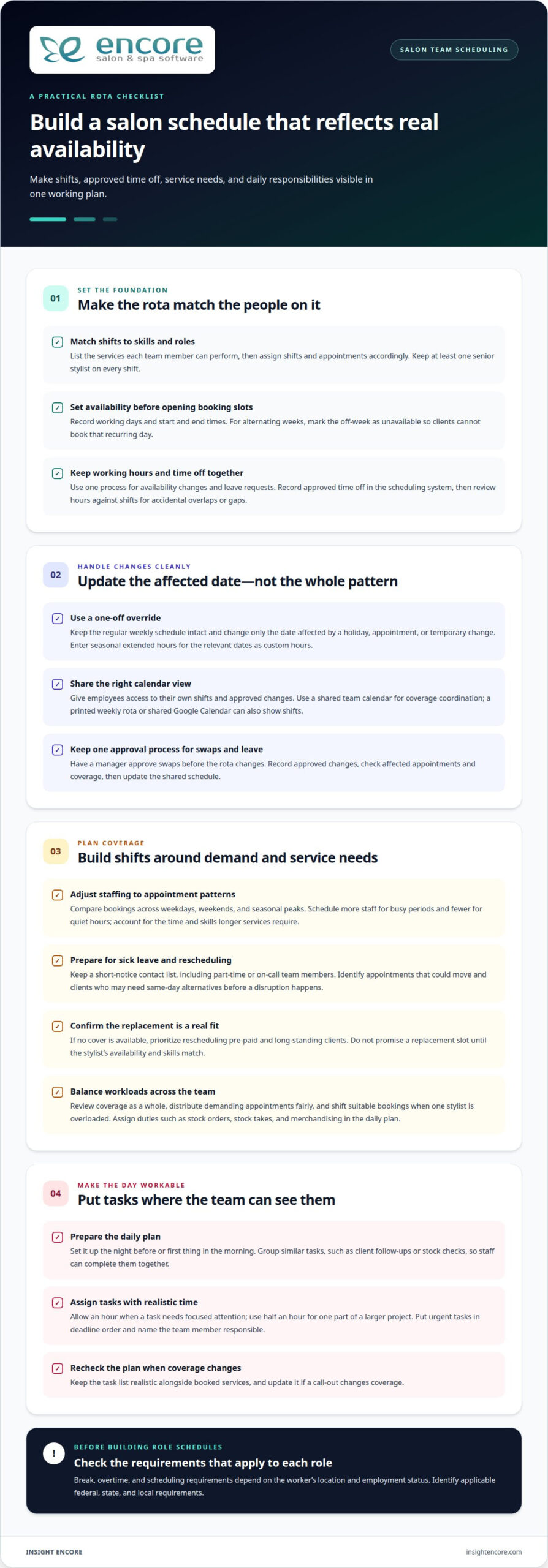
Break, overtime, and scheduling requirements depend on the worker’s location and employment status. Identify the federal, state, and local requirements that apply to each role before building its schedule.

For shift swaps, time-off requests, and call-outs, use one clear approval process. Record approved changes in the scheduling system, check affected appointments and coverage, then update the shared schedule so everyone sees the same plan.

  1. Match shifts to skills and roles. List the services each team member can perform, then assign appointments and shifts accordingly. For example, don’t place a stylist on a service they aren’t trained to provide. Keep at least one senior stylist on every shift, so the team has experienced coverage throughout the day.
  2. Set weekly availability before opening booking slots. Record each person’s working days and start and end times. If a stylist works alternating weeks, set the off-week as unavailable, with no bookings on that recurring day. A calendar that reflects actual availability helps prevent clients from booking when the employee isn’t working.
  3. Track working hours and time off in one place. Ask staff to submit availability changes and leave requests through the same process. Once a manager approves time off, record it in the scheduling system so those hours become unavailable before clients try to book. Review working hours against scheduled shifts to catch accidental overlaps or gaps.
  4. Use overrides for one-off schedule changes. Keep the employee’s regular weekly pattern intact, then update only the affected date for a holiday, appointment, or temporary change. For seasonal extended hours, enter custom hours for the relevant dates rather than changing the default schedule. This keeps future weeks smooth and avoids carrying a temporary change forward.
  5. Share the right calendar view. Give employees access to their own shifts and changes, and use a shared team calendar when staff need to coordinate coverage. A printed weekly rota or shared Google Calendar can also make shifts visible. Publish changes in writing, and let a manager approve swaps before the rota changes.

What Is Salon Staff Scheduling?

Build a rota around actual client demand, service needs, and staff availability. A useful plan also accounts for absences and the daily tasks that keep a salon running smoothly.

Step 1: Plan Shifts Around Demand

Use appointment patterns to schedule more staff during busy periods and fewer during quiet hours. Compare bookings across weekdays, weekends, and seasonal peaks, then adjust coverage to match demand. A holiday rush may call for more appointment capacity, while a slow period may suit staggered starts. Review the pattern regularly: a fixed rota can leave the salon short during busy spells and overstaffed when bookings dip. Factor in the service mix, too. Colour appointments and other longer services need different coverage from short cuts, so plan around the time and skills each booking requires.

Step 2: Plan Sick Cover and Rescheduling

Create a short-notice contact list of stylists who can cover sick leave, including part-time or on-call team members. Before a disruption happens, identify which appointments could move and which clients may need same-day alternatives. This gives owners a clear response plan instead of forcing them to rebuild the day from scratch. If no cover is available, prioritize rescheduling pre-paid and long-standing clients. Keep affected bookings visible in the day’s plan, and assign each client a next step, such as a new time or an alternative stylist. Don’t promise a slot until the replacement’s availability and skills match.

Step 3: Balance Team Coverage and Workload

Review the team schedule as a whole, not just as separate shifts. A coverage overview helps reveal gaps and uneven workloads before appointments are assigned. Check that each shift includes the skills needed for its booked services, then distribute demanding appointments and less client-facing duties fairly. For example, one team member can handle stock orders, stock takes, and merchandising while others serve clients. Record responsibilities in the daily plan so these tasks don’t disappear during busy periods. If bookings cluster around one stylist, redistribute suitable appointments to available colleagues instead of leaving one person overloaded.

Step 4: Plan Daily Tasks

Prepare the daily plan the night before or first thing in the morning. Group similar tasks, such as client follow-ups or stock checks, so staff can complete them together. Give a focused task an hour when the work needs uninterrupted attention; use half an hour to complete one part of a larger project. Put urgent tasks in deadline order, then assign each item to a named team member. Keep the list realistic beside booked services, and update it when a call-out changes coverage. Explore salon scheduling tools to see how a digital rota can support this planning.

Preventing missed appointments and last-minute cancellations

Use reminders, realistic appointment spacing, and a clear response plan to keep the day on track. These steps also help staff manage cancellations without leaving avoidable gaps.

  1. Step 1: Use Reminders, Waitlists, and Rescheduling Policies

    Send appointment reminders by email and text to accommodate clients’ preferred channels. Ask clients to confirm their visit, and let them reschedule independently through an online booking tool. Send reminders two to three hours before the appointment. Set a written rescheduling policy, such as allowing free changes until six hours before the visit, and communicate it during booking.

    When a client cancels, contact waitlisted people who can take that specific time. Match the opening to the client’s requested service and the stylist’s skills. Review missed appointments and cancellations by day to identify patterns. If one day repeatedly has empty slots, adjust that day’s availability or reminders rather than changing the whole rota.

  2. Step 2: Stagger Shifts and Buffer Appointments

    Stagger staff start times so coverage continues through closing without scheduling everyone for identical hours. Before changing a shift, compare its appointments with the employees available to take them. Add a realistic 10 to 15 minute buffer after colour services, chemical treatments, and other longer appointments. This gives stylists time for cleanup, consultation, or a late arrival without pushing every later client behind.

    Build short breaks between appointments into the rota, especially after demanding services. A break gives the stylist time to reset the station and prepare for the next client. Avoid filling every open minute with bookings: without breathing room, one delayed service can make several appointments late. Add buffers where services commonly run over, then review whether they fit the day’s actual booking flow.

  3. Step 3: Coordinate Multi-Stylist Appointments

    For an appointment involving several stylists, assign each service, staff member, and time slot before confirming the booking. A bridal party with 10 appointments in one day, for example, needs a clear sequence that avoids assigning one stylist to overlapping services. Match every appointment to an employee qualified for that service, then leave enough transition time for clients and staff to move between stations.

    Keep the shared appointment plan current if a client changes the service or arrival time. If a cancellation creates a gap, check whether another booked client can move 15 minutes earlier before offering the slot elsewhere. Clear assignments reduce confusion about who is responsible for each service. Explore a scheduling tool for salon appointments to see how digital booking can support this process.

How to Manage Salon Staff Schedules to Prevent No-Shows

Scheduling software selection criteria

Compare software with your salon’s booking flow and staff scheduling needs. Prioritize accurate availability, conflict checks, and tools that reduce manual work.

Step 1: Review Salon Scheduling Software Comparisons

Compare scheduling software by how well it connects staff availability with online booking. The calendar should show bookable times that match each team member’s schedule, so clients can’t reserve unavailable slots. Check whether the system flags conflicts before a new appointment is added. This is especially useful when service needs overlap or schedules change frequently.

Use your own booking patterns to make comparisons useful. For example, a salon serving more than 30 clients daily may need software that can handle a large appointment flow. Consider how managers view team schedules, adjust availability, and handle rescheduling. Avoid choosing from a feature list alone; trace a typical booking from selecting a service to assigning an available staff member.

Step 2: Evaluate Scheduling Software

Test the scheduling workflow using realistic examples from your salon. Enter a staff member’s regular working hours, then check whether online booking reflects them. Try adding an appointment that conflicts with an existing booking and see whether the system flags it before confirmation. These checks show whether the calendar supports your process or leaves managers to catch errors manually.

Review how the software handles schedule changes, too. Update an employee’s availability and confirm the change appears in the booking view. Check how managers access team schedules and whether staff can see their own shifts. If payroll preparation is part of your workflow, look for timesheet exports that can reduce manual administration. Evaluate each function against a task your team actually performs.

Step 3: Use Salon Management Software

Choose a system that fits how your salon manages appointments and staff, then keep its schedule current. Enter working days and hours before opening those slots for online booking. Record approved leave and schedule adjustments so the calendar doesn’t offer unavailable times. Assign each service to an employee with the right skills, and review potential booking conflicts as appointments come in.

Use scheduling software as a shared operational record, not just a booking calendar. Managers can review team coverage, while staff can check current shifts and updates. If the system exports timesheets, use them to support payroll preparation and reduce repeated manual entry. Revisit the setup whenever service demand or staffing patterns change, and ensure online availability still matches the rota.

Digital salon staff schedules

A digital rota gives salon owners a practical way to manage salon staff schedules. Set the regular pattern first, then adjust specific dates as staffing and booking needs change.

  1. Set each team member’s default hours. Enter working days and start and end times for every employee. Use a recurring pattern for regular shifts, and set an alternating workday to repeat every 2 weeks when needed. Mark off-weeks unavailable, so online booking doesn’t offer appointments during time off. Check that each person’s bookable services fit their skills and working hours.

    Keep the default schedule separate from one-off changes. If the salon extends its hours for a seasonal busy period, add custom hours for those dates instead of editing the regular pattern. This keeps future bookings aligned with the normal rota after the busy period ends.

  2. Publish a rolling rota early. Share the schedule at least two weeks ahead so staff can plan around their shifts. One workable routine is to publish the following two weeks every Friday. Put updates in writing so everyone can see what changed and when. If employees can swap shifts with manager approval, update the rota only after approval.

    For holiday periods such as Christmas and summer, schedule staff 6 to 8 weeks ahead. Review leave requests against existing bookings before confirming them, then update availability so clients cannot book affected slots. A shared digital calendar gives the team a current reference point instead of relying on separate messages.

  3. Reuse shift templates for recurring coverage. Save regular evening or weekend staffing patterns as templates, then apply them when those shifts come around. On Saturdays, stagger start times so coverage continues through closing. Block staff break times directly in the schedule; allow 10-minute breaks between appointments during peak hours and 15-20-minute breaks during non-rush periods.

    Include at least 10 minutes for sanitization between appointments. Avoid forcing every service into one fixed duration, since that can leave unproductive 15-minute gaps. Use one-hour or half-hour time blocks to fit service lengths more closely and make the day easier to scan.

  4. Build templates for special booking patterns. For a bridal party with 10 appointments in one day, create a schedule that blocks the required slots and assigns staff to each service. Review the sequence for overlaps before opening those bookings. A clear template helps managers coordinate several stylists while keeping each appointment tied to an available team member.

    At the start of each day, review the digital plan and adjust for call-outs or changed bookings. Check that updated staff hours still match online booking, and share changes in writing. Use this review to refine how you manage salon staff schedules as team needs and booking patterns evolve.

Explore digital salon scheduling

Encore Salon and Spa Software

Encore Salon & Spa Software brings online appointment booking and client management tools into salon operations. If coordinating staff availability with client bookings takes too much manual effort, Encore helps keep appointment information and client records organized. Salons, spas, chair and booth renters, and tattoo studios can use software designed for their business needs.

Consider it when you want booking and client management in one platform alongside the scheduling practices described above. Contact Encore Salon & Spa Software to discuss your salon’s needs.

Make Your Schedule Work for Your Team

Treat the rota as a working agreement, not just a list of shifts. Decide who updates the schedule, how staff share availability changes, and how the team flags recurring conflicts. Use those patterns to refine future schedules. This creates a practical way to improve how you manage salon staff schedules as your services, team, and booking habits evolve.

Encore Salon and Spa Software offers Encore Salon Software, Encore Spa Software, and Chair/Booth Renter Software. These options support different business setups, helping you choose software that fits your salon, spa, or rental model.

Contact Encore Salon and Spa Software

With a clear process and the right tools, your team can work with greater confidence and a schedule that supports the day ahead.

Frequently Asked Questions

Can an employee enter their own holiday?

Yes. An employee can submit a holiday request, but the manager should decide whether to approve it. Keep submission and approval as separate steps. For example, check whether the requested date overlaps with client appointments or leaves a shift without the skills it needs. Once approved, record the leave and update affected bookings so the employee’s time off isn’t left open for booking.

How do I stop double bookings in my salon?

Use one booking calendar as the source of truth, and make each appointment reserve the right staff member for the required service time. Before confirming a booking, check for conflicts with that employee’s existing appointments and working hours. If clients can book online, keep the displayed availability aligned with the salon rota. For a service involving multiple stylists, assign each person’s role and appointment time separately.

How far ahead should I schedule?

Publish a regular rota at least two weeks ahead, then plan farther ahead for seasonal peaks. For holiday periods such as Christmas and summer, schedule staff 6 to 8 weeks ahead. This gives managers time to balance leave requests with appointments and service demand. Keep reviewing upcoming weeks as bookings change, rather than assuming the first draft will remain accurate.

How much time should I leave between salon appointments?

Choose the gap based on the service and how often it runs over. After colour services, chemical treatments, and other longer appointments, allow a 10 to 15 minute buffer for cleanup, consultation, or late arrivals. Include sanitization time between clients, too. A short haircut and a long treatment may need different scheduling blocks, so avoid assigning every service the same duration.

Should salons keep slots open for walk-ins?

Reserve walk-in capacity only when booking patterns and staffing can support it. Compare quiet periods with times when clients commonly arrive without appointments, then leave suitable openings for staff qualified to perform those services. Don’t block the same capacity across every shift by default. If walk-ins are uncommon during a particular period, make those slots bookable instead and review the approach as demand changes.

How do I create a salon staff schedule based on appointments and peak hours?

Start with the appointment calendar, then group bookings by service type, duration, and required skills. Identify busy and quiet periods, and assign coverage to match demand rather than dividing shifts evenly. Check that each booked service has a qualified employee and that longer appointments don’t overlap with their other work. Review the finished rota against upcoming bookings and adjust when demand shifts.

What staffing ratios are typical for salons by service type and size?

There isn’t one staffing ratio that suits every salon. A useful plan depends on appointment volume, service duration, employee skills, and how many clients need service at the same time. A salon with longer colour appointments may need different coverage from one focused on short cuts. Use the booked workload and service mix to identify coverage gaps, then adjust the rota.

How far in advance should salon work schedules be published?

Publish a rolling staff rota at least two weeks ahead so employees can plan around their shifts. A consistent routine helps: prepare the next two weeks every Friday, then share changes in writing. For seasonal periods such as Christmas or summer, plan coverage earlier to account for leave requests and appointment demand. Update the published schedule when approved changes affect a shift.

Disclaimer

This article is general in nature and may contain errors, please verify all claims with your sales rep

Categories
Uncategorized

Barbershop appointment management app pricing for shops

Online deposits are possible when a booking setup lets clients pay during checkout. A barbershop appointment management app can collect payment as part of the booking flow while keeping appointments and walk-ins in view. The key is choosing a system that works for clients who book ahead and those who walk in.

Online booking is only part of the picture. A busy shop also needs a clear way to coordinate walk-ins, staff calendars and appointments made at the counter. When every booking appears on one schedule, staff can see who’s next and keep the day organized.

Here, you’ll learn how deposits and after-hours booking work, how to manage walk-ins alongside staff-created appointments, and what to consider when setting up calendars, waitlists and pricing. You’ll also learn how to assess a free plan and whether its booking and payment features suit your shop.

Key Takeaways

  • Set booking rules that let clients reserve a time outside shop hours while giving barbers control over accepting, skipping or reassigning clients.
  • Keep walk-ins, online bookings and appointments made by staff together on one schedule to make the day easier to coordinate.
  • Use shared staff calendars and a visible waitlist to help the team manage the queue, even if online booking isn’t enabled.
  • Compare plan limits, payment processing costs and included features to judge whether a free option suits your shop’s workflow.
  • Review how booking, reminders and cancellations fit together so clients know what to expect and staff can manage schedule changes.

Can clients book appointments outside working hours?

Yes. An online booking page can let clients request appointments while the shop is closed. Set your services, available hours, staff schedules and booking rules in advance. A client looking for a haircut after closing will then see only the time slots you’ve opened for booking.

Decide whether bookings are confirmed automatically or require barber approval. Automatic confirmation suits predictable schedules, while approval gives barbers more control over unusual requests. For example, a barber can review a request that needs extra time before accepting it. Make each booking’s status clear, so clients know whether it’s confirmed or pending.

Set clear procedures for schedule changes. Decide who accepts, skips or reassigns clients, and make sure staff know who handles each action. If a barber is unavailable, move the client to another barber with a suitable opening, or skip the request if no slot works. Clear rules prevent pending requests from being mistaken for confirmed appointments.

After-hours booking can also support client acquisition. A shop can share its booking page on its website, social profiles or a marketplace that lists local services. For example, a new client comparing nearby barbers can view available times and book without calling. Listings can introduce the shop, but appointment availability, service descriptions and barber profiles need to stay accurate to set expectations.

Client records give staff useful context for repeat visits. Keep appointment history on each client profile, including the service booked and the barber assigned. Staff can review past visits before the next appointment. A client management system, or CRM, organizes this information and helps manage follow-ups and preferences without relying on memory.

For a US shop, use privacy controls to limit client-record access to staff who need it. Collect only details that are useful for booking, and use a secure payment flow to protect card information. Explain cancellation and deposit terms before clients submit payment.

Point-of-sale, calendar and marketing integrations vary by app. A point-of-sale connection can link appointments with checkout, while calendar syncing can help staff review scheduled work. Marketing tools may support follow-up messages or loyalty programs. Choose connections that fit your shop’s workflow.

Start setup by entering services, durations, staff availability and booking rules. Then test a booking, a schedule change and a cancellation from both the client and staff views. Adjust the settings before sharing the booking page.

Managing walk-ins alongside online and staff-created appointments

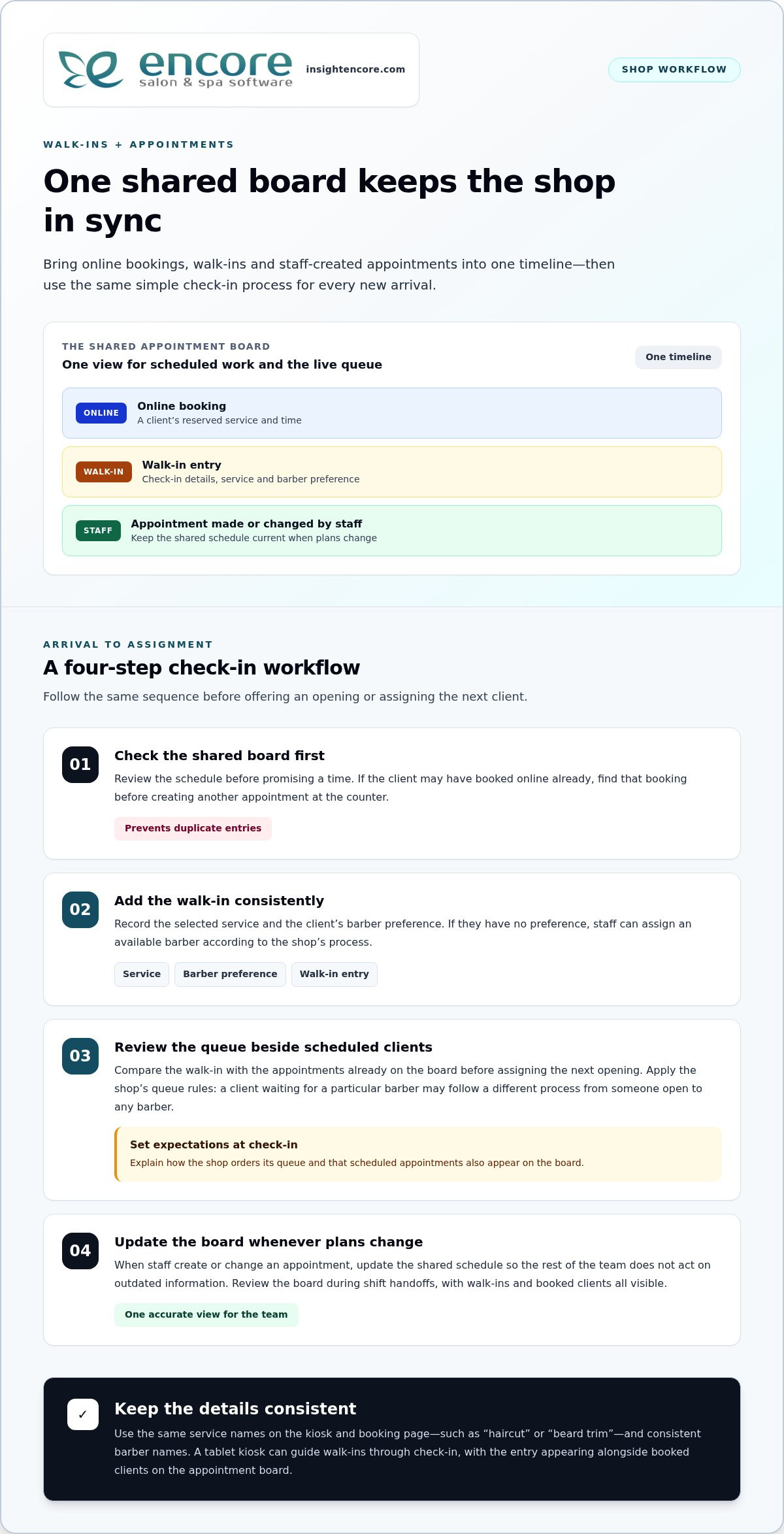
A shared appointment board gives the front desk one timeline for every client. It can combine online bookings, walk-in entries and appointments made by staff. When a client calls while another is checking in, staff can review the same schedule before offering an open slot instead of relying on separate notes or memory.

For walk-ins, a tablet kiosk can guide clients through check-in. They select a service and can choose a barber if they wish. The entry then appears on the appointment board alongside booked clients. For example, a walk-in requesting a haircut can appear in the same timeline as an online haircut booking, so staff can see the queue and scheduled work together.

Keep check-in details consistent. Use the same service names on the kiosk and booking page, such as “haircut” or “beard trim,” and use consistent barber names. Record a client’s barber choice with the walk-in entry. If they don’t choose, staff can assign an available barber according to the shop’s process.

Use a clear workflow whenever a new client arrives:

  • Check the shared board before promising an appointment time.
  • Add the walk-in with the selected service and barber preference.
  • Review the entry alongside scheduled clients before assigning the next opening.
  • Update the appointment board when staff create or change an appointment.

These steps help prevent duplicate entries. If a client has already booked online, staff should find that booking before creating another appointment at the counter. If a barber changes an appointment, update the shared schedule so other staff don’t act on outdated information. One timeline makes changes easier to spot.

Set expectations at check-in. Explain how the shop orders its queue and that scheduled appointments also appear on the board. A client waiting for a specific barber may follow a different process from someone open to any barber. Recording the service and barber preference helps staff apply the shop’s rules consistently.

Review the board during shift handoffs. Make sure online bookings, staff-created appointments and walk-in entries are all visible. If a barber is running behind, staff can check the schedule before offering an alternative. The aim isn’t to treat every arrival identically, but to give the team one accurate view and manage each client according to the shop’s queue and booking rules.

Multi-staff calendars, walk-ins, and waitlists

A shared calendar helps coordinate each barber’s appointments and availability. Pair it with a walk-in queue to manage arrivals as they happen.

Multi-Staff Calendar Coordination

Give each barber a distinct calendar view, with working hours, appointments and unavailable blocks easy to distinguish. Before assigning a client, compare the requested service and barber with the open schedule. If a client wants a particular barber, for example, staff can check that barber’s calendar instead of offering a time based on another team member’s availability.

Check how calendar changes appear to the team. When a barber’s schedule changes, staff need to see affected appointments and update them deliberately. Review the day’s schedule at opening and again during shift handoffs. This gives the next staff member a clearer view of remaining appointments and any updates.

Walk-In and Waitlist Handling

A waitlist connects clients waiting for service with the walk-in queue. Shops can show queue positions and estimated waits in real time on a TV or large screen. Clients get a visible reference, and staff can manage arrivals in sequence. A walk-in queue can also operate without online booking.

Decide what information staff need for each waitlist entry. A service request and barber preference can help direct clients appropriately. Someone waiting for a specific barber may need a different estimate from someone willing to see the next available barber. Update the queue when a client leaves, changes their request or begins service.

Use consistent steps to keep the calendar and queue aligned:

  • Add each new arrival to the walk-in queue before giving a wait estimate.
  • Review the assigned barber’s calendar before moving someone forward.
  • Update the queue when a client starts service or leaves.
  • Tell waiting clients when an estimate changes, and keep the screen current.

These habits help staff spot conflicts before they disrupt the day. If a scheduled appointment and a walk-in both expect the same barber, for instance, the calendar and queue make the overlap visible. Staff can then apply the shop’s booking and queue rules instead of making separate promises from memory. Check the display and calendar at each handoff so the team has the same information.

Barbershop appointment management app pricing for shops

Software pricing and free plans

Compare the full cost of a plan with the tools your shop needs. A low starting price may not include payment processing or optional features.

Software Pricing

Compare subscriptions by included features, staff access and payment terms. Processing fees may be separate from the software subscription, so account for them as a distinct expense. The right barbershop appointment management app should fit your shop’s workflow, not just look inexpensive at first glance.

List the tasks your team needs to manage before comparing plans. A solo barber may prioritize appointment scheduling and client records, while a shop with several barbers may need individual staff calendars. Compare options against those needs, then review user limits, included tools and billing terms. This makes the cost comparison relevant to your operation.

Free Plan Options

A free plan can help you try an appointment workflow before choosing paid software. Check whether it supports the services, staff calendars and booking steps your shop uses. Review limits on appointments, team access, client records and payment tools. Compare what each plan actually includes, as limits can vary between barbershop appointment management apps.

Test a realistic booking process instead of judging a plan by its feature list alone. Add a service, create a staff profile, make a sample booking and review the client record. Then repeat the process from the staff view. This can show whether the free option works for both clients and the people managing the schedule.

Use this checklist to compare plans:

  • List the booking and management features the shop relies on.
  • Separate software charges from payment processing costs.
  • Review free-plan limits on users, appointments and records.
  • Try the main tasks staff handle during a typical workday.

Read plan terms for restrictions that could affect daily operations. Consider whether the free option supports your booking and payment processes, and whether its limits fit your staffing needs. If you add another barber, for example, access to staff calendars may matter more than it did when you worked solo.

Choose based on practical value, not headline price. If a free plan requires staff to track bookings separately, include that extra work in your comparison. Whether you start with a free plan or compare paid options, a suitable barbershop appointment management app should make core tasks manageable within your budget and workflow.

How do barbershop apps handle online booking, reminders, and cancellations?

Online booking lets clients choose a service, barber and available time through a booking page. The app uses the shop’s schedule to show bookable slots. A client can select a beard trim, for example, and see times assigned to an available barber. Accurate service names and durations help clients choose the right appointment. Keep those details current when schedules or services change.

After a client submits a booking, the app records the appointment and displays its status. The booking flow may include a confirmation with the service, barber, date and time. This summary gives clients a chance to spot mistakes early. Someone who chose the wrong barber, for instance, can correct the booking before arriving. Clear details also help staff prepare.

Reminder tools can send appointment details before the scheduled visit. The shop can use reminders to reinforce the time, location and service the client selected. A useful message is direct: “Your haircut with Alex is booked for Thursday at 2 p.m.” Keep the wording consistent with the booking record. If the appointment changes, update the record before sending further reminders.

Cancellation settings determine what clients can do after booking. Decide whether clients can cancel online, how staff record phone cancellations and how newly open slots become available again. Explain the process during booking so clients know how to cancel or request a change instead of simply missing an appointment.

Use a simple workflow to handle changes:

  1. Record each online booking with its service, barber and appointment time.
  2. Send a confirmation that repeats those booking details.
  3. Apply the shop’s reminder schedule to upcoming appointments.
  4. Update cancellations or changes on the calendar promptly.
  5. Offer the newly open time to clients seeking an appointment.

Test the full process before sharing the booking page. Make a sample appointment, review its confirmation, then change or cancel it. Check that the calendar updates and the released slot can be booked again. A staff test can also reveal confusing service names or missing instructions. Fix these details before clients rely on the page.

When the system supports it, connect booking details to returning clients’ records. Staff can then review appointment history before serving a repeat customer. Keep messages relevant to the appointment and avoid unnecessary details. A well-managed booking flow gives clients clear steps and shows staff schedule changes.

Encore Salon & Spa Software: Encore Salon Software

Encore Salon & Spa Software offers Encore Salon Software for shops looking to manage appointments and daily operations more efficiently. The platform brings online booking, client management, inventory tracking and point-of-sale tools together. This can suit a shop that wants to connect booking activity with client records and checkout instead of managing each task separately.

Consider a unified system when appointment details, client history or sales are spread across separate systems. Staff can access relevant information while serving clients and managing the shop. Encore Salon Software is designed for salons, while Encore Spa Software, Chair/Booth Renter Software and Tattoo Studio Software serve other business types.

Visit insightencore.com to explore Encore Salon & Spa Software.

Choose a setup that supports your next stage

Start by matching your booking system to how your shop works today, then consider how your needs may change as the team grows. A barbershop appointment management app should support the way you manage appointments and client details without adding steps your staff won’t use.

Encore Salon & Spa Software offers Encore Salon Software, Encore Spa Software and Chair/Booth Renter Software for different business types. Consider which setup best fits your operation. For barber shops looking to manage appointments as part of their business software, Encore Barber Software is also available.

Before making a change, list the tasks you want to manage in one place and involve the staff who handle bookings. A clear view of your needs makes it easier to choose a practical fit and move forward confidently.

Explore Encore’s software options

A more organized booking process starts with a system that fits your shop. Take the next step when you’re ready.

Frequently Asked Questions

Can barbers collect deposits online?

Yes, if the booking system supports deposits and its payment setup allows them. Request payment during booking, then explain the deposit terms before checkout. For example, clarify whether the deposit applies toward the service and how cancellations are handled. Clear terms help clients understand the payment and staff recognize it when the appointment arrives.

Can clients choose a specific barber?

Yes, booking pages can let clients choose a barber when the shop enables that option. This suits clients who prefer a barber they’ve seen before. Keep barber names and availability current so clients choose from accurate options. If a client has no preference, offering an unassigned or next-available option can make booking easier.

Can it be linked from Instagram and social media?

Yes, a shop can share its online booking page through social profiles when the platform allows links. Add the booking link to the profile or a relevant post, with a clear label such as “Book an appointment.” Use consistent service names and shop details across profiles. This gives people who discover the shop online a direct path to its schedule.

Can it help bring in more clients?

It can make booking more convenient for people considering a visit, especially those who prefer not to call. A clear service menu and shareable booking page give potential clients a simple next step. For example, someone viewing a barber’s social profile can move from seeing the shop’s work to viewing available appointments. Booking tools make access easier, but service quality and client experience remain essential.

Can multiple barbers use separate calendars?

Yes, scheduling systems can organize availability by barber, making each team member’s appointments easier to review. This helps when staff work different shifts or offer different services. Assign each booking to the right person and review individual schedules when planning. Enter each barber’s working hours and time away before opening appointments, so availability stays accurate.

Can solo barbers use it too?

Yes, a solo barber can use appointment software to manage personal availability, client bookings and service details without coordinating a team. The barber can keep work hours and appointment types in one schedule, then share the booking page with clients. Choose settings that suit a one-person workflow instead of adding staff steps that don’t apply.

Does it prevent double bookings?

Scheduling software can reduce double bookings by marking occupied appointment times as unavailable. This helps when clients and staff add appointments through the same schedule. Once a client reserves a time, for example, it shouldn’t appear open to someone else. Record staff-created bookings and schedule changes promptly so the calendar reflects actual availability.

Does it send appointment reminders?

Yes, appointment software may send reminders using the contact details recorded for each client. Reminders can restate the appointment time, barber and service, helping clients find their booking information. A client checking a message before leaving home, for example, can confirm the scheduled service. Set message details to suit the shop’s communication style and keep appointment records current.

Disclaimer

This article is general in nature and may contain errors, please verify all claims with your sales rep