You don’t have to leave your calendar wide open to offer online booking. Getting clients to use an online booking portal starts with clear settings: how far ahead they can book, which services they can choose, and when appointments are available. Set the booking window to suit your business, then explain the options simply.
It’s understandable to worry that an online system could make scheduling feel less personal or create confusion. In practice, clients are more likely to book when the process is easy to find, service details answer their questions, and the settings match how your business works.
This guide explains how to share booking links, clarify service information, and use flexible settings to support client self-service. You’ll also learn how a client portal can simplify booking for returning customers and how to introduce it in a helpful, low-pressure way. Small improvements can make the next step clearer for clients and easier for your team to manage.
Key Takeaways
- Make the booking option easy to spot across your website, social profiles, and client messages.
- Write service descriptions that help clients choose confidently without needing to contact you for basic details.
- Set booking windows, appointment availability, and form fields to fit the way your business operates.
- Use clear confirmations and reminders to guide clients through booking and appointment changes.
- Introduce the client portal with simple instructions so clients know how to use it for their next visit.
1. Adding booking links to websites, listings, and marketing materials
Encourage clients to book online by placing a clear booking link where they already find your business. Use the same direct invitation on your website, in your email signature, on social media, and in replies to appointment inquiries.
Make the link easy to spot in every channel. On your website, put “Book Now” in the main navigation and near service descriptions. Add the booking link to your email signature and social media bios, so clients can act while they’re considering an appointment. In automated email, SMS, or Messenger replies, include the link with a short prompt such as, “Choose a service and appointment time online.”
Social media can support discovery as well as booking. 32% of consumers use social media to discover new brands and research what to buy. Make the next step clear on platforms such as Instagram or Facebook: a profile link, a booking button, or a post that leads directly to the appointment page. Avoid sending people to a general homepage when a direct booking link can take them closer to choosing a service.
Keep website booking straightforward. Use familiar button text, such as “Book Now” or “Schedule an Appointment,” rather than a vague phrase like “Get Started.” Place booking among the first navigation options, ideally as the second or third tab from the homepage. Then test the route yourself: start at the homepage, select a service, choose an available time, and check that each step is clear.
Website and social media integrations can shorten the booking process by letting clients start from the channel they’re already using. Keep service names, appointment details, and the destination consistent wherever the link appears. For example, a post promoting a haircut should lead to the haircut option, not a broad list that makes clients search again. Check links regularly, especially after changing website navigation or social profiles.
Promote online booking in materials clients already receive. Add the link to newsletters and appointment follow-ups, and use printed cards with a scannable code that opens the booking page. A short demonstration video on YouTube, TikTok, or Instagram can show where to tap and what information clients need. Keep the demonstration focused on the actual process, from opening the link to receiving confirmation.
To measure adoption, compare portal bookings with all bookings over the same period. Divide portal bookings by total bookings to find the share made online. To measure conversion, divide completed online bookings by visits to the booking page. Compare channels to see which links lead to appointments.
2. Benefits of online scheduling compared with phone and email bookings
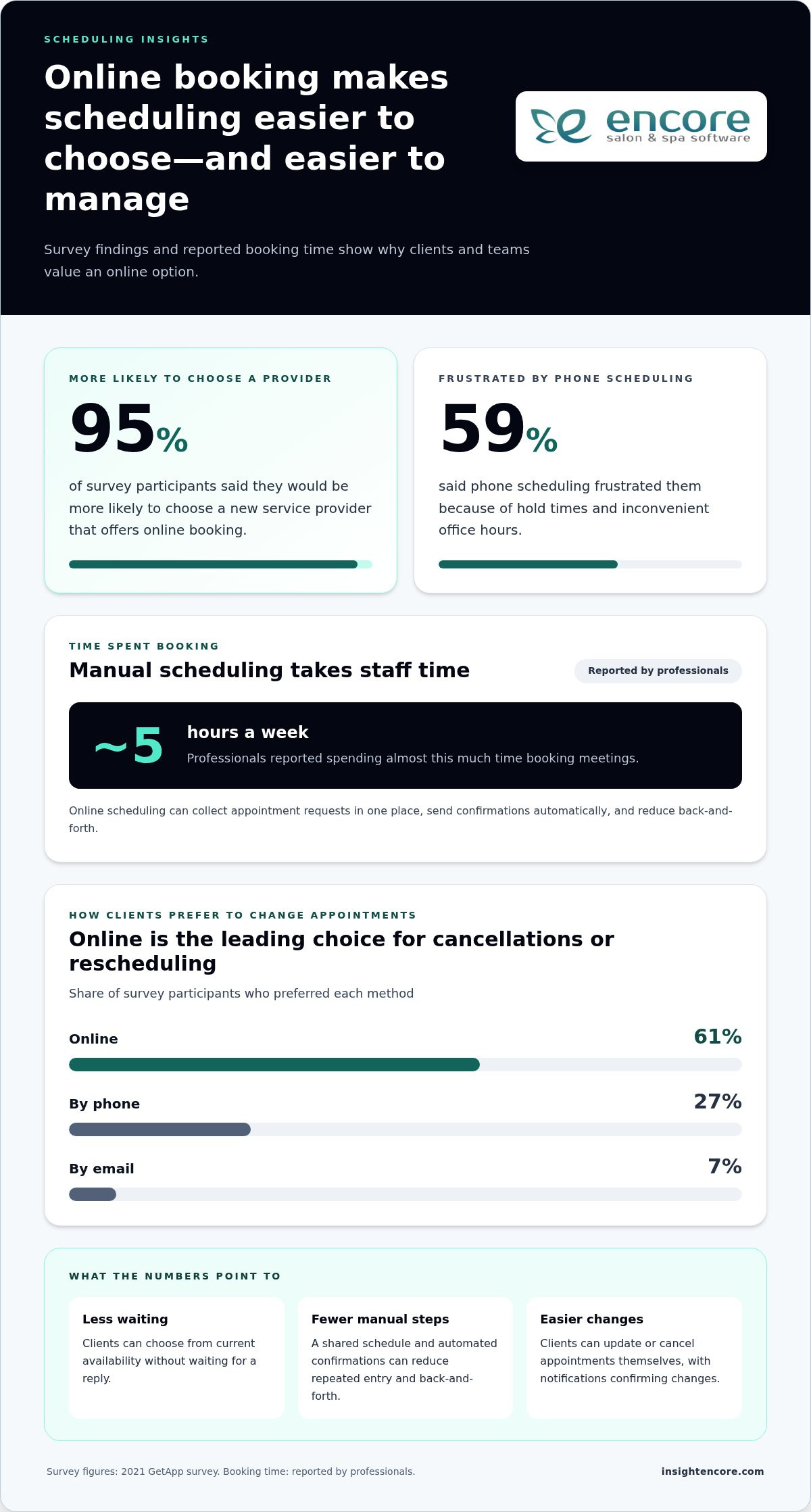
Phone and email bookings depend on someone being available to answer, record details, and confirm a time. An online platform lets clients choose from current availability without waiting for a reply. In a 2021 GetApp survey, 59% of participants said phone scheduling frustrated them because of hold times and inconvenient office hours. The same survey found 95% would be more likely to choose a new service provider offering online booking.
Less back-and-forth can also give staff time back. Professionals reported spending almost 5 hours a week booking meetings. A scheduling platform can put appointment requests in one place, create a text-based record of client interactions, and send confirmations automatically. Calendar synchronization with Google Calendar or Outlook can help prevent conflicting appointments, while clients can add bookings to their own calendars.
Separate schedules help clients find options that suit their needs. Set availability by service, staff member, or location, then show only relevant appointment times. For example, a client looking for a massage at one branch shouldn’t have to sift through another location’s schedule or unrelated services. Clear categories make choices easier and help staff manage different appointment types.
Automation can reduce manual entry and errors caused by copying appointment details between calls, emails, and calendars. Use one shared schedule as the source of truth, and ensure each booking updates availability. Test a sample appointment from start to finish, including a change or cancellation. Confirm that the correct service, staff member, location, and time appear in the schedule.
Online tools can also make cancellations easier to manage. Clients can change or cancel appointments themselves, while automated notifications can confirm a booking, update, or cancellation. Send reminders by email or SMS, and keep the cancellation instructions visible in the booking flow. In a 2021 GetApp survey, 61% preferred to cancel or reschedule online, compared with 27% by phone and 7% by email.
Choose a platform based on what your team needs to do. Check that it separates schedules clearly, updates availability, supports client changes, and sends useful notifications. If you use Google Calendar or Outlook, look for calendar synchronization to help prevent double bookings. Then test the client experience on a phone and computer, since clients may book on either.
For a salon or spa, a connected booking workflow can bring appointments and client records together. Explore an online booking workflow as a practical next step when manual scheduling takes too much staff time.
3. Using service and business information to support self-service
Clients can book independently when the page answers practical questions before they choose a time. For each service, explain what it includes, who it suits, how long it takes, and anything clients should prepare. For example, distinguish a standard haircut from a haircut with a wash, so clients can select the right appointment without calling. Keep wording consistent between the booking system and your other business information.
Give each service a clear page or section, with your logo, service-specific details, and a booking flow suited to the appointment. A massage page, for instance, can introduce the service and lead directly to available times. Branded pages help clients recognize your business, while distinct descriptions prevent one service from being mistaken for another. Ask a colleague to follow the steps and flag unclear labels or confusing choices.
Location details matter when clients can visit more than one branch. Name each location clearly and include its address, opening hours, and relevant arrival instructions. Connect each service to the locations where it’s available. A client choosing a facial should see the right branch and appointment times, rather than a location that doesn’t provide that service. Review location details whenever hours or service availability change.
Make appointment changes convenient. Let clients cancel or reschedule through the booking system, and explain the steps and applicable cancellation policy before they confirm. Keep contact options visible for questions that need personal help, such as requests involving multiple services. Automated email or SMS reminders can reinforce appointment details, while self-service changes let clients update plans through their preferred channels.
Keep information accurate throughout the booking journey. Test a booking from the service page through confirmation, then check that locations, hours, service details, and cancellation policies match your current operations. A scannable contact card can also help clients connect with your business quickly. If clients regularly ask the same question, answer it on the relevant service page rather than making them search elsewhere.
Give staff a simple, consistent handoff: show clients where to find online booking, explain how to choose a service, and offer the direct link when they ask to book. Practise the steps together, including how to find contact information or change an appointment, so every team member can guide clients confidently.
4. Customizable booking settings and messages
Set booking options to reflect how your business actually runs. Choose which services clients can book, when appointments are available, and how far ahead the calendar opens. A flexible booking page can give clients access 24/7, while limits on available dates help you plan staffing and appointment capacity. Test the settings as a client before sharing the page.
Customize the booking page with your logo, clear instructions, and a short form. A step-by-step flow can ask clients to choose a service, location, and time without presenting one long form. Collect only the details needed for the appointment, such as a client’s name and preferred contact method. Remove questions that don’t help you prepare for or manage the visit.
Make location descriptions useful before clients choose a time. Include the branch name, address, hours, and arrival instructions, then connect each location to the services available there. For example, explain which entrance to use or where to find the studio. These details help clients choose the right location and reduce confusion in confirmation messages.
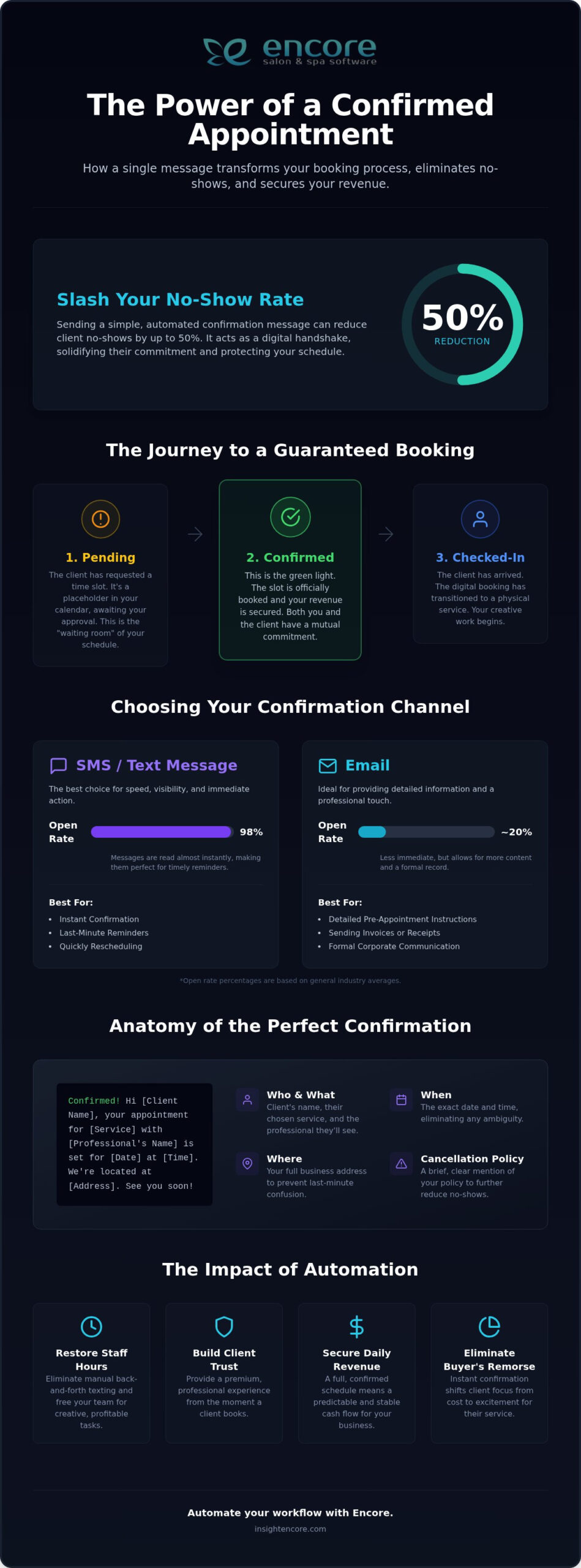
Use automated messages to make each booking step clear. Send a confirmation with the chosen service, location, date, and time. Include practical details in a reminder, such as preparation instructions or how to reschedule. Keep the wording direct and consistent with your business profile, so clients recognize the messages and know what to do.
Online booking incentives can encourage clients to try self-service, but keep the offer simple and easy to understand. Options include loyalty points for online bookings, a complimentary add-on, or a percentage discount. For example, a promotion might offer 50% off an add-on service when a client books a nail appointment in the next two weeks. State the terms beside the booking option to avoid surprises.
For a U.S. booking portal, protect client information during transmission and storage, and collect only details needed for appointments. Make the booking flow accessible with clear labels, readable text, and forms that work with common assistive technologies. These practical steps support privacy, security, and accessibility without asking clients to share unnecessary personal details.
Finally, review the complete experience on a phone and computer. Book an appointment, read each message, and confirm the calendar shows the correct service and location. If a returning client can’t tell where to change an appointment or apply an online offer, clarify the page labels and instructions before promoting it.
5. Enabling client-portal booking
A client portal gives returning clients a familiar place to manage appointments instead of starting from scratch each time. Connect the booking system with your management system so appointment and client information stays together. Explain what clients can do in the portal, such as book, review appointment details, or make changes. Clear expectations help clients understand its value before creating an account or booking.
Introduce the portal gradually. Getting clients to use an online booking portal often takes time, so give them room to learn the process. Start by inviting regular clients to try it, then use their questions to improve the instructions. Once the steps are clear, share them with your wider client base through email, appointment follow-ups, and social channels.
Make the first action easy to follow. Provide a short written guide or video tutorial showing how to open the portal, find a service, and select an appointment. Use the same labels clients see on screen. For example, if the portal says “Choose a service,” use that phrase in your instructions instead of “select a treatment.” Consistency means clients don’t have to guess which button to press.
Staff can support the transition without taking the booking away from clients. When someone calls or visits, guide them through the portal once, then invite them to use it next time. If a client prefers phone or email, help with that booking while explaining the self-service option. Offer a useful choice without making clients feel pushed into a new process.
Review portal use and common points of confusion to see how the rollout is progressing. Notice whether clients start but don’t finish, need help accessing accounts, or struggle to find the right service. Update the relevant instruction or booking step, then share the revised guidance. Keep a simple record of recurring questions, such as where to change an appointment or find a confirmation.
For potential customers who find your business through Google or social media, make the portal’s next step clear from the start. Returning clients may prefer a familiar portal, while first-time visitors may need service details before booking. Getting clients to use an online booking portal is easier when the portal gives both groups a clear route.
Encore Salon & Spa Software: Encore Salon Software
Encore Salon & Spa Software brings online appointments and client management together in one platform. Encore Salon Software and Encore Spa Software support salons and spas that want clients to book online while keeping appointment and client information organized. Chair/Booth Renter Software and Tattoo Studio Software support distinct business settings with different booking needs.
Consider an online booking system if clients still rely on calls or messages to find an available time, or if staff manage appointments across separate tools. An online booking module makes self-service part of your daily workflow, while client management tools keep client details alongside appointments. The right setup should reflect your services and how your team schedules them.
Explore the options that fit your business, or contact Encore Salon & Spa Software to discuss your booking needs.
Make your next booking step easier
Getting clients to use an online booking portal is an ongoing part of creating a convenient client experience. Treat the portal as part of your service, not just a scheduling tool: notice where clients hesitate, refine the steps, and make each visit easier to arrange. Thoughtful adjustments can help clients feel more confident booking on their own.
When you’re ready to connect online booking with the way your business manages appointments, Encore Salon & Spa Software offers Encore Salon Software, Encore Spa Software, and Chair/Booth Renter Software. Choose the option that fits your business, then shape a booking experience for your team and clients.
Keep the next step clear and welcoming. With a booking process that works for your business, you can help clients move from considering an appointment to choosing a time more easily.
Frequently Asked Questions
Why Aren’t My Customers Booking Online Yet?
Clients may not notice the booking option, understand the choices, or trust the steps needed to finish. Follow the path from a social profile or Google search to the confirmation screen, and note where it becomes unclear. Check whether a service looks unavailable, the page asks for unnecessary details, or clients must create an account before seeing times. Fix the point of friction first, then review whether completed bookings improve.
What are the benefits of online booking portals for clients and businesses?
Clients can compare services and available times at their own pace, while businesses receive appointment details in a consistent format. This can make it easier to prepare for a visit, such as noting a client’s selected service before they arrive. A shared digital record also helps staff find booking information without searching separate email threads. The portal is useful when it reflects real availability and gives clients a clear next step.
How should a business introduce an online booking portal to existing clients?
Introduce the portal during a familiar interaction, such as checkout after an appointment, and explain one useful action clients can take there. You might say, “Next time, you can choose your service and time through our booking page.” Give clients a simple written guide and invite questions without making online booking a condition of service. Use early feedback to clarify confusing instructions before sharing them more broadly.
What incentives increase online booking portal adoption?
Offer a clear, easy-to-redeem reward, such as loyalty points for a completed online booking or a complimentary add-on. Explain the offer before clients begin, including which service qualifies and how they receive the reward. Avoid complicated conditions that leave clients needing help to understand the promotion. Track whether the incentive encourages repeat portal use, not just one-time bookings, and adjust the offer if clients don’t find it useful.
How can businesses make an online booking portal easy to use on mobile?
Test the complete booking journey on a phone, from opening the page to receiving confirmation. Keep service names and instructions brief, make buttons easy to tap, and avoid forms that require repeated typing. Check that clients can read appointment details without zooming or scrolling sideways. Ask someone unfamiliar with the page to book a sample appointment on their device, then simplify any step that causes hesitation.
What are common reasons clients avoid online booking, and how can businesses address them?
Clients may worry about sharing personal details, struggle to choose the right service, or need help with a specific request. Explain why each required form field is needed, and make service differences easy to understand. Keep a contact option visible for questions that don’t fit the standard booking flow. If clients repeatedly ask about the same step, revise the page or instructions to address that concern before it blocks another booking.
Disclaimer
This article is general in nature and may contain errors, please verify all claims with your sales rep