
window.dataLayer = window.dataLayer || []; function gtag(){dataLayer.push(arguments);} gtag('js', new Date()); gtag('config', 'UA-206511945-1');
Search
Categories
Uncategorized

How to track salon room and equipment availability and use

You don’t need an owner to approve every room or equipment booking. Salon resource management for rooms and equipment can let staff reserve resources automatically or manage bookings themselves, without an accept-or-decline step. The key is choosing a setup that matches how your salon works.

It’s easy to assume someone must oversee every reservation to prevent clashes. But clear availability, booking rules, and resource schedules can keep rooms and equipment organized without an unnecessary approval layer.

This guide explains how to assign booking responsibility, mark resources unavailable, choose how they appear on the calendar, and see when they’re in use. You’ll also learn how to set resource prices and appointment durations, including how setup and cleanup time affect availability. A practical approach makes bookings easier to manage and gives your team a clearer view of what’s ready for each service.

Key Takeaways

  • Choose a shared resource or separate room entries based on whether rooms are interchangeable and how you want them displayed.
  • Mark service, maintenance, and other downtime in resource availability so unavailable rooms or equipment aren’t booked.
  • Use calendar visibility and capacity settings to see which resources are occupied and when they can support another appointment.
  • Include setup and cleanup time in a resource’s schedule so its booking window reflects the full time it’s needed.
  • Set resource pricing and appointment durations to match how each service uses the room or equipment.

Do I need an owner to manage room or equipment bookings?

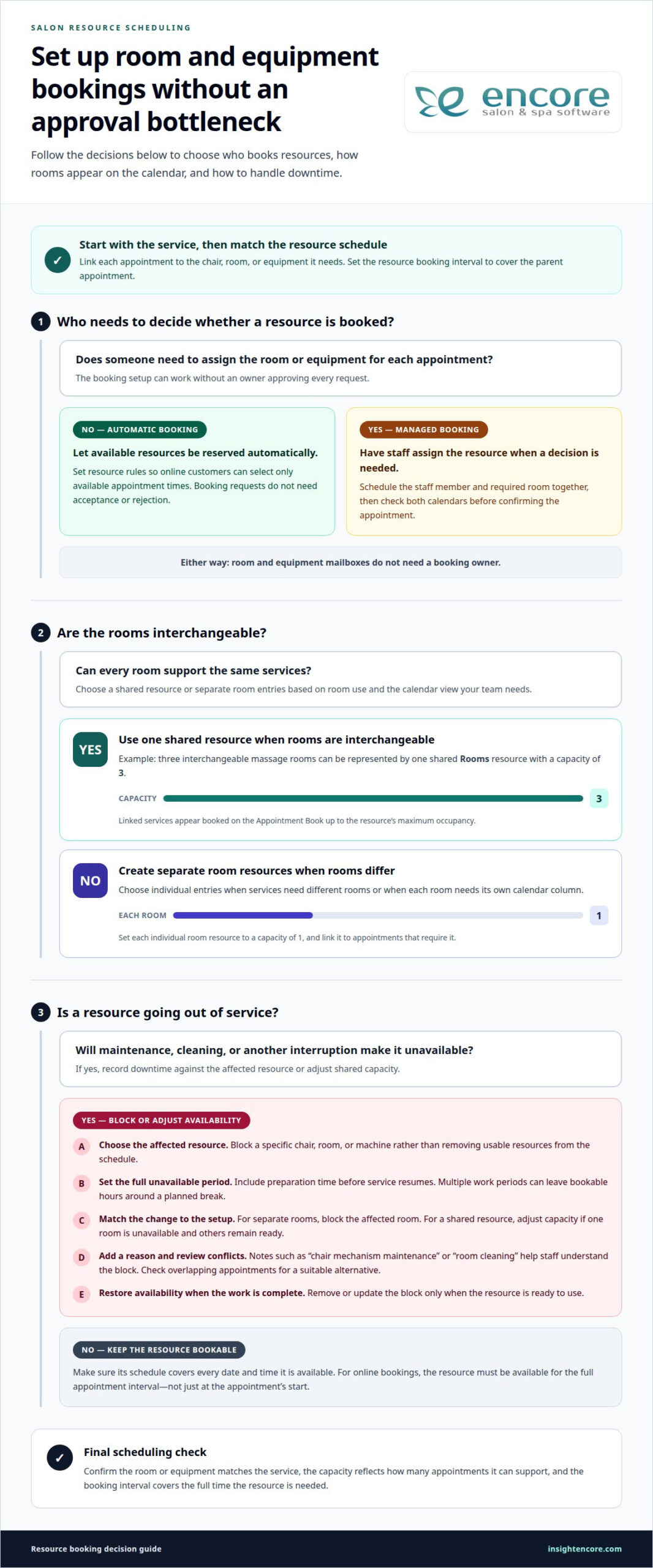
No. You can configure resource booking for automatic scheduling or staff management, without requiring an owner to approve each request. Start by matching each resource’s availability and capacity to the appointments that use it.

  1. Attach Resources to Bookings

    Link each appointment to the chair, room, or equipment required for the service. Set the resource booking interval to match the parent appointment, so the reservation covers the service time. For each room, choose equipment based on the service performed there, such as a service chair and relevant tools. Keep shared equipment clean: the Centers for Disease Control and Prevention (CDC) recommends cleaning it after each use and allowing it to dry before use.

  2. Book Rooms Alongside Staff

    Schedule the staff member and required room together, then check both calendars before confirming the appointment. A room’s schedule should cover every date and time it is available for appointments. For online bookings, include room availability in the booking flow. The room must be available for the full appointment interval, not just at its start. Match room access to the service instead of assigning a room without the necessary equipment.

  3. Prevent Double Bookings

    Set capacity to reflect how many appointments a resource can support at once. For example, a salon with three interchangeable massage rooms can use one shared Rooms resource with a capacity of three. If each room needs its own calendar visibility, create three individual room resources, each with a capacity of one. Linked services appear booked on the Appointment Book up to the resource’s maximum occupancy. Check that chairs and shared equipment are linked to the correct appointments, too.

  4. Choose automatic booking when a resource can be reserved without a staff decision; use managed booking when someone needs to assign it. Room and equipment mailboxes don’t need a booking owner, and requests don’t require acceptance or rejection. For online bookings, set resource rules so customers can select only available appointment times. This keeps responsibility clear without adding an approval step to every reservation.
  5. Build safety, layout, and upkeep into the scheduling routine. State boards and service-specific regulations guide equipment and sanitation decisions. Keep pathways clear, store tools in designated places, and keep frequently used items within reach. Track equipment maintenance and replacement costs in a log, noting the item, issue, work completed, and expense. Review the record when deciding whether equipment needs repair or replacement.

Blocking resources when they are out of service

Update a resource’s availability whenever maintenance, cleaning, or another planned interruption makes it unavailable. A clear schedule helps prevent appointments from being assigned during downtime.

  1. Select the specific resource that needs to be blocked, such as a styling chair, treatment room, or shared machine. Then set the dates and times it will be unavailable. A specific entry keeps the change focused. Blocking every room to repair one chair, for example, could remove usable appointment space from the schedule.
  2. Set the unavailable period to cover the entire interruption, not just the appointment or repair itself. For example, if a room needs preparation before service resumes, include that time in its availability schedule. Resource schedules can include multiple work periods in a day, allowing you to leave bookable hours around a planned break instead of closing the resource for the whole day.
  3. Choose whether the interruption affects one resource or a shared resource group. If one massage room is unavailable and rooms appear separately, block that room. If rooms are represented as one shared resource, adjust its available capacity to reflect the interruption. Don’t block all shared capacity when other rooms remain ready for appointments.
  4. Record the reason alongside the schedule change, such as “chair mechanism maintenance” or “room cleaning.” Hydraulic salon chairs may need mechanism maintenance over time, so a clear note helps staff understand why a chair cannot be booked. When the work is complete, remove or update the block so the resource returns to the booking schedule.
  5. Review upcoming appointments after blocking a resource. Identify bookings that overlap the unavailable period, then decide whether another suitable room or piece of equipment can support the service. Don’t assume a replacement is interchangeable. Match it to the appointment’s needs, and keep the original resource marked unavailable until it is ready for use.
  6. Make the downtime process part of your regular scheduling routine. When staff report a repair or service interruption, record the resource, the affected period, and the reason in one place. A consistent workflow helps the team spot conflicts and restore availability promptly. If you’re refining this process, organize your salon booking workflow around clear resource schedules.

A salon resource is an object that must be reserved at a scheduled time to support a business service. Examples include rooms, tables, and machines or equipment used to perform services. A shared room resource works when all rooms are the same or suitable for every massage service. Separate room resources work when different massage services require different rooms or each room needs its own calendar column. Match the setup to how rooms are used so a block reflects the right room’s availability.

Hydraulic salon chairs can be adjusted during a service using a pneumatic lift. The salon booking workflow reuses the outcome when a successful hold action is repeated with the same operation identity. Clear resource arrangements and scheduling actions can help staff manage interruptions consistently while preserving the intended booking availability.

Resource display options

Choose a calendar view that matches how your team assigns rooms and equipment. The right setup makes availability easier to read when scheduling.

  1. List each bookable resource before choosing how it will appear. Include rooms, styling chairs, treatment tables, and shared machines. Then decide whether staff need to distinguish individual items during booking. A massage room used for a specific service may need its own calendar column, while interchangeable rooms may be easier to manage together.
  2. Set up rooms separately when services require different room features or staff need to see each room’s schedule. Separate entries show which room is unavailable without confusing it with another. For example, if one room supports a particular massage service, showing it independently helps staff assign appointments to a suitable space.
  3. Use a shared resource when rooms are interchangeable for the services being booked. This view groups capacity instead of displaying individual room columns. It can simplify the calendar when staff need to know how many rooms remain available, but not which specific room is assigned to each appointment.
  4. Choose a display based on the decisions your team makes when booking. If staff assign a named room before confirming an appointment, separate room entries make that choice visible. If the room can be selected later, a shared resource may keep the calendar less crowded while still showing overall availability.
  5. Keep resource names consistent across the calendar and booking process. Use clear labels such as “Treatment Room A” or “Styling Chair 2,” rather than shorthand that new staff may not recognize. Distinct labels help the team connect a calendar entry to the physical room, chair, or equipment.
  6. Review how each display handles unavailable resources and overlapping appointments. A separate resource view should show which item is occupied; a shared view should show whether capacity remains. If a room is out of service, update the relevant entry or group capacity so the calendar reflects its actual availability.
  7. Test the display with a realistic booking before making it the team’s daily view. Add an appointment that needs a room and equipment, then check whether staff can identify the assigned resources and remaining availability. Adjust the setup if the calendar hides a distinction your team needs to make when scheduling.
How to track salon room and equipment availability and use

Resource occupancy and identification

Use clear resource names and appointment intervals to see what is occupied. A room, table, or machine should be identifiable at a glance when scheduling.

  1. Give each separately tracked item a clear, consistent name. Use labels such as “Treatment Room A,” “Nail Table 1,” or “Facial Machine,” so staff can connect calendar entries with physical resources. Keep names distinct across rooms, tables, and equipment. Clear identification helps the team understand which item an appointment uses, rather than only seeing that a general resource is busy.
  2. Set availability for the actual hours a resource can support bookings. For example, a resource may be available from 9am-7pm. Keep that schedule aligned with the salon’s operating plan, and account for any periods when the item cannot be booked. A calendar entry outside its availability should not be treated as evidence that the resource is ready for another appointment.
  3. Read occupancy across the full appointment interval, not just from its start time. A booking can occupy a room or machine for the time linked to its parent appointment. When a service uses a resource, that linked resource appears booked on the Appointment Book up to its maximum occupancy. The calendar then shows current use, not just a list of appointment titles.
  4. Include setup and cleanup allowances when identifying when a room is truly free. In the stated example, a treatment runs from 10:00 to 11:30, with 15 minutes for setup and 10 minutes for cleanup. The salon manager reviews room use from 09:45 to 11:40. Those intervals show why checking only the treatment start and finish can misrepresent occupancy.
  5. Check capacity before treating a resource as available. In an individual-room setup, each room resource has a capacity of one. If that room is already occupied during the appointment interval, it can’t support another booking at the same time. For grouped resources, compare current bookings with the configured maximum occupancy rather than relying on a room name alone.
  6. Build a brief occupancy review into your organization’s scheduling routine. Open the Appointment Book, identify the resources attached to upcoming appointments, and scan for overlapping intervals. Then compare each booking with the resource’s availability and capacity. This helps staff spot mismatches, such as a room appearing free while setup or cleanup time still reserves it.

Resource pricing and appointment durations

Compare software by how well it handles resource scheduling, appointment timing, and the pricing decisions your salon makes. For software pricing, the price depends on your case and is given after a quote request; compare cost factors such as selected functions and business needs.

  1. Separate the service price from any resource-related charge. Decide whether clients pay for the treatment alone or whether using a particular room, machine, or piece of equipment changes the price. Keep the distinction clear in your booking process so staff can explain what the appointment includes and avoid treating every resource as an automatic extra fee.
  2. Set the appointment duration around the service itself, then account for the resource’s full use. A treatment planned from 10:00 to 11:30 takes 90 minutes of service time. In the rehearsal example, the room also has 15 minutes of setup and 10 minutes of cleanup. Those allowances affect when another appointment can use that room.
  3. Decide whether setup and cleanup belong in the appointment duration or in the resource’s availability schedule. Use a consistent method for each service so staff can tell when a room is free after treatment. If a room is needed before and after the client’s appointment, show those intervals in its schedule rather than treating the service time as the full occupancy window.
  4. Compare scheduling software by testing a real appointment workflow. Check whether the system can associate a booking with the required resource, show resource occupancy, and account for appointment timing. Then consider whether its booking and client-management tools suit the way your salon schedules treatments. A feature list matters when it supports the steps your team actually uses.
  5. Use a sample service to assess the practical value of each feature. Enter its duration, select the room or equipment, and review the resulting availability. Confirm that the schedule includes setup and cleanup, and that a later booking doesn’t begin while the resource is still occupied. This makes it easier to compare software based on workflow rather than feature names alone.
  6. Review resource prices and durations whenever a service changes. If a treatment starts using different equipment or needs extra room preparation, update the service and resource scheduling details together. Keep the client-facing price aligned with what the appointment includes, while ensuring the calendar reserves the resource for its full use.
Explore salon scheduling options

Optimize your salon resource management (rooms and equipment) by checking that schedules include working hours for every date and time resources are available for appointments.

Encore Salon & Spa Software

Encore Salon & Spa Software offers management tools for salons and spas, including online appointment booking and client management. If you’re organizing room and equipment availability, these tools can support the broader appointment and client workflow.

Encore Salon Software and Encore Spa Software are relevant options for salon and spa businesses. Consider them when you want appointment booking and client information managed alongside daily operations. Your resource setup still depends on how your rooms, chairs, and equipment are used and how your team assigns them.

If you’d like to discuss your salon’s needs, contact Encore Salon & Spa Software.

Build resource planning into your next business decision

Treat salon resource management for rooms and equipment as an ongoing part of service planning, not a calendar task to set once. When you add a service, change how a room is used, or adjust who books appointments, revisit how those choices affect your daily workflow. Small, deliberate updates help your resource setup stay useful as your business evolves.

If you want one system to support more of your salon’s daily operations, Encore Salon and Spa Software offers Encore Salon Software, Encore Spa Software, and Chair/Booth Renter Software. Consider which option fits your business model and how you want to manage appointments and clients alongside room and equipment scheduling. Discuss how your team works now and what you want to improve as a clear next step.

Contact Encore Salon and Spa Software

Make your next scheduling decision with greater clarity. Start with the workflow that matters most, then build from there.

Frequently Asked Questions

How can I tell when the room or equipment is available?

Check the resource’s schedule and existing appointments for the time you need. Availability depends on the resource’s working hours, capacity, and bookings already using it. For example, before assigning a treatment machine, confirm it isn’t reserved for another service during the appointment. Also account for any setup or cleanup time your salon adds, since the equipment may remain occupied after the client’s service ends.

How do I cancel a room or equipment request?

Cancel or update the appointment linked to the room or equipment, then review the resource calendar to confirm the schedule reflects the change. If the appointment will go ahead without that resource, remove or replace the resource assignment instead of canceling the entire booking. Room and equipment requests don’t require acceptance or rejection, so keep the appointment and resource records aligned.

What is salon resource management for rooms and equipment?

Salon resource management for rooms and equipment is the process of organizing bookable spaces and tools around scheduled services. A resource might be a treatment room, manicure table, or machine needed for a specific appointment. For example, a facial booking can be associated with a suitable room and the equipment used during treatment, helping staff plan resource use alongside the client’s appointment.

What software manages salon room and equipment bookings?

Salon software with appointment scheduling and resource reservation can manage bookings alongside the salon’s daily client workflow. Encore Salon Software provides appointment scheduling and resource reservation, as well as client management and online appointment booking. This suits salons that want to manage appointments and related business tasks within one platform. Choose software based on the resource and booking steps your team needs.

How can salons prevent room and equipment booking conflicts?

Link the required room and equipment to each appointment, then keep resource availability and capacity accurate. Before changing a booking, review affected appointments and confirm the replacement resource can support the service. For example, moving a treatment to another room resolves a conflict only if that room is suitable and free for the full time required. Keep resource assignments current when appointments change.

What salon equipment is needed for each service room?

Choose equipment based on the service performed in each room, such as a service chair and relevant tools. Link the required equipment to the appointment.

Disclaimer

This article is general in nature and may contain errors, please verify all claims with your sales rep
Categories
Uncategorized

How to Manage Salon Staff Schedules to Prevent No-Shows

What if a holiday request could disrupt bookings before anyone notices? When an employee submits a request, record the proposed time off in the scheduling system and check existing appointments and team coverage before approving it. Knowing how to manage salon staff schedules means making leave visible early, so unavailable hours aren’t left open for clients to book.

A clear process makes holiday requests easier to manage: staff submit requests, managers review the impact on appointments and coverage, then update and share the schedule. That keeps everyone working from the same plan.

This guide explains how to set up digital staff schedules, handle holiday requests, and choose scheduling software that fits your salon. You’ll also find practical ways to reduce missed appointments and last-minute cancellations, from recording time off promptly to building realistic gaps between services. The result is a rota that’s easier for your team to follow and more dependable for clients.

Key Takeaways

  • Match each shift to staff skills and availability, and record approved time off so unavailable slots aren’t booked.
  • Adjust coverage to busy periods and service demand, and plan ahead for seasonal changes.
  • Use realistic appointment gaps, timely reminders, and a waitlist to help manage cancellations and open slots.
  • Choose scheduling software that keeps online booking aligned with staff schedules and flags potential conflicts.
  • Share a rolling rota at least two weeks ahead, and use custom hours for temporary seasonal changes.

Can an employee see only their own schedule?

Yes. A salon can share each employee’s shifts while managers maintain a calendar of overall coverage. Set visibility to suit the team: staff need to see their working hours and approved changes, while managers need the full rota to spot gaps and coordinate appointments.

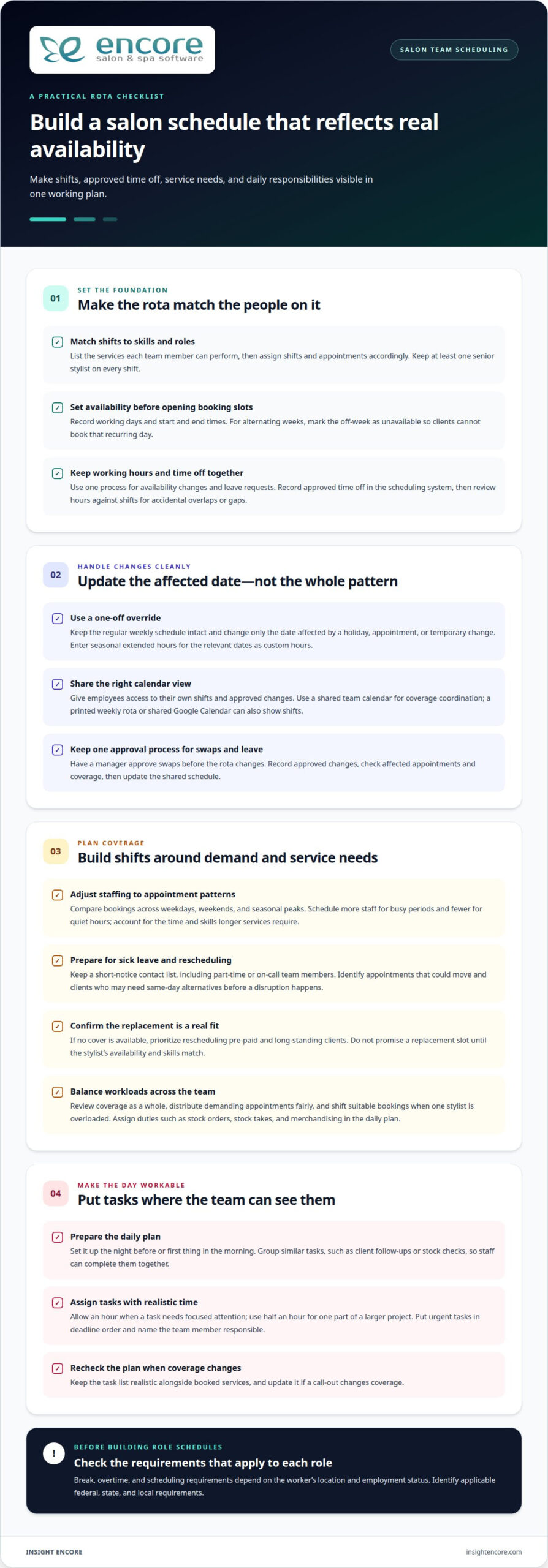
Break, overtime, and scheduling requirements depend on the worker’s location and employment status. Identify the federal, state, and local requirements that apply to each role before building its schedule.

For shift swaps, time-off requests, and call-outs, use one clear approval process. Record approved changes in the scheduling system, check affected appointments and coverage, then update the shared schedule so everyone sees the same plan.

  1. Match shifts to skills and roles. List the services each team member can perform, then assign appointments and shifts accordingly. For example, don’t place a stylist on a service they aren’t trained to provide. Keep at least one senior stylist on every shift, so the team has experienced coverage throughout the day.
  2. Set weekly availability before opening booking slots. Record each person’s working days and start and end times. If a stylist works alternating weeks, set the off-week as unavailable, with no bookings on that recurring day. A calendar that reflects actual availability helps prevent clients from booking when the employee isn’t working.
  3. Track working hours and time off in one place. Ask staff to submit availability changes and leave requests through the same process. Once a manager approves time off, record it in the scheduling system so those hours become unavailable before clients try to book. Review working hours against scheduled shifts to catch accidental overlaps or gaps.
  4. Use overrides for one-off schedule changes. Keep the employee’s regular weekly pattern intact, then update only the affected date for a holiday, appointment, or temporary change. For seasonal extended hours, enter custom hours for the relevant dates rather than changing the default schedule. This keeps future weeks smooth and avoids carrying a temporary change forward.
  5. Share the right calendar view. Give employees access to their own shifts and changes, and use a shared team calendar when staff need to coordinate coverage. A printed weekly rota or shared Google Calendar can also make shifts visible. Publish changes in writing, and let a manager approve swaps before the rota changes.

What Is Salon Staff Scheduling?

Build a rota around actual client demand, service needs, and staff availability. A useful plan also accounts for absences and the daily tasks that keep a salon running smoothly.

Step 1: Plan Shifts Around Demand

Use appointment patterns to schedule more staff during busy periods and fewer during quiet hours. Compare bookings across weekdays, weekends, and seasonal peaks, then adjust coverage to match demand. A holiday rush may call for more appointment capacity, while a slow period may suit staggered starts. Review the pattern regularly: a fixed rota can leave the salon short during busy spells and overstaffed when bookings dip. Factor in the service mix, too. Colour appointments and other longer services need different coverage from short cuts, so plan around the time and skills each booking requires.

Step 2: Plan Sick Cover and Rescheduling

Create a short-notice contact list of stylists who can cover sick leave, including part-time or on-call team members. Before a disruption happens, identify which appointments could move and which clients may need same-day alternatives. This gives owners a clear response plan instead of forcing them to rebuild the day from scratch. If no cover is available, prioritize rescheduling pre-paid and long-standing clients. Keep affected bookings visible in the day’s plan, and assign each client a next step, such as a new time or an alternative stylist. Don’t promise a slot until the replacement’s availability and skills match.

Step 3: Balance Team Coverage and Workload

Review the team schedule as a whole, not just as separate shifts. A coverage overview helps reveal gaps and uneven workloads before appointments are assigned. Check that each shift includes the skills needed for its booked services, then distribute demanding appointments and less client-facing duties fairly. For example, one team member can handle stock orders, stock takes, and merchandising while others serve clients. Record responsibilities in the daily plan so these tasks don’t disappear during busy periods. If bookings cluster around one stylist, redistribute suitable appointments to available colleagues instead of leaving one person overloaded.

Step 4: Plan Daily Tasks

Prepare the daily plan the night before or first thing in the morning. Group similar tasks, such as client follow-ups or stock checks, so staff can complete them together. Give a focused task an hour when the work needs uninterrupted attention; use half an hour to complete one part of a larger project. Put urgent tasks in deadline order, then assign each item to a named team member. Keep the list realistic beside booked services, and update it when a call-out changes coverage. Explore salon scheduling tools to see how a digital rota can support this planning.

Preventing missed appointments and last-minute cancellations

Use reminders, realistic appointment spacing, and a clear response plan to keep the day on track. These steps also help staff manage cancellations without leaving avoidable gaps.

  1. Step 1: Use Reminders, Waitlists, and Rescheduling Policies

    Send appointment reminders by email and text to accommodate clients’ preferred channels. Ask clients to confirm their visit, and let them reschedule independently through an online booking tool. Send reminders two to three hours before the appointment. Set a written rescheduling policy, such as allowing free changes until six hours before the visit, and communicate it during booking.

    When a client cancels, contact waitlisted people who can take that specific time. Match the opening to the client’s requested service and the stylist’s skills. Review missed appointments and cancellations by day to identify patterns. If one day repeatedly has empty slots, adjust that day’s availability or reminders rather than changing the whole rota.

  2. Step 2: Stagger Shifts and Buffer Appointments

    Stagger staff start times so coverage continues through closing without scheduling everyone for identical hours. Before changing a shift, compare its appointments with the employees available to take them. Add a realistic 10 to 15 minute buffer after colour services, chemical treatments, and other longer appointments. This gives stylists time for cleanup, consultation, or a late arrival without pushing every later client behind.

    Build short breaks between appointments into the rota, especially after demanding services. A break gives the stylist time to reset the station and prepare for the next client. Avoid filling every open minute with bookings: without breathing room, one delayed service can make several appointments late. Add buffers where services commonly run over, then review whether they fit the day’s actual booking flow.

  3. Step 3: Coordinate Multi-Stylist Appointments

    For an appointment involving several stylists, assign each service, staff member, and time slot before confirming the booking. A bridal party with 10 appointments in one day, for example, needs a clear sequence that avoids assigning one stylist to overlapping services. Match every appointment to an employee qualified for that service, then leave enough transition time for clients and staff to move between stations.

    Keep the shared appointment plan current if a client changes the service or arrival time. If a cancellation creates a gap, check whether another booked client can move 15 minutes earlier before offering the slot elsewhere. Clear assignments reduce confusion about who is responsible for each service. Explore a scheduling tool for salon appointments to see how digital booking can support this process.

How to Manage Salon Staff Schedules to Prevent No-Shows

Scheduling software selection criteria

Compare software with your salon’s booking flow and staff scheduling needs. Prioritize accurate availability, conflict checks, and tools that reduce manual work.

Step 1: Review Salon Scheduling Software Comparisons

Compare scheduling software by how well it connects staff availability with online booking. The calendar should show bookable times that match each team member’s schedule, so clients can’t reserve unavailable slots. Check whether the system flags conflicts before a new appointment is added. This is especially useful when service needs overlap or schedules change frequently.

Use your own booking patterns to make comparisons useful. For example, a salon serving more than 30 clients daily may need software that can handle a large appointment flow. Consider how managers view team schedules, adjust availability, and handle rescheduling. Avoid choosing from a feature list alone; trace a typical booking from selecting a service to assigning an available staff member.

Step 2: Evaluate Scheduling Software

Test the scheduling workflow using realistic examples from your salon. Enter a staff member’s regular working hours, then check whether online booking reflects them. Try adding an appointment that conflicts with an existing booking and see whether the system flags it before confirmation. These checks show whether the calendar supports your process or leaves managers to catch errors manually.

Review how the software handles schedule changes, too. Update an employee’s availability and confirm the change appears in the booking view. Check how managers access team schedules and whether staff can see their own shifts. If payroll preparation is part of your workflow, look for timesheet exports that can reduce manual administration. Evaluate each function against a task your team actually performs.

Step 3: Use Salon Management Software

Choose a system that fits how your salon manages appointments and staff, then keep its schedule current. Enter working days and hours before opening those slots for online booking. Record approved leave and schedule adjustments so the calendar doesn’t offer unavailable times. Assign each service to an employee with the right skills, and review potential booking conflicts as appointments come in.

Use scheduling software as a shared operational record, not just a booking calendar. Managers can review team coverage, while staff can check current shifts and updates. If the system exports timesheets, use them to support payroll preparation and reduce repeated manual entry. Revisit the setup whenever service demand or staffing patterns change, and ensure online availability still matches the rota.

Digital salon staff schedules

A digital rota gives salon owners a practical way to manage salon staff schedules. Set the regular pattern first, then adjust specific dates as staffing and booking needs change.

  1. Set each team member’s default hours. Enter working days and start and end times for every employee. Use a recurring pattern for regular shifts, and set an alternating workday to repeat every 2 weeks when needed. Mark off-weeks unavailable, so online booking doesn’t offer appointments during time off. Check that each person’s bookable services fit their skills and working hours.

    Keep the default schedule separate from one-off changes. If the salon extends its hours for a seasonal busy period, add custom hours for those dates instead of editing the regular pattern. This keeps future bookings aligned with the normal rota after the busy period ends.

  2. Publish a rolling rota early. Share the schedule at least two weeks ahead so staff can plan around their shifts. One workable routine is to publish the following two weeks every Friday. Put updates in writing so everyone can see what changed and when. If employees can swap shifts with manager approval, update the rota only after approval.

    For holiday periods such as Christmas and summer, schedule staff 6 to 8 weeks ahead. Review leave requests against existing bookings before confirming them, then update availability so clients cannot book affected slots. A shared digital calendar gives the team a current reference point instead of relying on separate messages.

  3. Reuse shift templates for recurring coverage. Save regular evening or weekend staffing patterns as templates, then apply them when those shifts come around. On Saturdays, stagger start times so coverage continues through closing. Block staff break times directly in the schedule; allow 10-minute breaks between appointments during peak hours and 15-20-minute breaks during non-rush periods.

    Include at least 10 minutes for sanitization between appointments. Avoid forcing every service into one fixed duration, since that can leave unproductive 15-minute gaps. Use one-hour or half-hour time blocks to fit service lengths more closely and make the day easier to scan.

  4. Build templates for special booking patterns. For a bridal party with 10 appointments in one day, create a schedule that blocks the required slots and assigns staff to each service. Review the sequence for overlaps before opening those bookings. A clear template helps managers coordinate several stylists while keeping each appointment tied to an available team member.

    At the start of each day, review the digital plan and adjust for call-outs or changed bookings. Check that updated staff hours still match online booking, and share changes in writing. Use this review to refine how you manage salon staff schedules as team needs and booking patterns evolve.

Explore digital salon scheduling

Encore Salon and Spa Software

Encore Salon & Spa Software brings online appointment booking and client management tools into salon operations. If coordinating staff availability with client bookings takes too much manual effort, Encore helps keep appointment information and client records organized. Salons, spas, chair and booth renters, and tattoo studios can use software designed for their business needs.

Consider it when you want booking and client management in one platform alongside the scheduling practices described above. Contact Encore Salon & Spa Software to discuss your salon’s needs.

Make Your Schedule Work for Your Team

Treat the rota as a working agreement, not just a list of shifts. Decide who updates the schedule, how staff share availability changes, and how the team flags recurring conflicts. Use those patterns to refine future schedules. This creates a practical way to improve how you manage salon staff schedules as your services, team, and booking habits evolve.

Encore Salon and Spa Software offers Encore Salon Software, Encore Spa Software, and Chair/Booth Renter Software. These options support different business setups, helping you choose software that fits your salon, spa, or rental model.

Contact Encore Salon and Spa Software

With a clear process and the right tools, your team can work with greater confidence and a schedule that supports the day ahead.

Frequently Asked Questions

Can an employee enter their own holiday?

Yes. An employee can submit a holiday request, but the manager should decide whether to approve it. Keep submission and approval as separate steps. For example, check whether the requested date overlaps with client appointments or leaves a shift without the skills it needs. Once approved, record the leave and update affected bookings so the employee’s time off isn’t left open for booking.

How do I stop double bookings in my salon?

Use one booking calendar as the source of truth, and make each appointment reserve the right staff member for the required service time. Before confirming a booking, check for conflicts with that employee’s existing appointments and working hours. If clients can book online, keep the displayed availability aligned with the salon rota. For a service involving multiple stylists, assign each person’s role and appointment time separately.

How far ahead should I schedule?

Publish a regular rota at least two weeks ahead, then plan farther ahead for seasonal peaks. For holiday periods such as Christmas and summer, schedule staff 6 to 8 weeks ahead. This gives managers time to balance leave requests with appointments and service demand. Keep reviewing upcoming weeks as bookings change, rather than assuming the first draft will remain accurate.

How much time should I leave between salon appointments?

Choose the gap based on the service and how often it runs over. After colour services, chemical treatments, and other longer appointments, allow a 10 to 15 minute buffer for cleanup, consultation, or late arrivals. Include sanitization time between clients, too. A short haircut and a long treatment may need different scheduling blocks, so avoid assigning every service the same duration.

Should salons keep slots open for walk-ins?

Reserve walk-in capacity only when booking patterns and staffing can support it. Compare quiet periods with times when clients commonly arrive without appointments, then leave suitable openings for staff qualified to perform those services. Don’t block the same capacity across every shift by default. If walk-ins are uncommon during a particular period, make those slots bookable instead and review the approach as demand changes.

How do I create a salon staff schedule based on appointments and peak hours?

Start with the appointment calendar, then group bookings by service type, duration, and required skills. Identify busy and quiet periods, and assign coverage to match demand rather than dividing shifts evenly. Check that each booked service has a qualified employee and that longer appointments don’t overlap with their other work. Review the finished rota against upcoming bookings and adjust when demand shifts.

What staffing ratios are typical for salons by service type and size?

There isn’t one staffing ratio that suits every salon. A useful plan depends on appointment volume, service duration, employee skills, and how many clients need service at the same time. A salon with longer colour appointments may need different coverage from one focused on short cuts. Use the booked workload and service mix to identify coverage gaps, then adjust the rota.

How far in advance should salon work schedules be published?

Publish a rolling staff rota at least two weeks ahead so employees can plan around their shifts. A consistent routine helps: prepare the next two weeks every Friday, then share changes in writing. For seasonal periods such as Christmas or summer, plan coverage earlier to account for leave requests and appointment demand. Update the published schedule when approved changes affect a shift.

Disclaimer

This article is general in nature and may contain errors, please verify all claims with your sales rep