
What if the safest message is one that never puts sensitive details in a text or email notification? Secure client messaging for spas keeps conversations behind client sign-in, while email or SMS simply alerts clients that a message is waiting.
It’s natural to want an easy way to turn messaging on and give each client access. Setting up secure client messaging for spas means separating practice-level settings from individual access: clients need a Client Portal account to open the Messaging tab.
This guide explains how to enable secure messaging, organize conversations, and keep protected health information out of email and SMS notifications. You’ll also learn how to prepare client access and establish a clear communication process for your team.
Key Takeaways
- Keep sensitive details inside authenticated messaging, and make email or SMS notifications a simple alert that a message is waiting.
- Use a client’s individual conversation for private follow-ups, and consider the audience carefully before sending a message to multiple recipients.
- Organize threads around the relevant service or provider, and use secure conversations for care instructions, check-ins, and appropriate attachments.
- Set clear expectations for replies and message changes so clients and staff can follow the conversation without confusion.
- Connect messaging with a Client Management System when you want client conversations and records managed in a more organized workflow.
Keeping protected health information out of email and SMS notifications
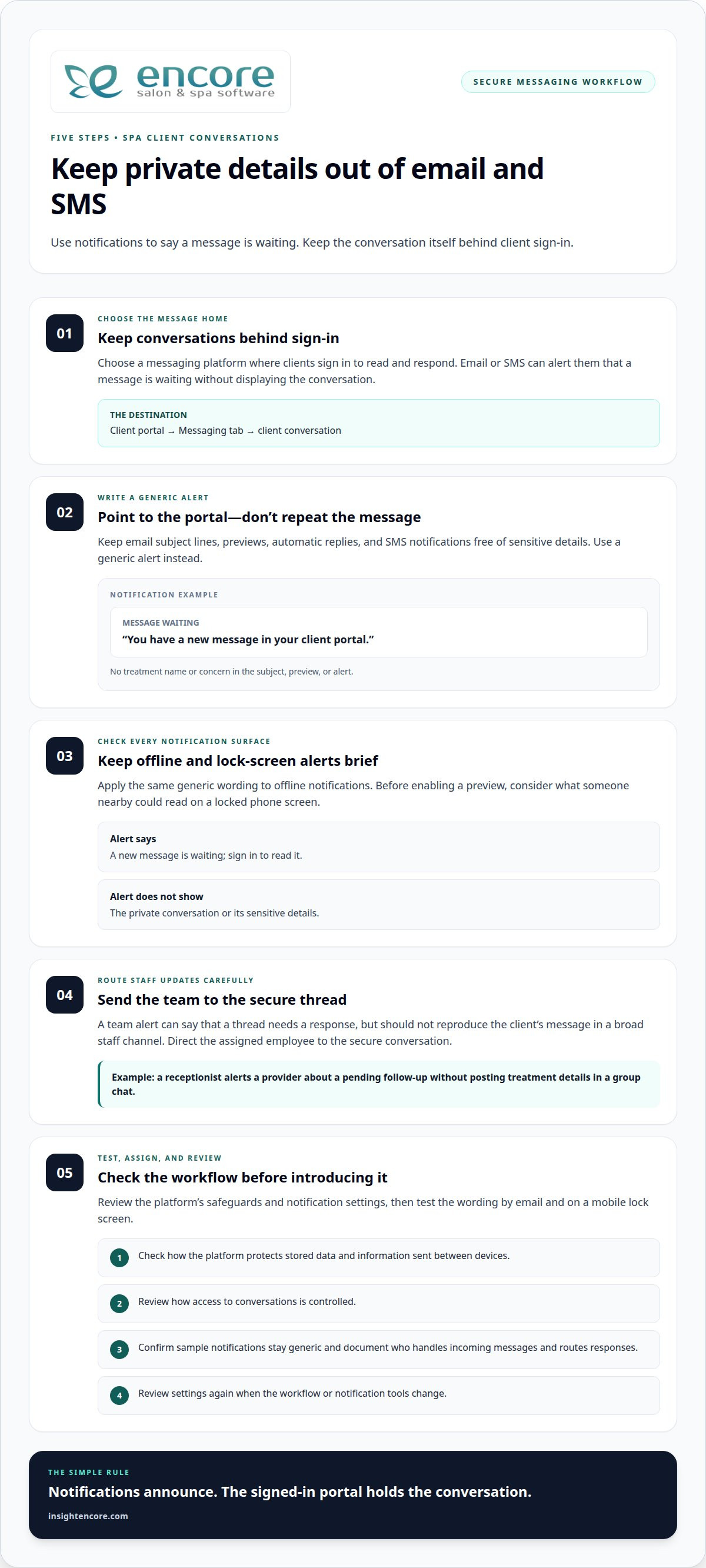
- Choose a messaging platform that keeps client conversations behind sign-in. With secure client messaging for spas, an email or text can alert someone that a message is waiting without displaying the conversation. For example, send “You have a new message in your client portal” rather than naming a treatment or describing a concern. The portal gives clients a specific place to read and respond, while ordinary notification previews reveal less.
- Keep email notifications brief and free of sensitive details. Use a generic subject line and notification text, then direct clients to sign in to read the message. Avoid clinical information in the subject, preview, or automatic reply. A shared inbox or lock-screen notification can expose details to someone other than the intended recipient. Set one staff rule: email points to the portal but never repeats private message content.
- Set client notifications to announce a new message without copying its contents. Apply the same approach to offline notifications, which may appear on a phone when the client isn’t using the portal. Before enabling a preview, consider what someone nearby could read on a locked screen. Keep alerts generic and tell clients where to sign in for the full conversation. This helps clients stay informed without putting sensitive information in SMS.
- Keep staff chat notifications separate from client conversations. A team alert can say that a thread needs a response, but shouldn’t reproduce the client’s message in a broad staff channel. Direct the assigned employee to the secure conversation instead. This reduces duplicate copies and helps staff respond in the right context. For example, a receptionist can alert a provider about a pending follow-up without posting treatment details in a group chat.
- Review the platform’s safeguards and your notification settings before introducing secure client messaging for spas. Check how the platform protects stored data and information sent between devices, and how it controls access to conversations. Test a sample notification by email and on a mobile lock screen. Confirm that its wording stays generic, then document who handles incoming messages and how staff route responses. Review the settings when your workflow or notification tools change.
Choose a platform that keeps client conversations behind sign-in and sends generic notifications without revealing message contents. Review its encryption and access controls before use.
Can I send a Secure Message to multiple clients and contacts at once?
- Use a multi-recipient option only if your messaging platform supports it. A secure message sent to several clients may expose replies or recipient details, depending on how the feature works. For private treatment questions, send separate messages in each client’s thread. For a general update, keep the wording non-sensitive and confirm recipients before sending. Remove anyone who no longer belongs in a group before sending another message.
- Choose the web or mobile app based on where your team manages conversations. Sign in, open the correct client thread, and check the recipient before sending. A mobile app can help staff respond between appointments, while a web workspace may be easier for longer replies. Features vary by platform, so confirm how each app handles sent messages, attachments, and message history before adding it to your routine.
- Keep appointment reminders and promotions distinct. Whether a spa can send them by SMS under TCPA rules depends on the message, recipient permissions, and sending method. Don’t assume a promotional text follows the same process as an appointment reminder. Make the purpose clear, use the appropriate permissions workflow, and ensure staff can record a client’s communication preferences before sending a campaign.
- Attach only the files a recipient needs. For example, a client may need a care instruction document, while a staff member may need an approved reference image. Check the recipient and attachment before sending, especially when a file contains details about another client. Message-length and attachment limits vary by platform and may depend on file type or size. Review the limit shown in the app, then split long explanations into clear, readable messages.
- Use internal team messages for coordination, not as a substitute for the client’s conversation history. A team note can direct a colleague to follow up, while the client-facing reply belongs in that client’s thread. Keep internal wording factual and relevant, and avoid forwarding sensitive details into broader staff chats. A consistent workflow helps the next team member understand what’s been sent and what response remains. You can explore a messaging workflow for your spa as you plan these steps.
For a message intended for several clients, keep the content suitable for everyone and use secure channels for personalized care. Med spas can send personalized pre- and post-care instructions, treatment plans, and check-ins through secure channels. Secure messaging can keep protected health information separate from standard email and SMS. This helps teams choose a channel based on the information being sent, rather than treating every message as interchangeable. Keep individual treatment details in the appropriate client conversation, even when sending a broader update to multiple recipients.
Security also depends on the systems behind the messaging workflow. Web applications that interact with APIs must be protected against threats such as those covered by the OWASP Top 10 Web Application Security Risks. For care that involves remote visits, med spa telemedicine workflows can automate pre-visit screenings and consent flows and attach recordings or summaries to client records. These workflows can help keep relevant information connected to the client record, while staff still check that each message and attachment is intended for its recipient.
Client messaging workspace and conversation threads
- Organize the workspace around how your spa serves clients. Route conversations by service or provider so a facial question reaches the relevant team member. Keep each client’s discussion in its own thread instead of scattering replies across shared inboxes. A clear structure helps staff find the right conversation before responding. Choose labels your team understands, such as “massage follow-up” or “skin consultation,” and use them consistently.
- Use one thread to maintain context for each client conversation. Before replying, review earlier messages to see what the client asked and what staff already explained. For example, if a client follows up about post-care instructions, the assigned provider can refer to the earlier exchange. This reduces repeated questions and supports a consistent tone. Keep replies focused on the current request, and move unrelated topics to the appropriate client thread.
- Make each message useful to its recipient. Send personalized pre-care instructions before an appointment, then use the same conversation for relevant follow-up or check-ins. A message about preparing for a facial should address that service, rather than use generic language for every appointment type. When a provider needs to share an image or document, attach it to the relevant conversation. Check the client and thread before sending, especially when staff manage several services.
- Set a simple handoff routine for staff. When one team member needs another provider to respond, identify the client, the service, and the next action in the workspace. For instance, a receptionist can route a scheduling question to the appropriate provider without starting a separate client conversation. Keep internal coordination distinct from the client-facing reply. This helps the next staff member understand what the client sees and which response still needs attention.
- Use access records to support accountability. Secure messaging can log access to conversations, creating a record of who viewed a thread. Make reviewing those records part of your regular workspace process, especially when several staff members are involved. Keep access appropriate to each person’s role, and close out conversations according to your practice’s workflow. A tidy workspace, consistent routing, and complete message history make follow-up easier to manage.
Editing, deleting, and replying to messages
- Read the full client thread before replying. Check the appointment date, service, and previous staff response so your message answers the current question. For example, if a client asks whether after-care advice applies to tomorrow’s facial, confirm the appointment details before responding. Keep the reply in the same conversation when it concerns that topic. This gives the client and staff a clear history instead of splitting one request across channels.
- Correct an error promptly, but don’t assume a sent message can be edited. Messaging tools handle corrections differently, and an edit button may change the visible message or preserve an earlier version. If editing is available, correct the detail and make the change clear. For example, fix a mistyped appointment time, then send a brief follow-up with the accurate time. This helps prevent a client from relying on outdated information.
- Use deletion carefully. Removing a message from your view may not remove it from the recipient’s device, the conversation history, or a record maintained by the platform. Before using a delete button, identify what the action removes and who can still see the message. If you sent sensitive information to the wrong thread, follow your practice’s incident process rather than assuming deletion erased every copy.
- Reply through the channel where the client started the conversation. If a client asks about a treatment in an encrypted portal thread, keep the answer there instead of copying details into ordinary SMS or email. For a scheduling change, state the updated appointment information plainly and ask the client to confirm if needed. A focused response clarifies the next action and keeps related details together.
- Set a consistent staff routine for message changes. Decide who handles corrections, how staff flag a mistaken recipient, and where they document follow-up. For example, a receptionist can notify the assigned provider when a care instruction needs correction, while the provider sends the client-facing update in the original thread. Train staff to pause before sending, check the recipient and attachment, and choose the appropriate action only after reviewing the message.
Enabling secure messaging for a practice and individual clients
- Turn on Secure Messaging at the practice level before inviting clients to use it. This enables messaging for your spa, but individual access still depends on each client’s account. Plan the rollout around a specific client group, such as clients with upcoming appointments, so staff can explain where messages appear and how to sign in. The practice-wide setting and individual access are separate parts of setup.
- Make sure each client has a Client Portal account. When Secure Messaging is enabled, clients need that account to access the Messaging tab. Include portal sign-in instructions in appointment communications, and explain that new conversations appear in the portal rather than in an email reply. For example, a client can sign in, open Messaging, and read a private follow-up from the spa.
- Set expectations before sending your first message. Tell clients what kinds of questions belong in secure messaging, who in the practice reviews incoming conversations, and how staff handle follow-up. Keep the notice general because the Informative Banner appears to all clients. Edit its text under Settings > Secure Messaging. Use the banner to explain your messaging policy without including private treatment information.
- Prepare a consistent workflow for new and existing clients. When adding a client, explain how to create or access a portal account and where to find the Messaging tab. For existing clients, share the same instructions in a general appointment reminder. Don’t assume that enabling the practice setting automatically creates individual accounts or grants portal access. Staff can use a short script to guide clients through signing in and sending their first message.
- Keep message exchanges connected to client records. Secure messaging can encrypt patient data and document message exchanges in the client’s chart. After a conversation, staff should follow the practice’s process for reviewing the chart and identifying any next action. For example, a treatment follow-up can remain linked to the relevant client record, helping the team understand the context when the client returns.
Encore Salon and Spa Software: Client Management System
Encore Salon & Spa Software offers a Client Management System to help spas organize client information and manage relationships alongside daily operations. If you’re bringing appointment management and client records into a more consistent workflow, Encore Salon & Spa Software can be a natural next step. Encore Salon & Spa Software solutions and chair or booth renter tools support various other business setups.
A Client Management System can help keep client details organized, making routine interactions and follow-up easier to manage. Consider one when scattered records or disconnected processes make client management harder. Choose software that fits your business model and your team’s workflow.
Contact Encore Salon & Spa Software to discuss your client management needs.
Make your next messaging decision with confidence
Build secure client messaging for spas around a clear, repeatable process your team can maintain. Decide which conversations belong in the client portal, how staff handle incoming messages, and what clients should expect after they write. A practical workflow gives your team a shared starting point and helps you refine communication as your needs change.
Then consider how client communication fits with the rest of your spa’s operations. If your current tools make client management difficult to organize, Encore Salon and Spa Software may be worth exploring as a next step. Choose an approach that suits your team and makes communication straightforward for staff and clients.
Start with one manageable decision, then take the next step at a pace that works for your spa.
Frequently Asked Questions
Is there a way for Secure Messaging to be enabled by default when I create a new client?
Enabling Secure Messaging for the practice doesn’t automatically give every new client messaging access. Each client needs a Client Portal account to open the Messaging tab. Build account setup into your new-client welcome process: explain how to sign in, where to find messages, and how to contact the spa with access questions. This makes the steps clear when a client is added, without assuming their account is already active.
Can I remind clients to complete documents using Secure Messaging?
Use a secure message to remind a client about a document and explain the next step. For example, send a brief note asking them to complete an intake form before an appointment. Keep the message focused on the reminder, and use your established process for submitting or signing the document. Don’t assume that a message thread itself collects a signature or stores a completed form.
How can a spa set up secure client messaging and obtain client consent?
Enable Secure Messaging for the practice, then give each client instructions for accessing a Client Portal account. Explain what kinds of conversations your spa handles there, who reviews incoming messages, and how clients can update communication preferences. Keep consent procedures aligned with your spa’s own policies and services. For example, document a client’s preferred contact method during onboarding, then follow that preference for routine communication.
What client information should spas avoid sending in text messages?
Avoid putting treatment details, health history, symptoms, or other sensitive personal information in ordinary SMS messages. A reminder that says “Your spa has a new message” reveals less than a text describing a client’s concern or care plan. Limit texts to basic prompts, such as asking the client to sign in or call the spa. Put sensitive conversation details in an authenticated channel instead.
What are common security risks of texting spa clients and how can they be reduced?
Common risks include sending a text to the wrong number, exposing a preview on a shared or unlocked phone, and staff copying private details into group chats. Reduce these risks by checking recipients before sending, limiting text content, and keeping staff conversations separate from client messages. Train employees not to forward sensitive information, and give them a clear way to report a mistaken send promptly.
What secure messaging platforms are designed for spas and salons?
Look for a platform that keeps conversations behind client sign-in, supports individual client threads, and can route messages by service or provider. Notifications should alert clients without displaying sensitive message contents.
Disclaimer
This article is general in nature and may contain errors, please verify all claims with your sales rep