
You don’t need an owner to approve every room or equipment booking. Salon resource management for rooms and equipment can let staff reserve resources automatically or manage bookings themselves, without an accept-or-decline step. The key is choosing a setup that matches how your salon works.
It’s easy to assume someone must oversee every reservation to prevent clashes. But clear availability, booking rules, and resource schedules can keep rooms and equipment organized without an unnecessary approval layer.
This guide explains how to assign booking responsibility, mark resources unavailable, choose how they appear on the calendar, and see when they’re in use. You’ll also learn how to set resource prices and appointment durations, including how setup and cleanup time affect availability. A practical approach makes bookings easier to manage and gives your team a clearer view of what’s ready for each service.
Key Takeaways
- Choose a shared resource or separate room entries based on whether rooms are interchangeable and how you want them displayed.
- Mark service, maintenance, and other downtime in resource availability so unavailable rooms or equipment aren’t booked.
- Use calendar visibility and capacity settings to see which resources are occupied and when they can support another appointment.
- Include setup and cleanup time in a resource’s schedule so its booking window reflects the full time it’s needed.
- Set resource pricing and appointment durations to match how each service uses the room or equipment.
Do I need an owner to manage room or equipment bookings?
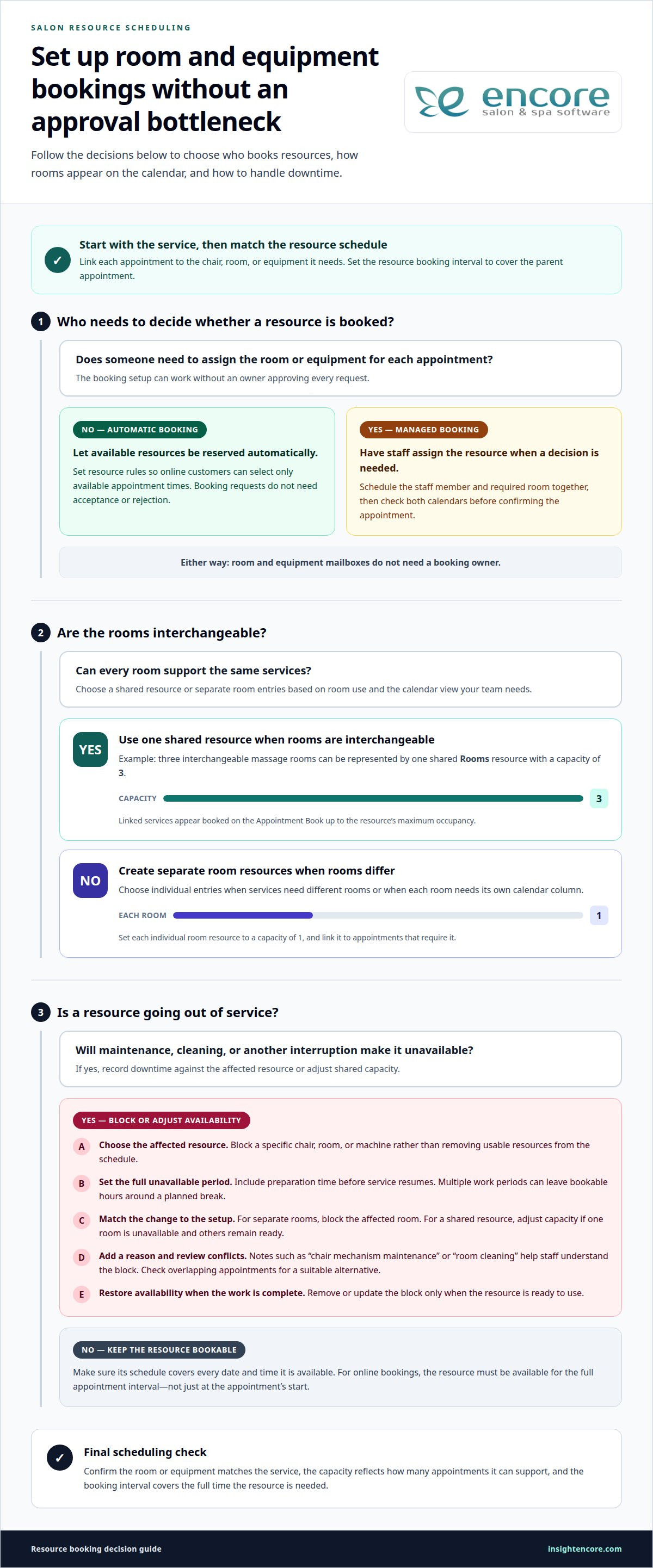
No. You can configure resource booking for automatic scheduling or staff management, without requiring an owner to approve each request. Start by matching each resource’s availability and capacity to the appointments that use it.
-
Attach Resources to Bookings
Link each appointment to the chair, room, or equipment required for the service. Set the resource booking interval to match the parent appointment, so the reservation covers the service time. For each room, choose equipment based on the service performed there, such as a service chair and relevant tools. Keep shared equipment clean: the Centers for Disease Control and Prevention (CDC) recommends cleaning it after each use and allowing it to dry before use.
-
Book Rooms Alongside Staff
Schedule the staff member and required room together, then check both calendars before confirming the appointment. A room’s schedule should cover every date and time it is available for appointments. For online bookings, include room availability in the booking flow. The room must be available for the full appointment interval, not just at its start. Match room access to the service instead of assigning a room without the necessary equipment.
-
Prevent Double Bookings
Set capacity to reflect how many appointments a resource can support at once. For example, a salon with three interchangeable massage rooms can use one shared Rooms resource with a capacity of three. If each room needs its own calendar visibility, create three individual room resources, each with a capacity of one. Linked services appear booked on the Appointment Book up to the resource’s maximum occupancy. Check that chairs and shared equipment are linked to the correct appointments, too.
- Choose automatic booking when a resource can be reserved without a staff decision; use managed booking when someone needs to assign it. Room and equipment mailboxes don’t need a booking owner, and requests don’t require acceptance or rejection. For online bookings, set resource rules so customers can select only available appointment times. This keeps responsibility clear without adding an approval step to every reservation.
- Build safety, layout, and upkeep into the scheduling routine. State boards and service-specific regulations guide equipment and sanitation decisions. Keep pathways clear, store tools in designated places, and keep frequently used items within reach. Track equipment maintenance and replacement costs in a log, noting the item, issue, work completed, and expense. Review the record when deciding whether equipment needs repair or replacement.
Blocking resources when they are out of service
Update a resource’s availability whenever maintenance, cleaning, or another planned interruption makes it unavailable. A clear schedule helps prevent appointments from being assigned during downtime.
- Select the specific resource that needs to be blocked, such as a styling chair, treatment room, or shared machine. Then set the dates and times it will be unavailable. A specific entry keeps the change focused. Blocking every room to repair one chair, for example, could remove usable appointment space from the schedule.
- Set the unavailable period to cover the entire interruption, not just the appointment or repair itself. For example, if a room needs preparation before service resumes, include that time in its availability schedule. Resource schedules can include multiple work periods in a day, allowing you to leave bookable hours around a planned break instead of closing the resource for the whole day.
- Choose whether the interruption affects one resource or a shared resource group. If one massage room is unavailable and rooms appear separately, block that room. If rooms are represented as one shared resource, adjust its available capacity to reflect the interruption. Don’t block all shared capacity when other rooms remain ready for appointments.
- Record the reason alongside the schedule change, such as “chair mechanism maintenance” or “room cleaning.” Hydraulic salon chairs may need mechanism maintenance over time, so a clear note helps staff understand why a chair cannot be booked. When the work is complete, remove or update the block so the resource returns to the booking schedule.
- Review upcoming appointments after blocking a resource. Identify bookings that overlap the unavailable period, then decide whether another suitable room or piece of equipment can support the service. Don’t assume a replacement is interchangeable. Match it to the appointment’s needs, and keep the original resource marked unavailable until it is ready for use.
- Make the downtime process part of your regular scheduling routine. When staff report a repair or service interruption, record the resource, the affected period, and the reason in one place. A consistent workflow helps the team spot conflicts and restore availability promptly. If you’re refining this process, organize your salon booking workflow around clear resource schedules.
A salon resource is an object that must be reserved at a scheduled time to support a business service. Examples include rooms, tables, and machines or equipment used to perform services. A shared room resource works when all rooms are the same or suitable for every massage service. Separate room resources work when different massage services require different rooms or each room needs its own calendar column. Match the setup to how rooms are used so a block reflects the right room’s availability.
Hydraulic salon chairs can be adjusted during a service using a pneumatic lift. The salon booking workflow reuses the outcome when a successful hold action is repeated with the same operation identity. Clear resource arrangements and scheduling actions can help staff manage interruptions consistently while preserving the intended booking availability.
Resource display options
Choose a calendar view that matches how your team assigns rooms and equipment. The right setup makes availability easier to read when scheduling.
- List each bookable resource before choosing how it will appear. Include rooms, styling chairs, treatment tables, and shared machines. Then decide whether staff need to distinguish individual items during booking. A massage room used for a specific service may need its own calendar column, while interchangeable rooms may be easier to manage together.
- Set up rooms separately when services require different room features or staff need to see each room’s schedule. Separate entries show which room is unavailable without confusing it with another. For example, if one room supports a particular massage service, showing it independently helps staff assign appointments to a suitable space.
- Use a shared resource when rooms are interchangeable for the services being booked. This view groups capacity instead of displaying individual room columns. It can simplify the calendar when staff need to know how many rooms remain available, but not which specific room is assigned to each appointment.
- Choose a display based on the decisions your team makes when booking. If staff assign a named room before confirming an appointment, separate room entries make that choice visible. If the room can be selected later, a shared resource may keep the calendar less crowded while still showing overall availability.
- Keep resource names consistent across the calendar and booking process. Use clear labels such as “Treatment Room A” or “Styling Chair 2,” rather than shorthand that new staff may not recognize. Distinct labels help the team connect a calendar entry to the physical room, chair, or equipment.
- Review how each display handles unavailable resources and overlapping appointments. A separate resource view should show which item is occupied; a shared view should show whether capacity remains. If a room is out of service, update the relevant entry or group capacity so the calendar reflects its actual availability.
- Test the display with a realistic booking before making it the team’s daily view. Add an appointment that needs a room and equipment, then check whether staff can identify the assigned resources and remaining availability. Adjust the setup if the calendar hides a distinction your team needs to make when scheduling.
Resource occupancy and identification
Use clear resource names and appointment intervals to see what is occupied. A room, table, or machine should be identifiable at a glance when scheduling.
- Give each separately tracked item a clear, consistent name. Use labels such as “Treatment Room A,” “Nail Table 1,” or “Facial Machine,” so staff can connect calendar entries with physical resources. Keep names distinct across rooms, tables, and equipment. Clear identification helps the team understand which item an appointment uses, rather than only seeing that a general resource is busy.
- Set availability for the actual hours a resource can support bookings. For example, a resource may be available from 9am-7pm. Keep that schedule aligned with the salon’s operating plan, and account for any periods when the item cannot be booked. A calendar entry outside its availability should not be treated as evidence that the resource is ready for another appointment.
- Read occupancy across the full appointment interval, not just from its start time. A booking can occupy a room or machine for the time linked to its parent appointment. When a service uses a resource, that linked resource appears booked on the Appointment Book up to its maximum occupancy. The calendar then shows current use, not just a list of appointment titles.
- Include setup and cleanup allowances when identifying when a room is truly free. In the stated example, a treatment runs from 10:00 to 11:30, with 15 minutes for setup and 10 minutes for cleanup. The salon manager reviews room use from 09:45 to 11:40. Those intervals show why checking only the treatment start and finish can misrepresent occupancy.
- Check capacity before treating a resource as available. In an individual-room setup, each room resource has a capacity of one. If that room is already occupied during the appointment interval, it can’t support another booking at the same time. For grouped resources, compare current bookings with the configured maximum occupancy rather than relying on a room name alone.
- Build a brief occupancy review into your organization’s scheduling routine. Open the Appointment Book, identify the resources attached to upcoming appointments, and scan for overlapping intervals. Then compare each booking with the resource’s availability and capacity. This helps staff spot mismatches, such as a room appearing free while setup or cleanup time still reserves it.
Resource pricing and appointment durations
Compare software by how well it handles resource scheduling, appointment timing, and the pricing decisions your salon makes. For software pricing, the price depends on your case and is given after a quote request; compare cost factors such as selected functions and business needs.
- Separate the service price from any resource-related charge. Decide whether clients pay for the treatment alone or whether using a particular room, machine, or piece of equipment changes the price. Keep the distinction clear in your booking process so staff can explain what the appointment includes and avoid treating every resource as an automatic extra fee.
- Set the appointment duration around the service itself, then account for the resource’s full use. A treatment planned from 10:00 to 11:30 takes 90 minutes of service time. In the rehearsal example, the room also has 15 minutes of setup and 10 minutes of cleanup. Those allowances affect when another appointment can use that room.
- Decide whether setup and cleanup belong in the appointment duration or in the resource’s availability schedule. Use a consistent method for each service so staff can tell when a room is free after treatment. If a room is needed before and after the client’s appointment, show those intervals in its schedule rather than treating the service time as the full occupancy window.
- Compare scheduling software by testing a real appointment workflow. Check whether the system can associate a booking with the required resource, show resource occupancy, and account for appointment timing. Then consider whether its booking and client-management tools suit the way your salon schedules treatments. A feature list matters when it supports the steps your team actually uses.
- Use a sample service to assess the practical value of each feature. Enter its duration, select the room or equipment, and review the resulting availability. Confirm that the schedule includes setup and cleanup, and that a later booking doesn’t begin while the resource is still occupied. This makes it easier to compare software based on workflow rather than feature names alone.
- Review resource prices and durations whenever a service changes. If a treatment starts using different equipment or needs extra room preparation, update the service and resource scheduling details together. Keep the client-facing price aligned with what the appointment includes, while ensuring the calendar reserves the resource for its full use.
Optimize your salon resource management (rooms and equipment) by checking that schedules include working hours for every date and time resources are available for appointments.
Encore Salon & Spa Software
Encore Salon & Spa Software offers management tools for salons and spas, including online appointment booking and client management. If you’re organizing room and equipment availability, these tools can support the broader appointment and client workflow.
Encore Salon Software and Encore Spa Software are relevant options for salon and spa businesses. Consider them when you want appointment booking and client information managed alongside daily operations. Your resource setup still depends on how your rooms, chairs, and equipment are used and how your team assigns them.
If you’d like to discuss your salon’s needs, contact Encore Salon & Spa Software.
Build resource planning into your next business decision
Treat salon resource management for rooms and equipment as an ongoing part of service planning, not a calendar task to set once. When you add a service, change how a room is used, or adjust who books appointments, revisit how those choices affect your daily workflow. Small, deliberate updates help your resource setup stay useful as your business evolves.
If you want one system to support more of your salon’s daily operations, Encore Salon and Spa Software offers Encore Salon Software, Encore Spa Software, and Chair/Booth Renter Software. Consider which option fits your business model and how you want to manage appointments and clients alongside room and equipment scheduling. Discuss how your team works now and what you want to improve as a clear next step.
Make your next scheduling decision with greater clarity. Start with the workflow that matters most, then build from there.
Frequently Asked Questions
How can I tell when the room or equipment is available?
Check the resource’s schedule and existing appointments for the time you need. Availability depends on the resource’s working hours, capacity, and bookings already using it. For example, before assigning a treatment machine, confirm it isn’t reserved for another service during the appointment. Also account for any setup or cleanup time your salon adds, since the equipment may remain occupied after the client’s service ends.
How do I cancel a room or equipment request?
Cancel or update the appointment linked to the room or equipment, then review the resource calendar to confirm the schedule reflects the change. If the appointment will go ahead without that resource, remove or replace the resource assignment instead of canceling the entire booking. Room and equipment requests don’t require acceptance or rejection, so keep the appointment and resource records aligned.
What is salon resource management for rooms and equipment?
Salon resource management for rooms and equipment is the process of organizing bookable spaces and tools around scheduled services. A resource might be a treatment room, manicure table, or machine needed for a specific appointment. For example, a facial booking can be associated with a suitable room and the equipment used during treatment, helping staff plan resource use alongside the client’s appointment.
What software manages salon room and equipment bookings?
Salon software with appointment scheduling and resource reservation can manage bookings alongside the salon’s daily client workflow. Encore Salon Software provides appointment scheduling and resource reservation, as well as client management and online appointment booking. This suits salons that want to manage appointments and related business tasks within one platform. Choose software based on the resource and booking steps your team needs.
How can salons prevent room and equipment booking conflicts?
Link the required room and equipment to each appointment, then keep resource availability and capacity accurate. Before changing a booking, review affected appointments and confirm the replacement resource can support the service. For example, moving a treatment to another room resolves a conflict only if that room is suitable and free for the full time required. Keep resource assignments current when appointments change.
What salon equipment is needed for each service room?
Choose equipment based on the service performed in each room, such as a service chair and relevant tools. Link the required equipment to the appointment.
Disclaimer
This article is general in nature and may contain errors, please verify all claims with your sales rep