
Your Instagram profile can do more than start a conversation: it can guide customers from browsing to booking. With an appointment booking system for Instagram, customers can use a booking button to choose a service and available time, while you keep appointments organized through the connected booking software.
It’s natural to want a clear view of bookings from Instagram and Facebook without losing track of appointments in messages. This guide explains how the booking flow works, how to add a Book Now button, and how to keep appointments in sync with your calendar. You’ll also learn how to share booking options with followers and connect your social profiles to an online booking system.
Key Takeaways
- Connect your booking page to your Instagram profile so customers can choose a service and available time from a booking button.
- Learn where to add the Book Now action in your Instagram profile and how to make the booking option easy to find.
- Keep appointments easier to follow by managing bookings through a connected system rather than relying only on social messages.
- Understand how appointment confirmations and calendar updates fit into the booking flow across Facebook, Instagram, and calendar apps.
- See how an online booking module can bring social bookings into a more organized appointment process.
How can customers book appointments via Facebook or Instagram?
Customers can book through a connected business profile when it gives them a clear route to online booking. A Book button can take them to a booking page where they select a service and an available time.
Profile and Booking Site Requirements
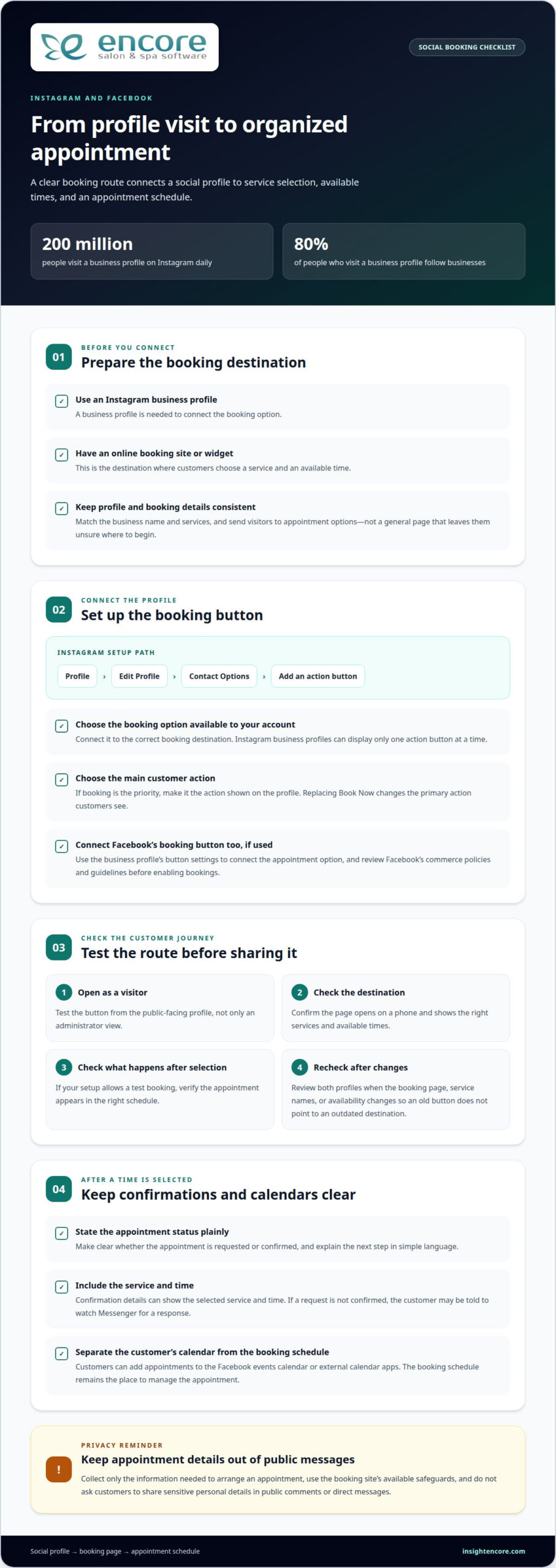
Start with an Instagram business profile and an online booking site or widget. The widget gives customers a destination from your profile. An appointment booking system for Instagram connects that route to the profile, so customers can move from browsing to choosing a service and time.
To connect a booking option, you need a business profile and a booking destination that can be linked to it. Keep the profile details consistent with the booking page, including the business name and services. For example, a salon profile should direct visitors to its appointment options, not a general page that leaves them unsure where to start.
Booking Button Setup
To add an action button on Instagram, open your profile, choose Edit Profile, then Contact Options, and select Add an action button. Choose the booking option available to your account and connect the booking destination. Instagram business profiles can display only one action button at a time, so choose the one that best supports your main customer action.
Before connecting, make sure the booking page loads and shows the services and times customers can select. Test the button from your profile to confirm it opens the right page. This sends customers to your booking site instead of asking them to arrange everything through direct messages.
Facebook business profiles can also have a booking button connected to an appointment option. When profiles and booking tools are connected, customers can select a service, choose an available time, and confirm through the button on Facebook or Instagram. Review Facebook’s commerce policies and guidelines before enabling bookings.
The profile can help customers discover the booking route. Two hundred million people visit a business profile on Instagram daily, and 80% of people who visit a business profile follow businesses. After adding the button, share a post that tells followers they can book through Instagram.
How much do Instagram appointment booking tools cost? Costs depend on the booking system and its features, so compare what each option includes before choosing one.
For privacy and security, collect only the information needed to arrange an appointment, and use the booking site’s available safeguards. Don’t ask customers to share sensitive personal details in public comments or direct messages.
Adding an Instagram Book Now button
A Book Now button takes visitors directly from your Instagram profile to appointment selection. Set it up once your booking page is ready, then test the customer journey before promoting it. The button should lead to the right destination, not an unrelated page or outdated service list.
On Instagram, open your profile and select Edit Profile. Choose Contact Options, then Add an action button, and follow the prompts to connect your booking destination. Instagram business profiles can display only one action button at a time, so decide whether booking is the main action you want visitors to take.
After saving, view your profile as a visitor would. Tap the Book Now button and check that the page opens, the service choices are clear, and available times are visible. Complete a test booking if your setup allows it, then confirm the appointment appears in the right schedule. If the destination is wrong, update the connected booking details before sharing the button.
For Facebook, use the business profile’s button settings to connect its booking option to the right appointment page. Test the button from the public-facing profile, not just an administrator view. Check that the page opens on a phone and that customers can identify the next step. A Facebook button should support the same booking route you share elsewhere, even if its setup controls differ from Instagram’s.
Review both profiles whenever you change your booking page, service names, or availability. If you replace your booking page, for example, an old profile button may still send visitors to the previous destination. Testing each profile helps catch a mismatch before customers rely on the link.
To remove or replace the Instagram button, return to Edit Profile and the action-button controls. Choose the option to remove the button or select a different action. Because Instagram allows one action button at a time, replacing Book Now changes the primary action shown on your profile.
For Facebook, open the business profile’s button controls and remove or change the booking action. Then view the profile as a visitor and confirm the old booking route is gone. To keep appointments easy to find, replace the button with another clear booking path, such as a link in the profile’s website field.
A connected online booking setup can help keep the destination organized as you manage appointments across social profiles.
Automatic calendar updates and confirmations
Bookings are easier to manage when both the customer and the business know what happens next. Customers can add appointments to calendars, including the Facebook events calendar or external calendar apps. That gives customers a personal reference, while the booking schedule remains the place to manage the appointment. Clear confirmation details help prevent confusion about the date, service, and booking status.
After a customer selects a time, the booking flow should clearly explain the result. State whether the appointment is requested or confirmed, then give the next step in plain language. For example, a confirmation can show the selected service and time, while an unconfirmed request can tell the customer to watch Messenger for a response. Appointment requests may transfer to Messenger, where the business and customer can discuss questions.
Customers receive a Messenger notification when the business confirms an appointment. This matters because a request and a confirmed appointment have different statuses. Keep the calendar and booking record aligned when a time changes or an appointment is canceled. Update the appointment record after a cancellation so the time is no longer treated as booked.
What payment, cancellation, and reminder features should an Instagram booking system offer? Look for clear payment options, straightforward cancellation or rescheduling instructions, and reminders that include the appointment details. Explain any payment step before customers submit a booking, and make instructions for changing an appointment easy to find.
Test calendar handling in practice. Make a sample booking, add it to an external calendar app, and review the event details. Check that the date, start time, service, and business name are easy to recognize. Then change or cancel the sample appointment and confirm the booking record reflects the update. Customers shouldn’t have to interpret an outdated calendar entry after leaving the booking page.
Before choosing an appointment booking system for Instagram, consider how it handles calendar access and status changes. A useful setup lets customers add appointments to a calendar and gives the business one clear place to manage requests and confirmed bookings. Don’t rely on a calendar event alone as proof of confirmation. The booking status and any Messenger message should give customers consistent information.
Keep the process clear from the first request to the final calendar entry. A customer booking a haircut, for example, should know whether the appointment is confirmed, how to find its details later, and what to do if plans change. Clear messages and accurate records make every step easier to manage.
24/7 Appointment booking
A booking page can let customers request appointments outside your business’s staffed hours. That doesn’t mean your team is available around the clock. Customers can view the booking options and submit a request at a convenient time instead of waiting until opening hours to send a message.
For example, someone browsing an Instagram business account in the evening can open its booking link, review services, and select an available slot. The system should show only times included in the schedule you’ve set. Customers can submit their selection without a live conversation beforehand.
Set up your schedule before promoting after-hours booking. Define which services customers can choose, when appointments are available, and which times are blocked. If a stylist works on certain days, make sure the booking page reflects those hours. If a service takes longer, set its duration so the next booking doesn’t overlap.
Availability also needs to reflect changes during the workday. If a team member becomes unavailable or a time is reserved, update the schedule so customers can’t select that slot. A booking system is only as useful as the schedule it displays. An outdated calendar can make online booking confusing.
Make the next step clear after submission. Customers should see whether the appointment is confirmed or awaiting approval. If requests need staff review, explain that in the booking flow. For instance, someone selecting a time outside staffed hours should know whether the system confirms it immediately or records a request for later.
Test the full journey from the business account before sharing the link. Open the booking page as a customer, choose a service, and review the available times. Submit a test request if possible, then confirm it appears in the right schedule. Check that the confirmation explains what happens next, especially if staff need to respond during business hours.
After-hours booking works best when the page answers common questions without relying on an immediate staff reply. Use clear service names, appointment details, and cancellation instructions. For example, a customer choosing a nail appointment should be able to identify the right service before selecting a time. Clear options reduce uncertainty during self-service booking.
Keep the booking destination on your Instagram profile up to date. If the booking page changes, update the profile link and test it again. This helps customers reach the active schedule, whether they book during the day or after closing.
Instagram appointment booking integration
Integration connects your Instagram profile to an online booking destination. The key is keeping the profile link, booking page, and appointment schedule aligned.
Booking System Selection
Choose a system that gives customers a clear path from Instagram to appointment confirmation. Check that its booking page shows your services and available times, and that you can manage appointments in one schedule. The right fit supports your booking process and connects cleanly to your profile. Compare the booking steps, schedule controls, and confirmation flow.
To connect a booking page, open the page showing its booking widget and copy the widget URL from the browser’s navigation bar. Add that destination to the Instagram profile’s Website field. If the URL is long, Tiny or Bitly can shorten it before you add it. Then view the profile as a visitor and follow the link to make sure it reaches the right booking page.
Make sure the destination does more than load. Customers should be able to select a service, choose an available time, and confirm the appointment. Check each step from the customer view. If the profile link leads to a general page, customers may have to search again for the booking option.
DMs and Automated Replies
Instagram DMs can help with customer questions during the booking journey. Appointment requests can transfer to Messenger, where customers and businesses discuss details; customers receive a notification there when the business confirms. When customers ask how to schedule, direct them to the booking page, while keeping availability and booking status current in the connected schedule.
A reply can point someone to the profile’s booking link, but it shouldn’t suggest that an appointment is already confirmed. If a customer asks about a service in a message, for example, share the booking route so they can select an available time. If the question needs discussion first, continue the conversation and make the confirmation status clear.
Businesses can manage schedules within Facebook and Instagram or use third-party software and apps. Whichever route you choose, keep booking records consistent. If staff confirm an appointment in Messenger, update the schedule so the time is no longer shown as available. That link between conversation and calendar makes integration useful beyond simply placing a link.
Test the full route after changing the widget URL, profile link, or booking settings. Start on Instagram, open the booking page, select a service and time, then review the confirmation. Repeat the test from Facebook if it has a separate booking path. This helps catch broken links and mismatched destinations before customers encounter them.
Encore Salon and Spa Software: Online Booking Module
Encore Salon & Spa Software’s Online Booking Module is a natural next step when you want customers to book online and manage appointments in one place. Add your booking page as the destination on your Instagram profile, then use the module to support an appointment booking system for Instagram. It’s especially relevant for salons and spas that want social profile visitors to move from discovery to scheduling through a clear booking path.
For salon-specific or spa-specific operations, Encore Salon Software and Encore Spa Software provide related management options. Choose the approach that fits your business and how you handle appointments. To discuss the Online Booking Module, contact Encore Salon & Spa Software.
Build a booking path that fits your business
Choose a next step that suits how your team handles appointments. Decide which services customers should be able to book online, how you’ll manage requests, and who will keep availability current. A clear process helps turn social profile visits into a booking journey that works for customers and staff.
Encore Salon and Spa Software offers Encore Salon Software, Encore Spa Software, and Chair/Booth Renter Software. These options serve different business settings, so consider which one aligns with your operation as you plan your booking workflow.
An appointment booking system for Instagram is most useful when it fits how you schedule and manage clients, not just how your profile looks. Align your social booking route with your day-to-day appointment process. A thoughtful setup gives customers a clear next step and helps your team manage bookings in an organized way.
Make your next booking step a manageable one, and build from there.
Frequently Asked Questions
Can I track bookings made from Facebook and Instagram?
Yes, you can track appointments from both platforms when their booking routes feed into the same schedule. Review each appointment’s service, time, and status, keeping requests separate from confirmed bookings. To see which profile prompted a booking, use a consistent source label in your records if your setup doesn’t capture that automatically. This keeps appointment tracking separate from measuring marketing results.
What is an appointment booking system for Instagram?
An appointment booking system for Instagram connects a profile’s booking route to a process for selecting and managing appointments. Customers follow a booking link or button to view services and available times. The system records the appointment so the business can manage its schedule. This differs from handling every booking in DMs, where availability and appointment status can be harder to track consistently.
How do you add a booking link or appointment button to an Instagram profile?
Add a booking destination through the profile’s website field or, where available, its action-button settings. Choose a destination that opens directly to the relevant booking page, rather than a general homepage. After saving, view the profile as a customer and follow the route through to the service choices. This walk-through helps catch a misplaced link or an unclear next step.
Which scheduling tools integrate with Instagram for appointment booking?
Look for scheduling software with an online booking page or widget URL you can connect from your Instagram profile. A useful system lets customers find services and available times, while giving the business a clear place to manage appointments. Compare the customer booking steps and how appointment status is recorded. The connection method depends on the scheduling tool and the options available to your account.
Can customers book appointments directly through Instagram, or do they need an external booking page?
Customers can start on Instagram, but the booking route may open an external page. With a connected business profile, they can select a service, choose an available time, and confirm through the booking button. The profile is the entry point; the booking destination handles appointment selection. Make the transition clear so customers know they’re continuing to the booking page.
Are Instagram booking features available for all account types and business categories in the United States?
You need an Instagram business profile and a booking option that can connect to it.
Disclaimer
This article is general in nature and may contain errors, please verify all claims with your sales rep