
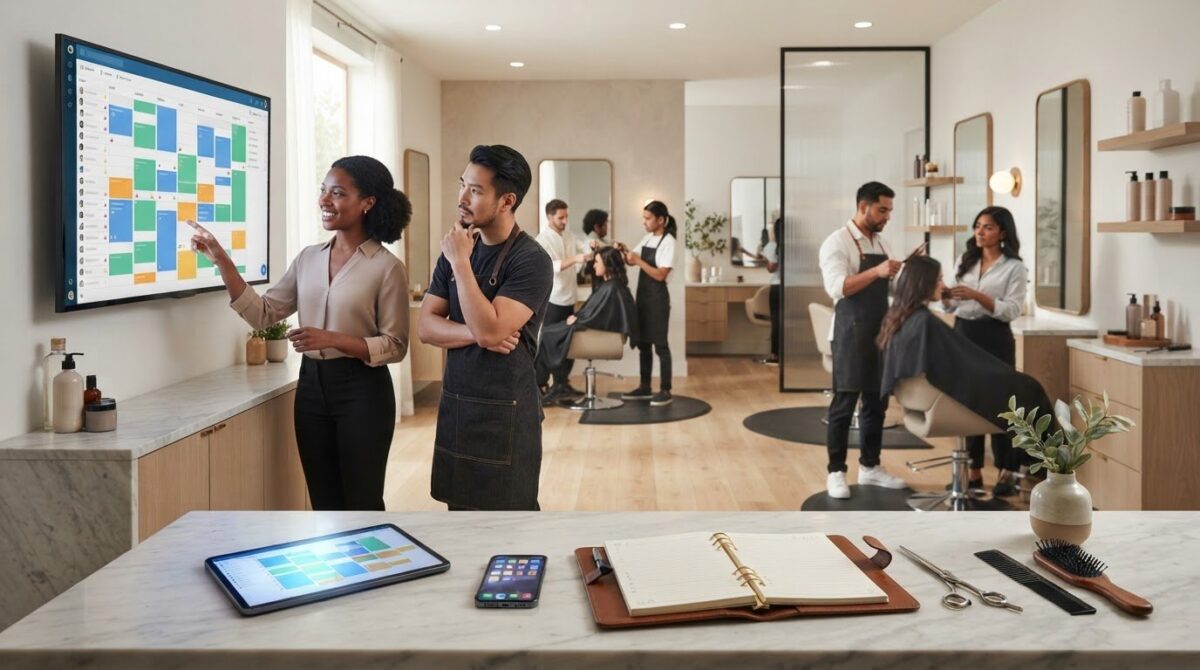
Google Calendar can help prevent double bookings because its appointment scheduling checks multiple calendars for conflicts. Managing a salon with Google Calendar also means reviewing bookings regularly to spot overlaps and open gaps before they disrupt the day. The calendar can integrate with email clients and messaging services, too.
A shared calendar can feel like a practical starting point: your team can view appointments in one place. But keeping the schedule clear still depends on how you set up calendars, assign access, and handle changes.
This guide explains how to organize salon calendars, choose useful views, and use appointment scheduling to reduce clashes and unfilled time. You’ll also learn when manual scheduling becomes harder to manage as your salon grows, and when salon management software may better coordinate appointments and client details.
Key Takeaways
- Use clear calendar names and consistent event details so your team can understand each appointment at a glance.
- Choose a calendar view that helps you spot open blocks and busy periods when planning the salon’s day.
- Separate calendars by purpose or staff member, then display them together when you need an overall schedule.
- Set up appointment blocks and team access thoughtfully to make daily scheduling easier to maintain.
- Recognize when manual calendar coordination is becoming difficult to manage, and consider salon software for a more connected workflow.
Preventing double bookings and schedule gaps
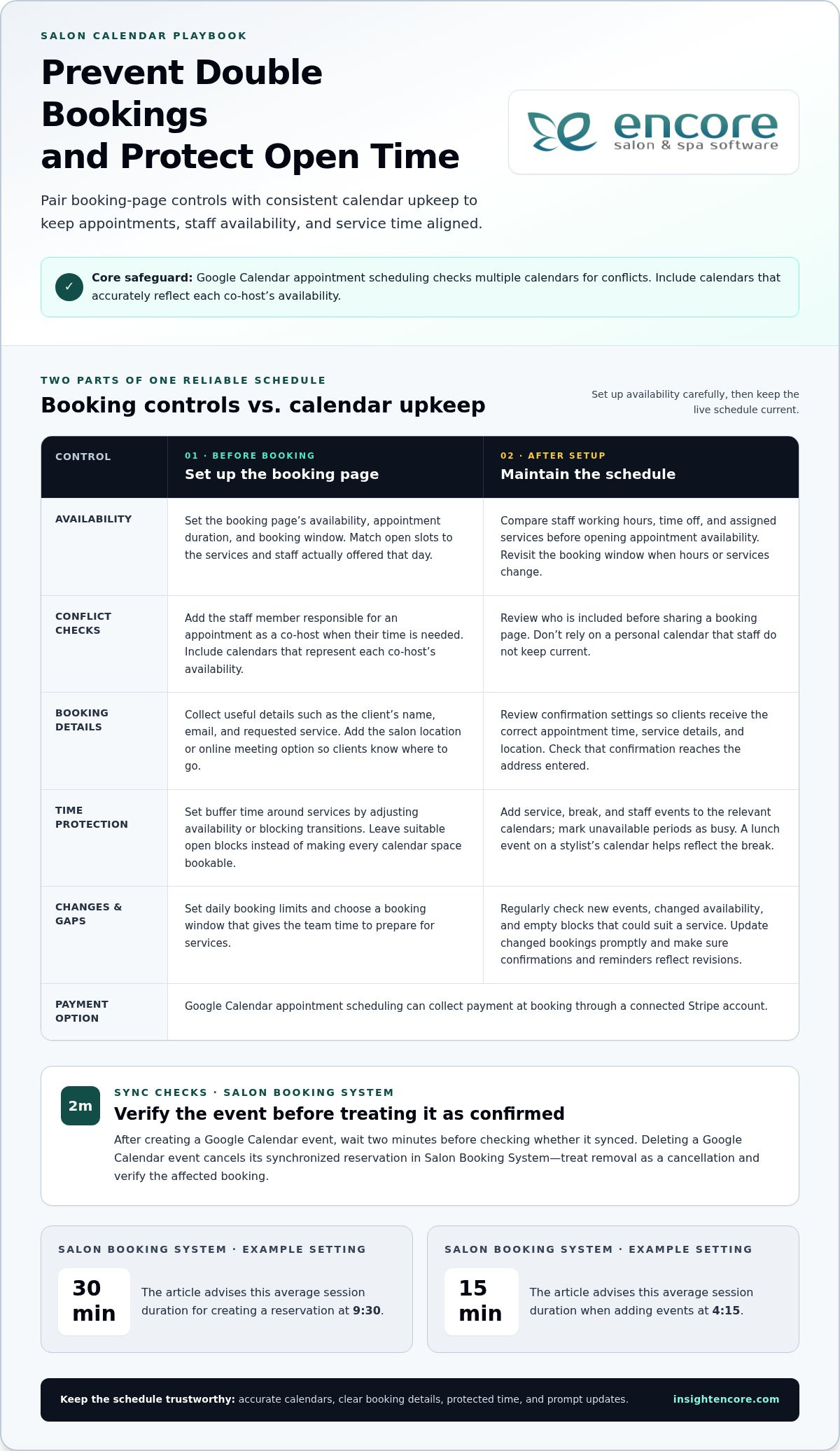
Google Calendar appointment scheduling checks multiple calendars for conflicts, helping prevent overlapping bookings. Use these steps to set availability, collect useful booking details, and protect time for salon work.
- Create appointment booking slots in Google Calendar by selecting “Create” and choosing “Appointment schedule.” Set the booking page’s availability, appointment duration, and booking window, then share the page with clients. Match available slots to the services and staff actually offered that day.
- Choose booking form fields that help you prepare, such as the client’s name, email, and requested service. Require email verification if the booking setup offers it, and check that clients receive confirmation at the address they enter. Clear booking page details, including the salon’s location or online meeting option, tell clients where to go.
-
Use Co-hosts to Prevent Double Bookings
Add the staff member responsible for an appointment as a co-host when the booking requires their time. Google Calendar appointment scheduling checks multiple calendars for conflicts, so include calendars that reflect each co-host’s availability. Before sharing a booking page, review who is included and don’t rely on a personal calendar that staff don’t keep current.
-
Block Service, Break, and Staff Time
Block time for salon services, breaks, and staff schedules by adding events to the relevant calendars and marking unavailable periods as busy. For example, add a lunch event to a stylist’s calendar so appointment availability reflects the break. Add reminders to appointments and review confirmation settings so clients receive the correct time, service details, and location.
- Set buffer time around services by adjusting availability or blocking the transition between appointments. A stylist may need a gap for cleanup or preparation, while another service may require less turnaround time. Set daily booking limits and leave appropriate open blocks instead of making every calendar space bookable.
- Review the booking calendar regularly against staff schedules and confirmed appointments. Check for new events, changed availability, and empty blocks that could suit a service. When a booking changes, update the calendar promptly and make sure the client’s confirmation and reminders reflect the revised appointment.
Google Calendar appointment scheduling can collect payment at the time of booking through a connected Stripe account. This gives salons a way to take payment as part of booking, alongside the availability and booking details managed in the calendar. When using Salon Booking System, the article advises setting the average session duration to 30 minutes to create a reservation at 9.30. For adding events at 4.15, it advises an average session duration of 15 minutes. These settings are specific to the described booking tasks and can help keep entries consistent with the intended appointment time.
The Salon Booking System article advises waiting two minutes after creating a Google Calendar event before checking whether it synced. This gives you a clear point to check the connection instead of assuming the event appeared immediately. Deleting a Google Calendar event cancels its synchronized reservation in the Salon Booking System, so treat removal as a cancellation and verify the affected booking. These steps help prevent a removed or unsynced calendar entry from being mistaken for a confirmed reservation.
Problems with manual salon scheduling
- Audit how appointments move from request to confirmation. Write down who answers calls, updates Google Calendar, and tells the stylist about changes. If one person records a booking while another edits the schedule, compare both entries before confirming. A simple handoff rule, such as assigning one staff member to enter each request, reduces missed updates and clarifies responsibility.
- Review calendar access before adding staff or sharing a salon calendar. Shared Google Calendars may expose sensitive client information and detailed appointment notes to people with access. A shared calendar can expose client names and appointment details; keep sensitive information out of event titles and notes, and limit access to staff who need it. For HIPAA-related or other sensitive data, don’t assume a shared calendar is suitable for every detail.
- Choose scheduling software by listing the manual tasks that cause repeat work. Compare how each option handles online appointments, client records, staff availability, changes, and booking updates. For example, if a receptionist must copy every online request into another schedule, prioritize a workflow that keeps bookings together. Make sure staff can find the appointment details they need without exposing unrelated client information.
- Test mobile access with a real schedule change. Open the calendar on a phone, find the next appointment, and update a sample staff event. Confirm the right people can see the change and understand which service or time it affects. Mobile access is useful only when staff know which calendar to open and how to record updates consistently.
- Set a booking window that matches how the salon plans its work. Decide how far ahead clients can book and how much notice the team needs to prepare. For example, a service requiring product preparation may need a different lead time from a routine trim. Review the booking window when staff hours or service availability change so old openings don’t remain bookable.
- Coordinate staff schedules before opening appointment availability. Compare each stylist’s working hours, time off, and assigned services, then resolve conflicts before clients book. As appointment volume grows, manual checks can become harder to maintain, especially when several staff calendars change independently. Use a shared process for recording availability and confirming changes instead of relying on hallway conversations or memory.
As a salon grows, Google Calendar may struggle to manage a larger appointment volume without advanced salon management features. This matters when staff must keep availability, changes, and confirmations aligned. If manual checking takes more attention, reassess the workflow rather than simply adding more calendar entries. Identify the steps that still depend on someone copying information, chasing a confirmation, or remembering to update availability. Then consider whether salon management software can bring those tasks into one process while preserving the access controls the salon needs. Test any change against the salon’s actual booking routine: enter a sample request, make a change, and verify that the schedule reflects it consistently. Keep the process clear for every staff member.
Calendar organization
Set up Google Calendar so staff can identify appointment details quickly. Use consistent names, event fields, and settings to make the daily schedule easier to scan. Managing a salon with Google Calendar works best when the team follows the same organization rules.
- Name calendars by purpose, such as “Salon Appointments,” “Staff Time Off,” and “Room Availability.” Clear labels help staff choose the correct calendar before adding an event. Avoid vague names like “Schedule” when several calendars appear together. Keep the naming pattern consistent as the salon adds staff or service areas.
- Choose a consistent event title format, such as “Service | Client | Staff.” For example, “Color | Alex Lee | Morgan” makes the appointment type and assigned stylist visible in the calendar grid. Use the same order for every booking so staff don’t have to interpret a new format each time. Keep sensitive client details out of titles visible to shared-calendar viewers.
- Decide which event details belong in the description, then use the same pattern each time. Add practical notes such as the requested service, preparation needs, or best contact method. For example, a color appointment could include a formula consultation reminder, while a haircut could note the client’s preferred stylist. Don’t use the description as a substitute for a separate client record.
- Apply color settings consistently to distinguish appointment types or staff calendars. You might use one color for booked services and another for staff meetings, then keep those choices stable. Color is a visual cue, not a replacement for readable titles. Check the calendar on a phone as well as a computer, because a compact screen may show fewer event details.
- Choose the calendar view that suits the task. Use a daily view to review each stylist’s sequence of appointments, then switch to a weekly view to see coverage and open periods. A monthly view can help with broader planning, such as staff time off. For managing a salon with Google Calendar, choose the view that answers the immediate question instead of scanning every date at once.
- Use recurring events for predictable commitments, such as a weekly team meeting or regular staff break. Before saving a repeating event, check its calendar, time, and end date so it doesn’t block bookable hours by mistake. When a staff schedule changes, update the recurring series and review future dates for conflicts. This keeps routine events organized without carrying outdated availability forward.
- Make a brief calendar cleanup part of the salon’s closing routine. Review the next day’s event titles, assigned staff, and appointment details, then correct duplicates or unclear entries. For example, if two calendars show the same service, confirm which entry is authoritative before changing either. A consistent review keeps the schedule readable as bookings and staff plans change.
Multiple calendars
Separate calendars can make staff availability, appointments, and salon resources easier to review. Create calendars by purpose, then decide how each team member should use them.
- Create a dedicated Google Calendar for each scheduling category, such as salon appointments, staff availability, and room use. Keep the main appointment calendar focused on client visits. Put staff meetings and time off elsewhere so they don’t crowd service details. A separate calendar for premium services can help staff plan resources without mixing those bookings with routine appointments.
- Give each calendar a clear name and distinct color. For example, label calendars “Appointments,” “Staff,” and “Rooms,” then assign each a consistent color. A stylist scanning a weekly view can quickly distinguish a room booking from a client appointment. Don’t rely on color alone; recognizable names help staff understand the schedule when colors look similar on smaller screens.
- Share each calendar only with people who need it. A stylist may need access to their working schedule, while a receptionist may need the salon appointment calendar. Review sharing settings when someone joins or leaves the team. Shared calendars can expose event details, so keep private client notes out of titles and descriptions visible to broader groups.
- Display relevant calendars together when checking for conflicts. In Google Calendar, turn on the calendars you need in the calendar list, then review the combined view before assigning a room or stylist. For instance, compare appointments with staff availability and room use before confirming a premium service. Hide unrelated calendars afterward to keep the daily view readable.
- Choose one calendar as the source for each event type. If a client appointment belongs on “Appointments,” don’t also create a duplicate on the stylist’s personal calendar. Add the stylist as a guest when they need an invitation, and check that the event appears where expected. Consistent ownership makes updates easier to track and reduces confusion about which entry is current.
- Use recurring calendar events for regular staff meetings or predictable room closures, and review future dates after any schedule change. Google Calendar can integrate with email clients and messaging services, helping staff coordinate around calendar information. Set a simple routine: review the relevant calendars before opening bookings, then update the event’s original calendar if plans change.
- Keep the calendar structure simple enough for staff to follow. Start with appointment, staff, and room calendars, then add another only when it solves a clear scheduling need. Too many calendars can make the combined view harder to scan. Review calendar names, sharing access, and visibility settings as the salon’s team or scheduling process changes.
How to set up Google Calendar for a salon
Build the calendar around your actual services, staff availability, and daily workflow. These steps create a practical foundation before clients begin booking.
- Use a dedicated Google account for salon scheduling instead of tying bookings to one employee’s personal calendar. Choose an account the appropriate managers can access, then set its time zone to the salon’s local time. Correct time settings help prevent confusion when staff or clients view appointments from another device.
- Create calendars for the schedule categories your team needs to see, such as client appointments, staff availability, and room use. Give each a clear name and distinct color. Keep the structure simple at first, adding another calendar only when it separates a real scheduling task rather than making the calendar list harder to manage.
- Enter each staff member’s working hours and recurring commitments before opening appointment availability. Add events for time off, meetings, and unavailable periods to the relevant calendar. Then compare those entries with the salon’s opening hours. This gives appointment scheduling a clearer picture of when staff can accept bookings.
- Set up an appointment schedule that reflects the services clients can actually book. Choose available days and times, appointment duration, and the booking window. Match service lengths to the work involved: a longer color appointment should not use the same slot as a quick trim. Review availability whenever services or staff hours change.
- Check which calendars appointment scheduling uses to identify conflicts. Include calendars that show staff commitments, then review the schedule before sharing the booking page. Google Calendar appointment scheduling checks multiple calendars for conflicts. A calendar without current availability can still leave openings or clashes, so keep relevant schedules updated.
- Complete the booking page with the salon’s name, location, and client instructions. Add form fields that collect the details staff need to prepare, such as the requested service and contact information. Keep instructions direct. For example, state whether clients should arrive at the salon or use an online meeting option for a remote consultation.
- Set calendar sharing permissions according to each person’s role. Give staff access to the schedules they need and avoid broad access to calendars containing private appointment notes. Keep sensitive client details out of visible event titles. Test the booking process as a client, then confirm the appointment appears on the correct salon and staff calendars.
- Agree on a routine for changes before the calendar goes live. Decide who updates cancellations, staff absences, and service changes, then tell the team where to record them. Review upcoming appointments at opening or closing, and correct duplicate or outdated entries. This operating habit keeps the calendar useful beyond the initial setup.
Encore Salon & Spa Software: Encore Salon Software
Encore Salon & Spa Software offers Encore Salon Software for salons that need more than a shared calendar. If appointment coordination, client records, inventory, and sales transactions are becoming difficult to manage separately, the platform brings these salon operations together.
Google Calendar can organize availability, but salon software may be a better fit for teams that also need online appointment booking and client management in their daily workflow. Encore Salon Software supports salons, while Encore Spa Software, Chair/Booth Renter Software, and Tattoo Studio Software are designed for other business types.
Choose the approach that fits your scheduling needs and how your salon manages client information. Contact Encore Salon & Spa Software to discuss your salon’s needs.
Build a schedule that supports your next stage
Managing a salon with Google Calendar can be a sensible way to coordinate appointments when your team keeps its calendars current. As your workflow grows, consider whether a shared calendar still gives you the tools to organize client and business information together. The right setup should fit how your salon works today and adapt as your services and staffing needs change.
Encore Salon & Spa Software offers Encore Salon Software, Encore Spa Software, and Chair/Booth Renter Software for different business types. Explore these options if you’re looking for software to support how you manage appointments and operations.
Choose a scheduling approach your team can maintain with confidence. A clear process lays the foundation for a calmer, more organized day.
Frequently Asked Questions
Does it integrate with calendars?
Google Calendar can integrate with email clients and messaging services, helping salon teams coordinate appointment information across their usual communication tools. For example, staff can use calendar events alongside email when reviewing a client’s appointment details. Before relying on an integration, identify which calendar holds the authoritative booking record and make sure the team updates it when plans change.
Does it reduce no-shows?
Calendar reminders can help clients remember appointments, but they can’t prevent every missed visit. Add a reminder to the event and include the appointment time, service, and salon location in the details. For example, a client booking a color service should receive enough information to recognize the appointment. Keep contact details current so staff can follow up when a client needs to change plans.
Disclaimer
This article is general in nature and may contain errors, please verify all claims with your sales rep