

Online deposits are possible when a booking setup lets clients pay during checkout. A barbershop appointment management app can collect payment as part of the booking flow while keeping appointments and walk-ins in view. The key is choosing a system that works for clients who book ahead and those who walk in.
Online booking is only part of the picture. A busy shop also needs a clear way to coordinate walk-ins, staff calendars and appointments made at the counter. When every booking appears on one schedule, staff can see who’s next and keep the day organized.
Here, you’ll learn how deposits and after-hours booking work, how to manage walk-ins alongside staff-created appointments, and what to consider when setting up calendars, waitlists and pricing. You’ll also learn how to assess a free plan and whether its booking and payment features suit your shop.
Key Takeaways
- Set booking rules that let clients reserve a time outside shop hours while giving barbers control over accepting, skipping or reassigning clients.
- Keep walk-ins, online bookings and appointments made by staff together on one schedule to make the day easier to coordinate.
- Use shared staff calendars and a visible waitlist to help the team manage the queue, even if online booking isn’t enabled.
- Compare plan limits, payment processing costs and included features to judge whether a free option suits your shop’s workflow.
- Review how booking, reminders and cancellations fit together so clients know what to expect and staff can manage schedule changes.
Can clients book appointments outside working hours?
Yes. An online booking page can let clients request appointments while the shop is closed. Set your services, available hours, staff schedules and booking rules in advance. A client looking for a haircut after closing will then see only the time slots you’ve opened for booking.
Decide whether bookings are confirmed automatically or require barber approval. Automatic confirmation suits predictable schedules, while approval gives barbers more control over unusual requests. For example, a barber can review a request that needs extra time before accepting it. Make each booking’s status clear, so clients know whether it’s confirmed or pending.
Set clear procedures for schedule changes. Decide who accepts, skips or reassigns clients, and make sure staff know who handles each action. If a barber is unavailable, move the client to another barber with a suitable opening, or skip the request if no slot works. Clear rules prevent pending requests from being mistaken for confirmed appointments.
After-hours booking can also support client acquisition. A shop can share its booking page on its website, social profiles or a marketplace that lists local services. For example, a new client comparing nearby barbers can view available times and book without calling. Listings can introduce the shop, but appointment availability, service descriptions and barber profiles need to stay accurate to set expectations.
Client records give staff useful context for repeat visits. Keep appointment history on each client profile, including the service booked and the barber assigned. Staff can review past visits before the next appointment. A client management system, or CRM, organizes this information and helps manage follow-ups and preferences without relying on memory.
For a US shop, use privacy controls to limit client-record access to staff who need it. Collect only details that are useful for booking, and use a secure payment flow to protect card information. Explain cancellation and deposit terms before clients submit payment.
Point-of-sale, calendar and marketing integrations vary by app. A point-of-sale connection can link appointments with checkout, while calendar syncing can help staff review scheduled work. Marketing tools may support follow-up messages or loyalty programs. Choose connections that fit your shop’s workflow.
Start setup by entering services, durations, staff availability and booking rules. Then test a booking, a schedule change and a cancellation from both the client and staff views. Adjust the settings before sharing the booking page.
Managing walk-ins alongside online and staff-created appointments
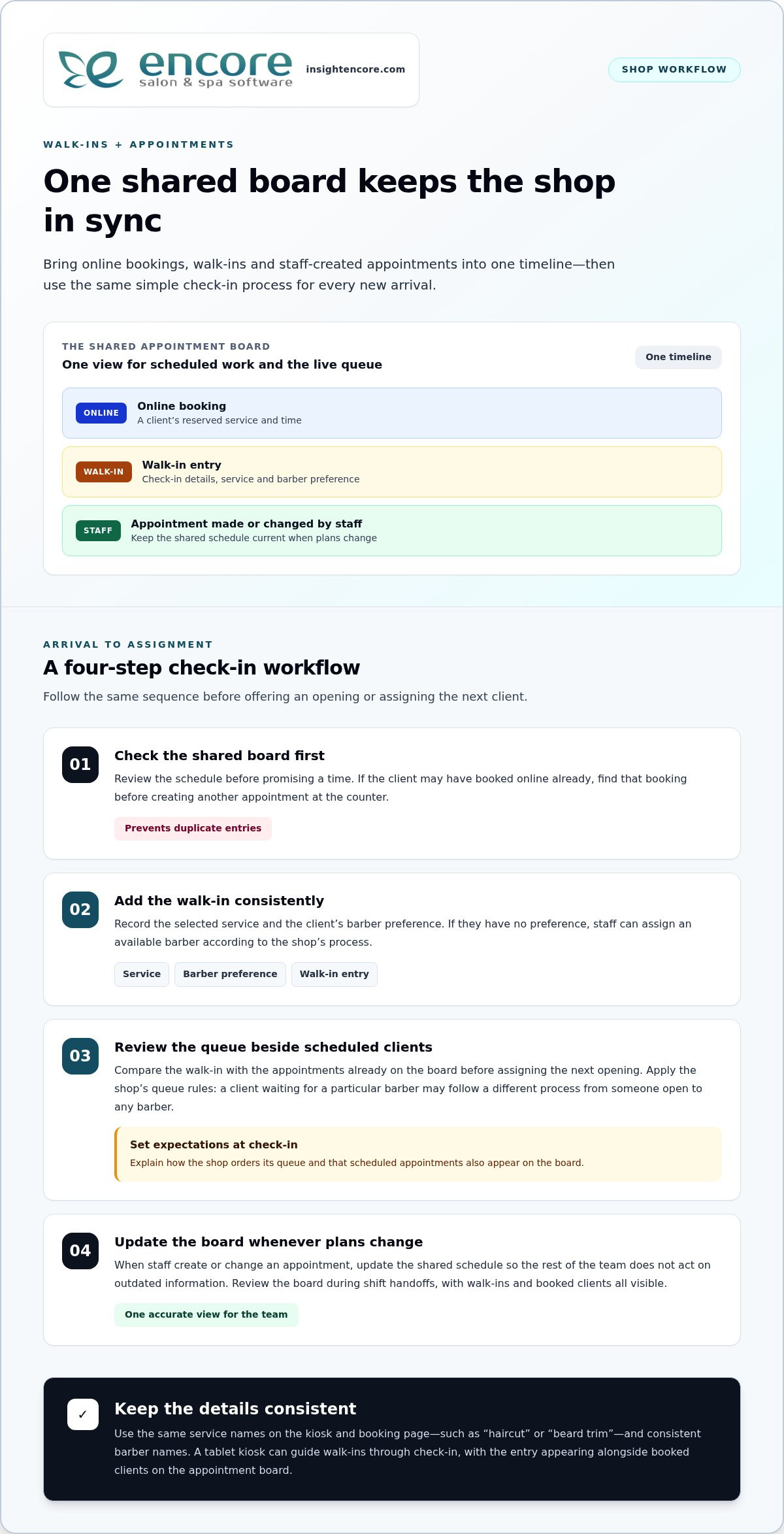
A shared appointment board gives the front desk one timeline for every client. It can combine online bookings, walk-in entries and appointments made by staff. When a client calls while another is checking in, staff can review the same schedule before offering an open slot instead of relying on separate notes or memory.
For walk-ins, a tablet kiosk can guide clients through check-in. They select a service and can choose a barber if they wish. The entry then appears on the appointment board alongside booked clients. For example, a walk-in requesting a haircut can appear in the same timeline as an online haircut booking, so staff can see the queue and scheduled work together.
Keep check-in details consistent. Use the same service names on the kiosk and booking page, such as “haircut” or “beard trim,” and use consistent barber names. Record a client’s barber choice with the walk-in entry. If they don’t choose, staff can assign an available barber according to the shop’s process.
Use a clear workflow whenever a new client arrives:
- Check the shared board before promising an appointment time.
- Add the walk-in with the selected service and barber preference.
- Review the entry alongside scheduled clients before assigning the next opening.
- Update the appointment board when staff create or change an appointment.
These steps help prevent duplicate entries. If a client has already booked online, staff should find that booking before creating another appointment at the counter. If a barber changes an appointment, update the shared schedule so other staff don’t act on outdated information. One timeline makes changes easier to spot.
Set expectations at check-in. Explain how the shop orders its queue and that scheduled appointments also appear on the board. A client waiting for a specific barber may follow a different process from someone open to any barber. Recording the service and barber preference helps staff apply the shop’s rules consistently.
Review the board during shift handoffs. Make sure online bookings, staff-created appointments and walk-in entries are all visible. If a barber is running behind, staff can check the schedule before offering an alternative. The aim isn’t to treat every arrival identically, but to give the team one accurate view and manage each client according to the shop’s queue and booking rules.
Multi-staff calendars, walk-ins, and waitlists
A shared calendar helps coordinate each barber’s appointments and availability. Pair it with a walk-in queue to manage arrivals as they happen.
Multi-Staff Calendar Coordination
Give each barber a distinct calendar view, with working hours, appointments and unavailable blocks easy to distinguish. Before assigning a client, compare the requested service and barber with the open schedule. If a client wants a particular barber, for example, staff can check that barber’s calendar instead of offering a time based on another team member’s availability.
Check how calendar changes appear to the team. When a barber’s schedule changes, staff need to see affected appointments and update them deliberately. Review the day’s schedule at opening and again during shift handoffs. This gives the next staff member a clearer view of remaining appointments and any updates.
Walk-In and Waitlist Handling
A waitlist connects clients waiting for service with the walk-in queue. Shops can show queue positions and estimated waits in real time on a TV or large screen. Clients get a visible reference, and staff can manage arrivals in sequence. A walk-in queue can also operate without online booking.
Decide what information staff need for each waitlist entry. A service request and barber preference can help direct clients appropriately. Someone waiting for a specific barber may need a different estimate from someone willing to see the next available barber. Update the queue when a client leaves, changes their request or begins service.
Use consistent steps to keep the calendar and queue aligned:
- Add each new arrival to the walk-in queue before giving a wait estimate.
- Review the assigned barber’s calendar before moving someone forward.
- Update the queue when a client starts service or leaves.
- Tell waiting clients when an estimate changes, and keep the screen current.
These habits help staff spot conflicts before they disrupt the day. If a scheduled appointment and a walk-in both expect the same barber, for instance, the calendar and queue make the overlap visible. Staff can then apply the shop’s booking and queue rules instead of making separate promises from memory. Check the display and calendar at each handoff so the team has the same information.
Software pricing and free plans
Compare the full cost of a plan with the tools your shop needs. A low starting price may not include payment processing or optional features.
Software Pricing
Compare subscriptions by included features, staff access and payment terms. Processing fees may be separate from the software subscription, so account for them as a distinct expense. The right barbershop appointment management app should fit your shop’s workflow, not just look inexpensive at first glance.
List the tasks your team needs to manage before comparing plans. A solo barber may prioritize appointment scheduling and client records, while a shop with several barbers may need individual staff calendars. Compare options against those needs, then review user limits, included tools and billing terms. This makes the cost comparison relevant to your operation.
Free Plan Options
A free plan can help you try an appointment workflow before choosing paid software. Check whether it supports the services, staff calendars and booking steps your shop uses. Review limits on appointments, team access, client records and payment tools. Compare what each plan actually includes, as limits can vary between barbershop appointment management apps.
Test a realistic booking process instead of judging a plan by its feature list alone. Add a service, create a staff profile, make a sample booking and review the client record. Then repeat the process from the staff view. This can show whether the free option works for both clients and the people managing the schedule.
Use this checklist to compare plans:
- List the booking and management features the shop relies on.
- Separate software charges from payment processing costs.
- Review free-plan limits on users, appointments and records.
- Try the main tasks staff handle during a typical workday.
Read plan terms for restrictions that could affect daily operations. Consider whether the free option supports your booking and payment processes, and whether its limits fit your staffing needs. If you add another barber, for example, access to staff calendars may matter more than it did when you worked solo.
Choose based on practical value, not headline price. If a free plan requires staff to track bookings separately, include that extra work in your comparison. Whether you start with a free plan or compare paid options, a suitable barbershop appointment management app should make core tasks manageable within your budget and workflow.
How do barbershop apps handle online booking, reminders, and cancellations?
Online booking lets clients choose a service, barber and available time through a booking page. The app uses the shop’s schedule to show bookable slots. A client can select a beard trim, for example, and see times assigned to an available barber. Accurate service names and durations help clients choose the right appointment. Keep those details current when schedules or services change.
After a client submits a booking, the app records the appointment and displays its status. The booking flow may include a confirmation with the service, barber, date and time. This summary gives clients a chance to spot mistakes early. Someone who chose the wrong barber, for instance, can correct the booking before arriving. Clear details also help staff prepare.
Reminder tools can send appointment details before the scheduled visit. The shop can use reminders to reinforce the time, location and service the client selected. A useful message is direct: “Your haircut with Alex is booked for Thursday at 2 p.m.” Keep the wording consistent with the booking record. If the appointment changes, update the record before sending further reminders.
Cancellation settings determine what clients can do after booking. Decide whether clients can cancel online, how staff record phone cancellations and how newly open slots become available again. Explain the process during booking so clients know how to cancel or request a change instead of simply missing an appointment.
Use a simple workflow to handle changes:
- Record each online booking with its service, barber and appointment time.
- Send a confirmation that repeats those booking details.
- Apply the shop’s reminder schedule to upcoming appointments.
- Update cancellations or changes on the calendar promptly.
- Offer the newly open time to clients seeking an appointment.
Test the full process before sharing the booking page. Make a sample appointment, review its confirmation, then change or cancel it. Check that the calendar updates and the released slot can be booked again. A staff test can also reveal confusing service names or missing instructions. Fix these details before clients rely on the page.
When the system supports it, connect booking details to returning clients’ records. Staff can then review appointment history before serving a repeat customer. Keep messages relevant to the appointment and avoid unnecessary details. A well-managed booking flow gives clients clear steps and shows staff schedule changes.
Encore Salon & Spa Software: Encore Salon Software
Encore Salon & Spa Software offers Encore Salon Software for shops looking to manage appointments and daily operations more efficiently. The platform brings online booking, client management, inventory tracking and point-of-sale tools together. This can suit a shop that wants to connect booking activity with client records and checkout instead of managing each task separately.
Consider a unified system when appointment details, client history or sales are spread across separate systems. Staff can access relevant information while serving clients and managing the shop. Encore Salon Software is designed for salons, while Encore Spa Software, Chair/Booth Renter Software and Tattoo Studio Software serve other business types.
Visit insightencore.com to explore Encore Salon & Spa Software.
Choose a setup that supports your next stage
Start by matching your booking system to how your shop works today, then consider how your needs may change as the team grows. A barbershop appointment management app should support the way you manage appointments and client details without adding steps your staff won’t use.
Encore Salon & Spa Software offers Encore Salon Software, Encore Spa Software and Chair/Booth Renter Software for different business types. Consider which setup best fits your operation. For barber shops looking to manage appointments as part of their business software, Encore Barber Software is also available.
Before making a change, list the tasks you want to manage in one place and involve the staff who handle bookings. A clear view of your needs makes it easier to choose a practical fit and move forward confidently.
A more organized booking process starts with a system that fits your shop. Take the next step when you’re ready.
Frequently Asked Questions
Can barbers collect deposits online?
Yes, if the booking system supports deposits and its payment setup allows them. Request payment during booking, then explain the deposit terms before checkout. For example, clarify whether the deposit applies toward the service and how cancellations are handled. Clear terms help clients understand the payment and staff recognize it when the appointment arrives.
Can clients choose a specific barber?
Yes, booking pages can let clients choose a barber when the shop enables that option. This suits clients who prefer a barber they’ve seen before. Keep barber names and availability current so clients choose from accurate options. If a client has no preference, offering an unassigned or next-available option can make booking easier.
Can it be linked from Instagram and social media?
Yes, a shop can share its online booking page through social profiles when the platform allows links. Add the booking link to the profile or a relevant post, with a clear label such as “Book an appointment.” Use consistent service names and shop details across profiles. This gives people who discover the shop online a direct path to its schedule.
Can it help bring in more clients?
It can make booking more convenient for people considering a visit, especially those who prefer not to call. A clear service menu and shareable booking page give potential clients a simple next step. For example, someone viewing a barber’s social profile can move from seeing the shop’s work to viewing available appointments. Booking tools make access easier, but service quality and client experience remain essential.
Can multiple barbers use separate calendars?
Yes, scheduling systems can organize availability by barber, making each team member’s appointments easier to review. This helps when staff work different shifts or offer different services. Assign each booking to the right person and review individual schedules when planning. Enter each barber’s working hours and time away before opening appointments, so availability stays accurate.
Can solo barbers use it too?
Yes, a solo barber can use appointment software to manage personal availability, client bookings and service details without coordinating a team. The barber can keep work hours and appointment types in one schedule, then share the booking page with clients. Choose settings that suit a one-person workflow instead of adding staff steps that don’t apply.
Does it prevent double bookings?
Scheduling software can reduce double bookings by marking occupied appointment times as unavailable. This helps when clients and staff add appointments through the same schedule. Once a client reserves a time, for example, it shouldn’t appear open to someone else. Record staff-created bookings and schedule changes promptly so the calendar reflects actual availability.
Does it send appointment reminders?
Yes, appointment software may send reminders using the contact details recorded for each client. Reminders can restate the appointment time, barber and service, helping clients find their booking information. A client checking a message before leaving home, for example, can confirm the scheduled service. Set message details to suit the shop’s communication style and keep appointment records current.
Disclaimer
This article is general in nature and may contain errors, please verify all claims with your sales rep